How Do I Set Up the Database Location?
Before any changes are made to any field in the Database Location dialog, all RamSoft services must be stopped. If they are not stopped, any new changes will cause the software to crash and can lead to serious problems such as loss of data and database corruption.
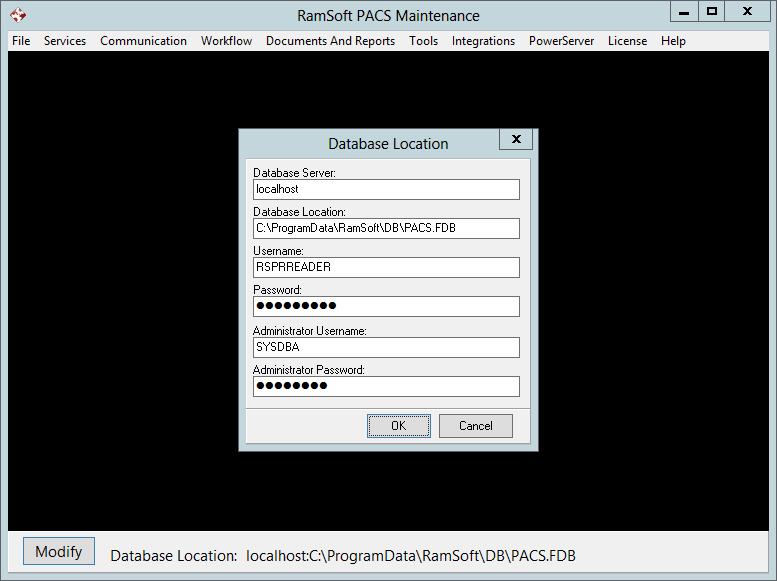
The Database Location that RamSoft PACS is currently using is always visible at the bottom of the screen, next to the Modify button.
To access the Database Location dialog:
- Click the Modify button found at the bottom left of the Maintenance application.

- This will open the Database Location window.
-
The Database Server field refers to the machine that the database engine runs on. This field will always be set to localhost on a Satellite Gateway machine. On a PowerServer, the database server will only be different if this is a distributed installation. In such a case, this field is still automatically populated by the installation program, and should only be modified, if the hostname of the database machine has been changed.
-
The Database Location field is the absolute path to the database file.
To change the name of the database file:
a) Stop local services through Services - Local Services - Stop menu.
b) Close the Maintenance module as it has an open connection to the database.
c) Open Windows Explorer, navigate to the database folder and rename the file.
d) Open the Maintenance module and change this field.
e) Start local services through Services - Local Services - Start menu.
-
The Username and Password fields refer to the username and password required to connect to the database. These are the values used by PowerServer. If these values are not correct, the application will not be able to access the database.