How Do I Import a Folder?
Individual DICOM Files and DICOM Folders can be imported into RamSoft PACS. DICOM information is extracted from the files and new patients and studies are created accordingly. The folders are imported directly into the server.
To access the Import Folder menu:
- Select File > Database > Import Folder.

- This will open a Browse For Folder window.
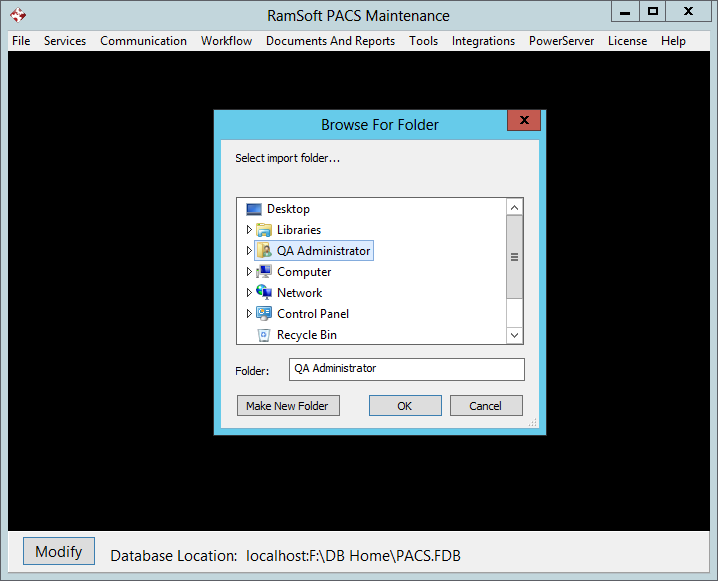
- Select the desired folder. This will open a Import Folder progress window.

-
The window is divided into two sections. The Import Status and Error Log.
-
The Import Status section displays the Status, Files Processed, Files Skipped and the current file being processed.
-
The Error Log section provides a listing of files which were not copied along with the associated error.
-
Once the import process is completed click the OK button.
Maintenance is able to resume import the pending folders. The below config entries must be set for the resume import feature to work:
- 'Log Server Imports'
- 'Skip Importing of Filters In Log File'
- 'Import Folder Log All Scanned Dir'
When these config entries are set, Maintenance importing will track every folder that has had its import completed, even if there are import failures, and log into a text file. When performing the import again, from the same folder, Maintenance will skip folders that have already been scanned.