How Do I Restore a Corrupt Database?
If the backup/restore process was not completed successfully, or if problems are still occurring after the restoration, then the database file can have more complicated problems. In such a situation, the easiest solution is to pump all the data into an empty database file.
If your database has become corrupted, the first step is to perform a backup and a restore. If the backup and restore process completes successfully then the database problems are most likely fixed.
The following steps describe the procedure of restoring a corrupt database:
-
Stop local services (For further reference, please refer to How Do I Stop Local Services section of the manual).
-
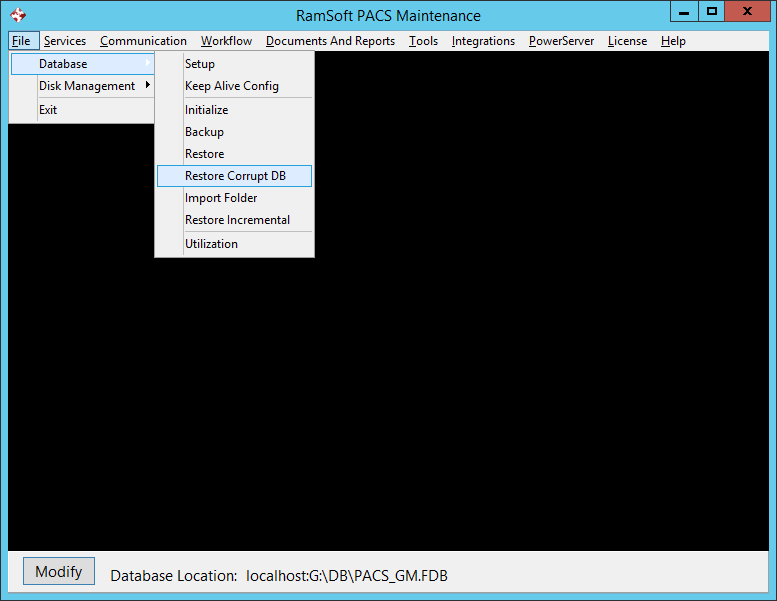
Click File > Database > Restore Corrupt DB.
-
Select the folder and name of the file that the database should be restored from. Click Open.
-
The database will be prepared for the pump. During this time a Restore Log will appear.
-
Once the Restore process is completed, the database is ready to be pumped. Click OK.
-
A dialog will appear indicating an Empty database file needs to be selected. By default the Empty.FDB file is placed in the C:/Program Files/RamSoft/DB folder. The dialog will open to this folder. If the folder location is the default location, the file will appear and simply needs to be selected. If the DB folder is not in the default location, it has to be located and the Empty.FDB file has to be selected.
-
Click Open.
-
At this point, the empty file is renamed to PACS.FDB and overwrites the existing database file. The last step is to pump the prepared database into the empty PACS.FDB. A message indicating this appears.

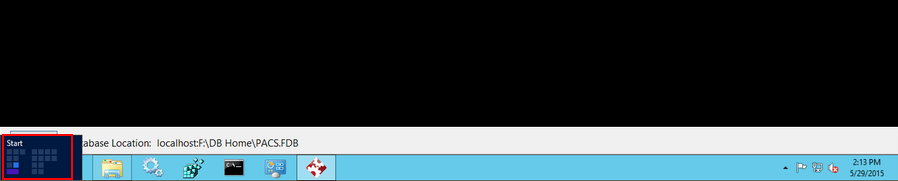
- Hold your mouse pointer at the bottom left corner of your desktop and then click Start on the task bar. On the Start screen, type "ibpump" to locate the Interbase DataPump tool location.
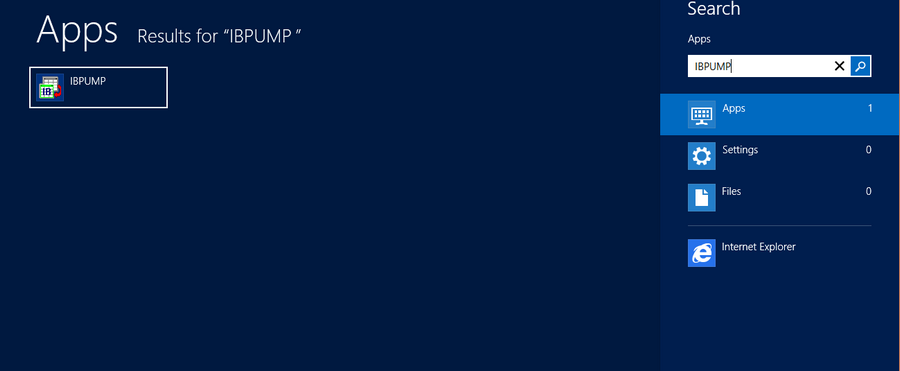
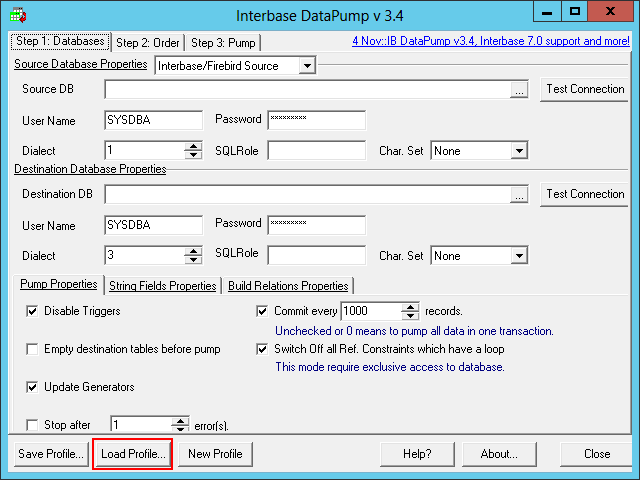
- The Interbase DataPump tool will load.
-
This will open a Load Profile window. Select C:\Program Files\RamSoft\DB\Pump.ibp and click Open.
-
Once the profile has been loaded, locate Pump.FDB file in the Source DB field. Click Test Connection to verify source database connectivity.
-
Locate the PACS.FDB file in the Destination DB field. Click Test Connection to verify destination database connectivity.
-
Click on the Pump tab.

-
Click the Start button.
-
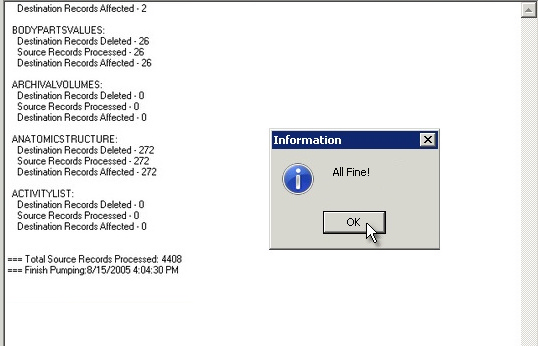
Records will be pumped to the new database. You should not see any warnings or errors during the pumping process.
-
Once the process is completed, close the IBPump tool.
-
Launch the Maintenance module.
-
Start Local Services (For further information, please refer to the section How Do I Start Local Services? of the manual).
-
The new database is ready for use.