Viewing & Editing Details about a Series
In order to view information about a series of images, open the Series information form. This form can be opened from the Worklist, by finding the desired study, clicking  Study Info icon and clicking the Series button on the Study Info form, or by right-clicking the series in the Patient Explorer and choosing the Series Info option.
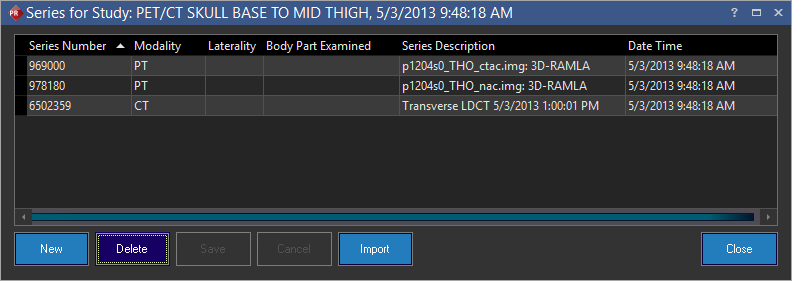
This dialog shows the listing of all the series of DICOM objects that make up the current study.
The Date Time column displays the Date Time when a series is added. If there is an existing series for the study and when you add a new series, the Date and Time information is retrieved from that of last added series entry. You can click on the Date and Time entry and then click on the drop-down arrow to manually select a different date and time.
If there are no existing existing series, when you add a new series, the current date and time will be auto populated in the date and time column.
To edit the information associated with any of the series, click on the field you will like to edit, and either select or type in the new information. Once finished, click the Save button to save the changes made.
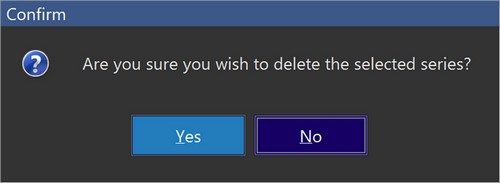
To remove any of the existing series, highlight it and click the Delete button. A message confirming the same appears on the screen. Click Yes to delete.