Creating a New Series
-
To create a series of images, first select a study from the Worklist. Click View Study Information
 icon. The application displays Study Info Detailed screen as shown below.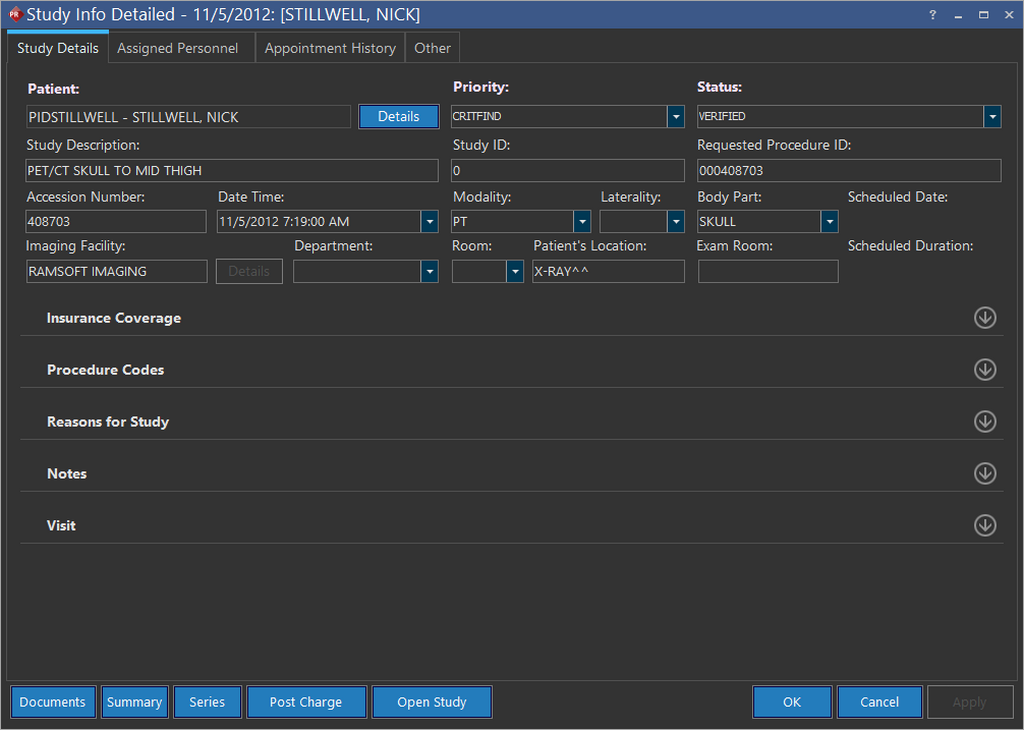
-
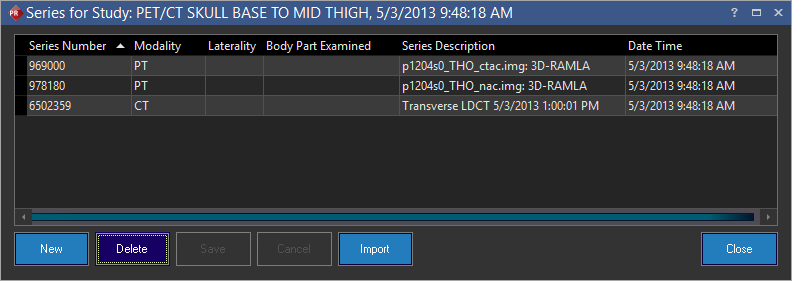
Click Series. The application displays Series for Study screen as shown below.
-
Click New to create a new series of images. The application will add a new row to the existing series list and automatically generate a new series number. It will also populate Modality and Body Part with the information associated with the previous series. This information can be edited.

-
Type the name of the examination in the Series Description text field and a Laterality if applicable.
-
Type the date and time in the Date Time field.
-
Click Save to save the new series.
To Import a Series
-
Follow steps 1 & 2 of How to create a New Series.
-
Click Import. Upon click, Import Image Files screen appears.
-
Select the objects you want to import and click Start Import.

-
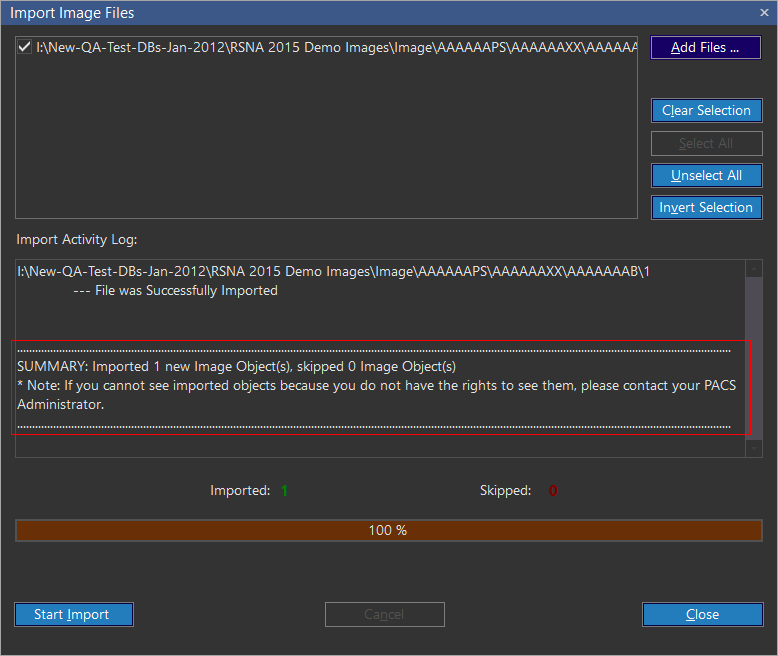
The application displays a summary of the import process as shown below.
For audible modality (AU), the Series Description must contain the word VOICE NOTE to differentiate AU modality between Dictations and Voice Notes.