Linking Images Across Series
There is an auto link feature available in the hanging protocols that will link related series of images together. However, in order for it to work, positional information is necessary as part of the data associated with the images. Certain images, cardiac ultrasounds for example, do not contain positional information, yet it is very useful to play them simultaneously.
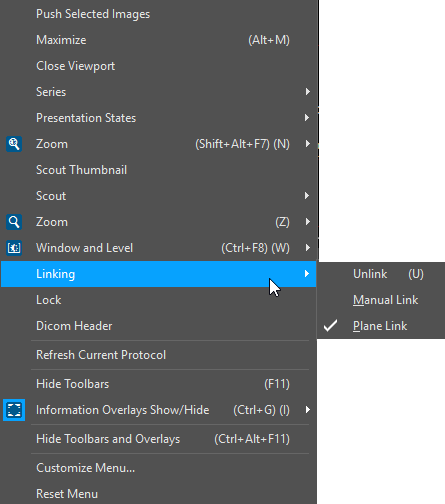
The Linking option appears in the menu, only if more than one viewport is currently being displayed on the screen. Choosing the option opens the following menu.
The Linking option can be found in the Image Right Click Menu or you can use the Linking icon  dropdown menu on the image toolbar. You can also enable linking using the shortcut key L. Pressing L enables Plane Linking or Manual Linking depending on which option is currently available. Pressing the shortcut key U selects the Unlink option.
| Manual Linking can be used to link series that are on the same plane, i.e. axial, sagittal or coronal etc. You can specify the starting point of the linking set by positioning the slices within each as per preference and select the Manual Link option from the menu. Note that in Manual Linking mode, the Mouse Wheel to Next Frameset option is disabled. The Plane Linking option will link all the currently visible series that are in the same plane and additionally links the slice positions as well. Scrolling through any one of the series will result in the linked series scrolling along with it. Furthermore, if the linked series do not have the same number of images, scrolling will be performed on selected viewport images and all the linked viewports by synchronizing the images based on the position relative to the current slice of the selected viewport. In this way the system will automatically determine the scrolling intervals in order to always display the images that are related to the closest image based on location. When linking framesets with different orientations, Plane Linking ensures that the slice locations between the framesets are matched. You can mark one image per series. For example if you want to link two series, but you want image 1 in series 1 to be linked to image 20 in series 2, you need to mark those two images. Now when you start scrolling through series 1, series 2 will start scrolling along with it, but will be offset by 20 images. Once you have set all the manual linking points, reopen the linking menu. Note: When scrolling, all linked series are scrolled based on index when series of different studies are being linked. |
Note: All framesets are sorted. Images are displayed right to left, top to bottom, and anterior to posterior. All Framesets are oriented to standard orientation.
Linking images with Bilateral Views
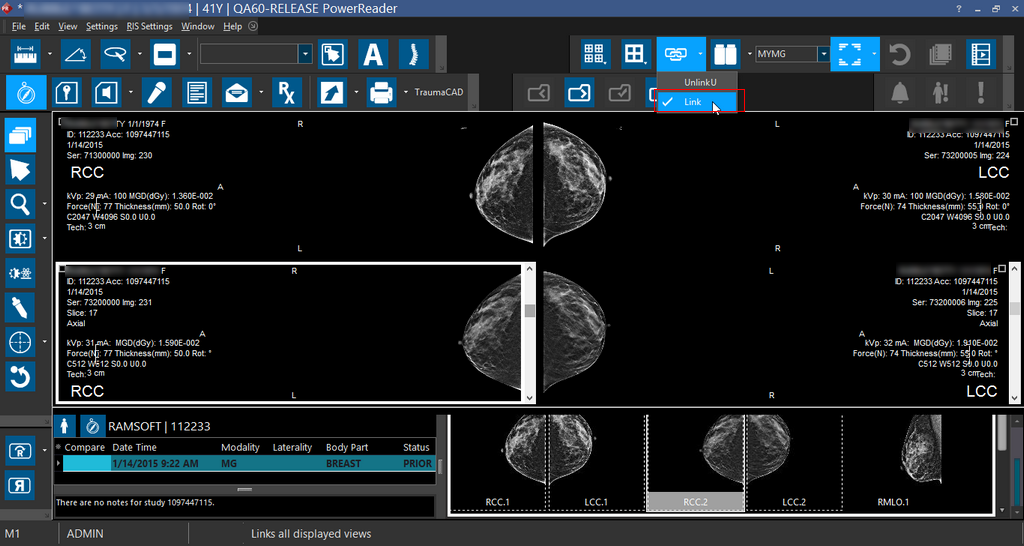
Linking MG/CR/DX images is similar to linking other modality study images except for the fact that these images can be linked automatically based on the Viewing protocol setup.
Typically a Viewing protocol enabled with Linking is used when linking two series. The Compare with prior studies option is useful to compare current and prior studies.
For an MG study you can link different image views across different series based on the Image Views (For example, RMLO,LMLO,RCC, LCC etc). This may be useful in scrolling through the left and right breast mammographic views series in two viewports.