How Do I Create a New Presentation State?
When you begin modifying a study, a new presentation state is automatically created and all the modifications are stored within it. When the study is closed, the presentation state is saved. The name given to the presentation state is the last name of the user who created it. After a presentation state has been saved, it cannot be modified.
When a study is opened, the last presentation that was saved is the one that is displayed over the study. However, any modifications are now saved as a new presentation state. This means that there is a presentation state saved for every user session with the study.
The software does provide the option of creating multiple Presentation States. This can be done through the Presentation States option available in the Image Right Click Menu. Presentation state applied using this option gets applied only on the active/selected view port.
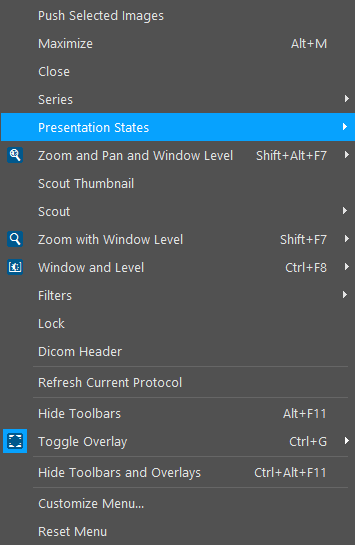
This will open the list of all the Presentation States associated with the image.

The presentation state that is currently being created will be one among the list as shown above.
By default, the number of presentation states that get loaded for a series is 10. You can change the default number of presentation states to be loaded for a series by setting the value in the System Configuration entry "Maximum Presentation States Per Series".