Locations
Locations is a part of Imaging facilities tab. This feature allows you create, modify, delete, and duplicate the department/internal facilities and preferred method to distribution medical report.
How to Create a Location?
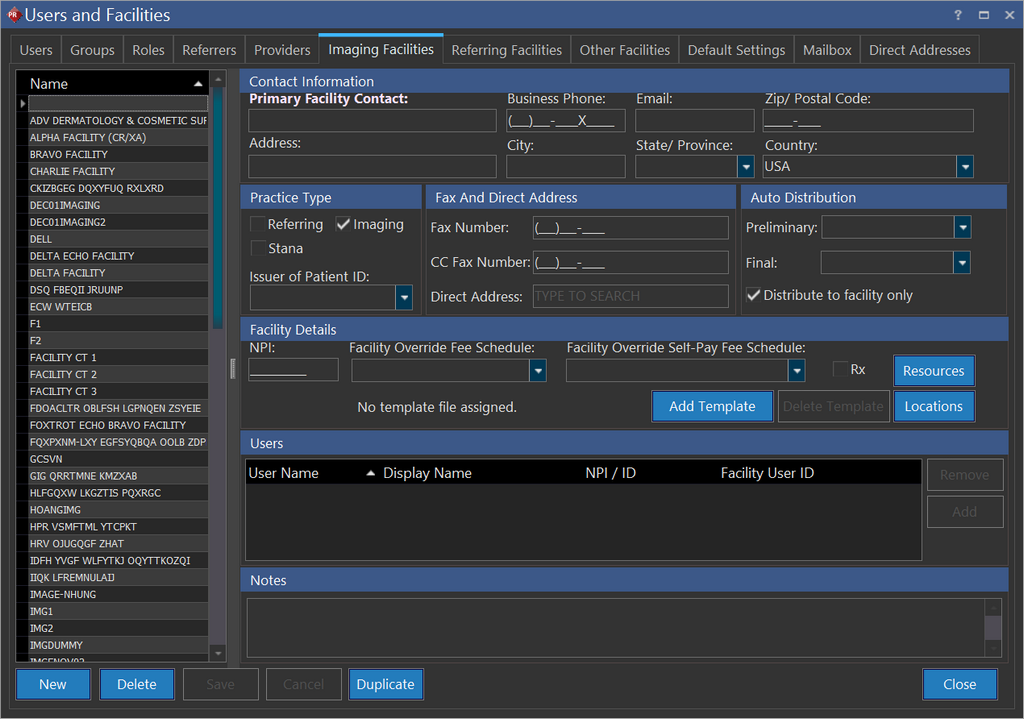
- Click Settings > Users and Facilities > Imaging Facilities tab to create a new location. Imaging Facility tab appears as shown below.
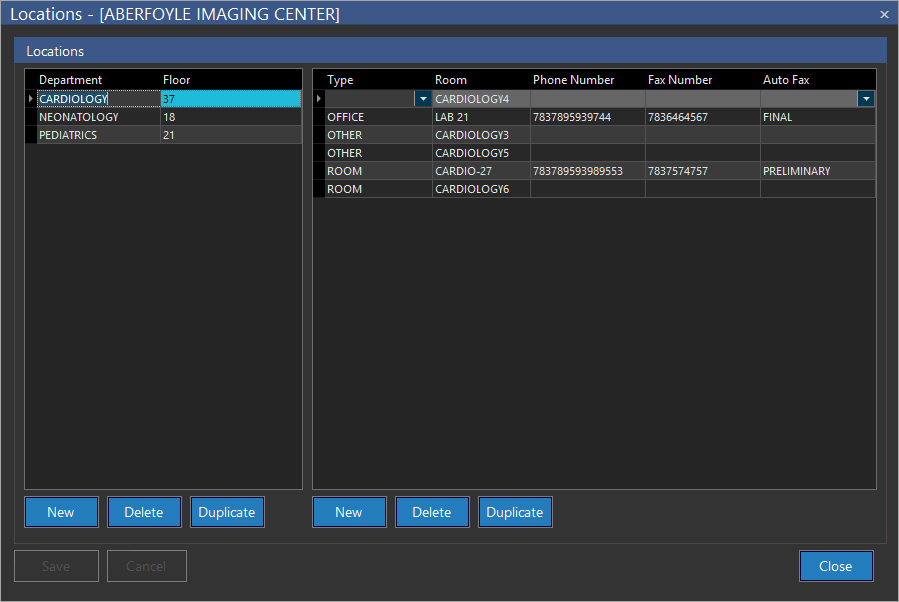
- Click Locations. Locations screen appears as shown below.
- Determine whether to create a new department/internal facilities in an existing department.
Create Department
- Click New found on the extreme left if you wish to create a new department. Upon click, the cursor moves to the left pane under Department.
- Type in a name of the department in Department text field.
- Type in which floor the department is located in Floor text field.
- Click Save.
Create Room
- Click the New button at the bottom center of the screen.
- Type in the appropriate data in the remaining fields and click Save.
- Click Close to exit.
How to duplicating an existing Department
If your business demands to create a new department which is almost similar to an existing facility, you can make use of this duplicate feature.
- Select the name of the existing department/internal facility which is most similar from the list available in locations of Users and facilities screen.
- Click Duplicate. Upon click, the application will create a copy of the chosen department/internal facility.
- Do the necessary modifications in the required fields.
- Rename it appropriately and click Save.
Deleting a location
A department can be deleted by pressing the Delete button and confirming the dialog. Any internal facilities within the department will also be deleted.
How add further details to a new location (Modification)
Upon creation of a new department, at any point of time you may add any number of internal facilities as desired.
- Click New found in the center of the screen.
- Type in the appropriate data in the remaining fields and click Save.