Creating and Editing Voice Recognition Commands
- To create a command in Dragon, click Tools > Command Center > Add New Command (Or Tools > Add New Command depending on the version) in the toolbar at the top of the screen.
-
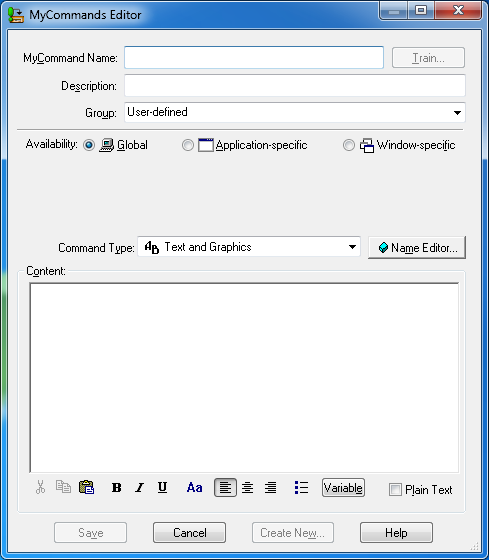
Type in a MyCommand Name. These are the words you will say to load the text into your document.
-
Once the command has been named, click on the Train button, then press the Go button to speak into the microphone. This will train Dragon on your new command
-
Click Done when finished.
-
Type in or paste the contents of the macro into the Content field. Ensure that the font settings are correct (the font settings can be changed by clicking the Aa icon).
-
If you desire to use or keep the font settings available in your Microsoft Word template, select the Plain Text option.
-
Click Save to preserve the selected options
-
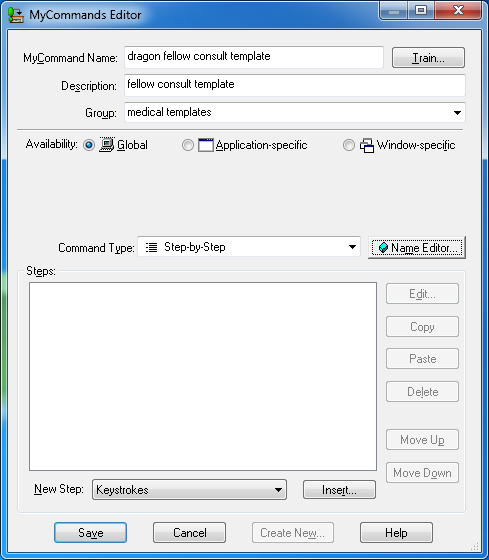
To create a Dragon command which can be used to define hot keys or certain actions, select the option Step-by-Step in the Command Type drop-down menu.
-
Enter the key strokes needed to perform the command in the Steps section.
-
Click Save.
-
To edit the command, click the Tools > Command Browser button in the toolbar at the top of the screen. If the toolbar is not visible, right-click microphone in bottom right-hand corner of the monitor and choose Tools > Command Browser.
-
Click on MyCommands and scroll to the desired command.
-
Hover the mouse over the desired command to highlight it.
-
Right-click to display the sub-menu and choose Edit.
-
In the content section, update the text of the command.
-
If you wish to change the font, click the Aa icon.
-
Click the Save button.