PowerScribe 360
PowerScribe is a speech recognition application which enables physicians to dictate, edit and electronically sign reports created by the program. For further information about PowerScribe, please visit http://www.nuance.com/products/powerscribe360/index.htm.
After installing PowerScribe on the server and client(s) and properly configuring HL7, the following steps should be taken to complete the integration and use the application.
-
Create a user in PowerReader with the same username and password used for PowerScribe 360 account.
-
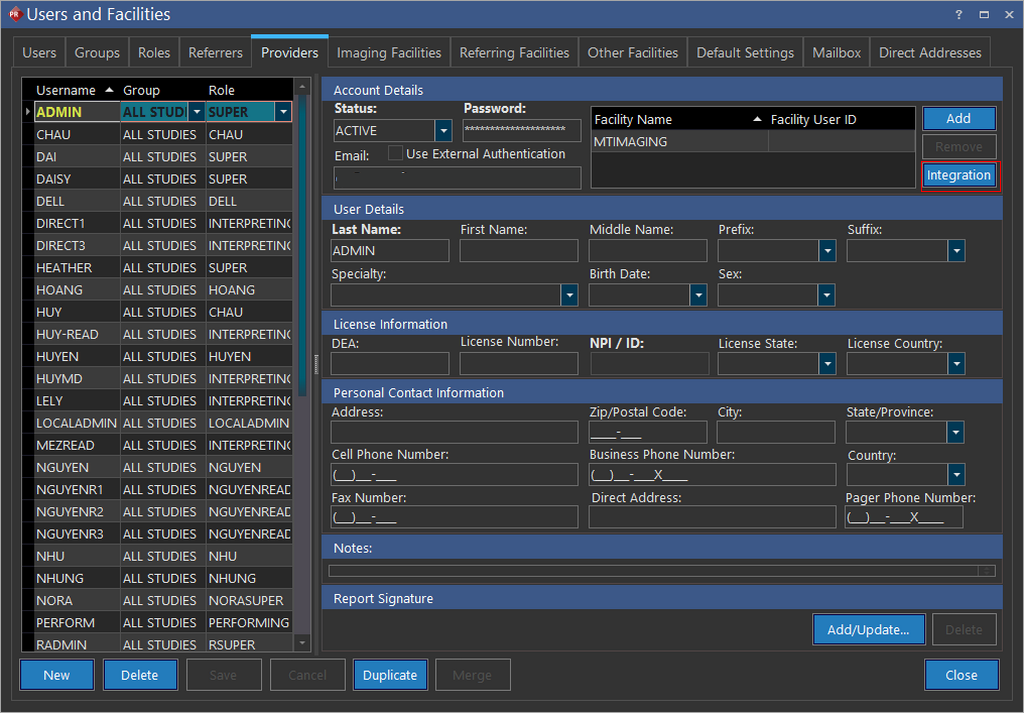
In PowerReader, go to Settings > Users and Facilities > Providers and select a user.
-
On the Account Details section, click the Integration button. The Integration window appears.
-
Click Add.

-
From the Integration drop-down menu, select PowerScribe and enter the login credentials for PowerScribe account.

-
Click Save.
-
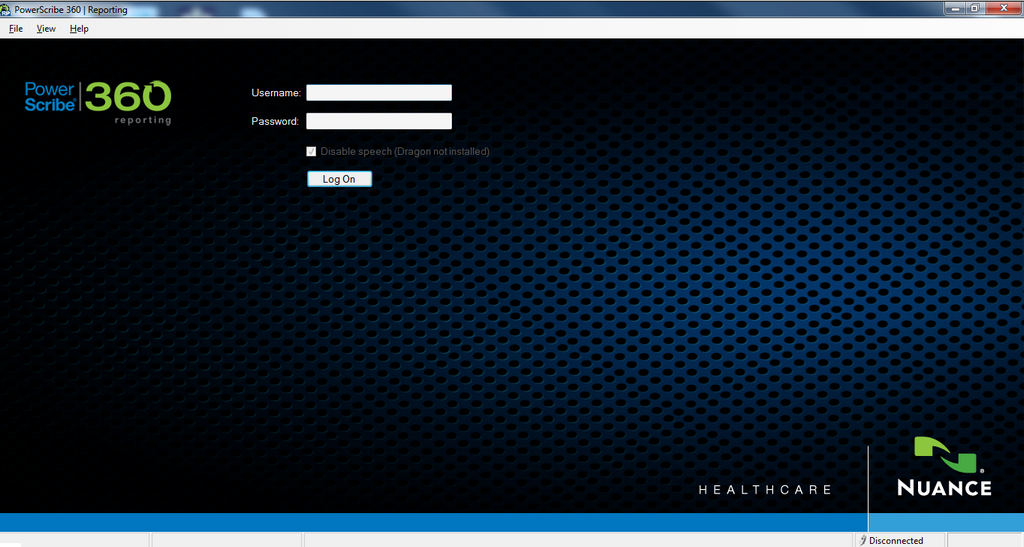
Launch PowerScribe 360 client. You do not have to login.
-
In PowerReader open a study.
-
The PowerScribe Reporting window appears listing any reports for the Study.
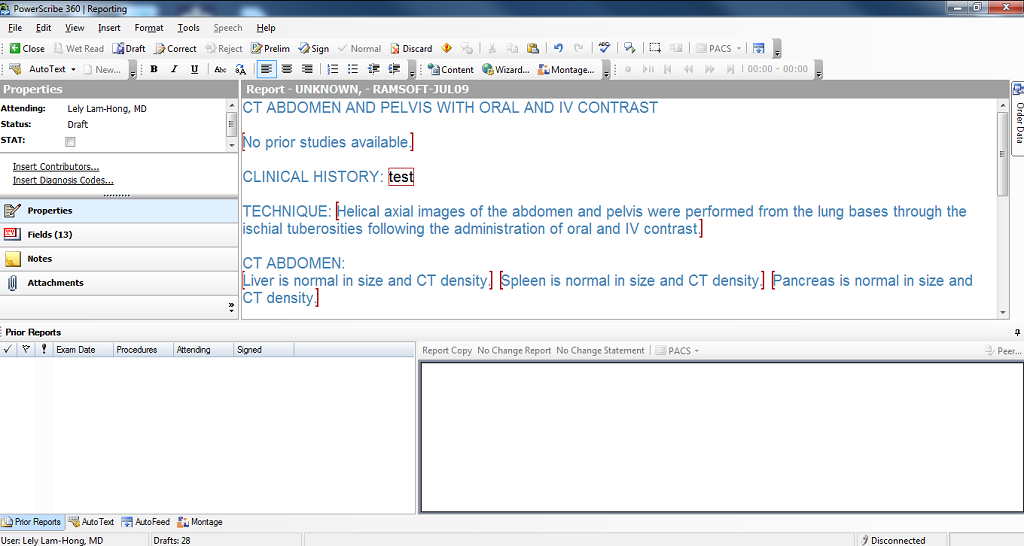
If HL7 is not enabled properly and the patient is not present on both PowerServer and PowerScribe, a message will state that an order does not exist for the patient.
-
Make any necessary edits to the text.
-
Click on the Draft button when finished to save the report.
-
Click on the Sign button to sign the report and send it to PowerServer to be displayed as an SR Report.

Note that when you try to edit/sign a report in PowerScribe for a study with status greater than or equal to the value provided in the configuration entry "Prevent Modification Status", the study status would not advance in PowerReader.