Troubleshooting Dragon Medical
Issue - 1
While launching PowerReader with Dragon integration enabled, the user may encounter the following message.
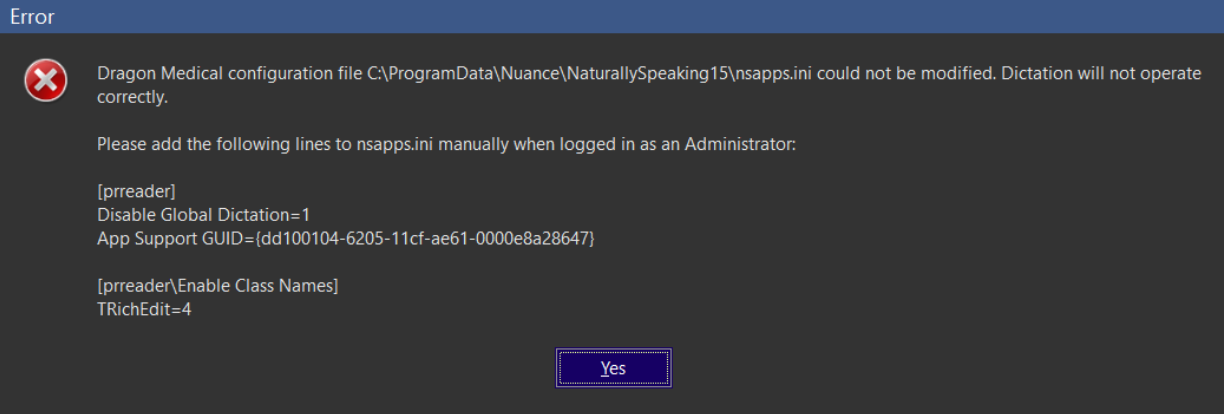
In this case, user will need to follow the on-screen instructions and add the following text manually in the nsapps.ini file.
[prreader]
Disable Global Dictation=1
App Support GUD={dd100104-6205-11cf-ae61-0000e8a28647}

[prreader\Enable Class Names]
TRichEdit=4
The modifications in the nsapps.ini file is required for Dragon integration to work properly with PowerReader. The nsapps.ini file is protected by default. The user needs to elevate his or her privilege in order to be able to modify the file. Once the file is modified and saved, Dragon can be launched successfully.
Issue - 2
When Dragon Medical is running in the background, opening menus in Windows Explorer or Internet Explorer may cause these applications to freeze. One of the causes of this issue may be the display option for menu transitions set to Fade.
It is recommended that the users should either turn off the Active Accessibility in Dragon or disable the Fade option.
The steps for disabling the Fade option are:
-
Launch Dragon.
-
On the Dragon toolbar, go to Tools > Options.

- Select the Miscellaneous tab.
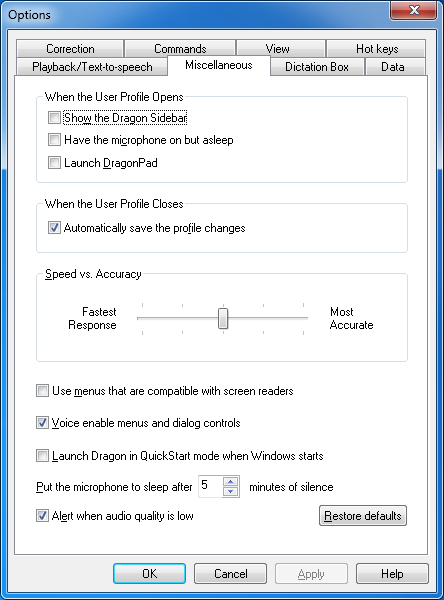
- Uncheck the following two options:
- Use Active Accessibility for menu and dialog control (v6, 7, 8, 9, 10)
- Voice enable menus and dialog controls (v11 and above)
- Click OK to save changes.
The user can also follow the steps below:
-
Right-click on the Windows desktop.
-
Choose Properties in the context menu.
-
Click on the Appearance tab.
-
Click on the Effects button and uncheck the Use the following transitions for menus option.