Dragon Medical One
Note: This guide is for Dragon Medical One, there is a different guide for Dragon NaturallySpeaking.
Setting Up Dragon Medical One
-
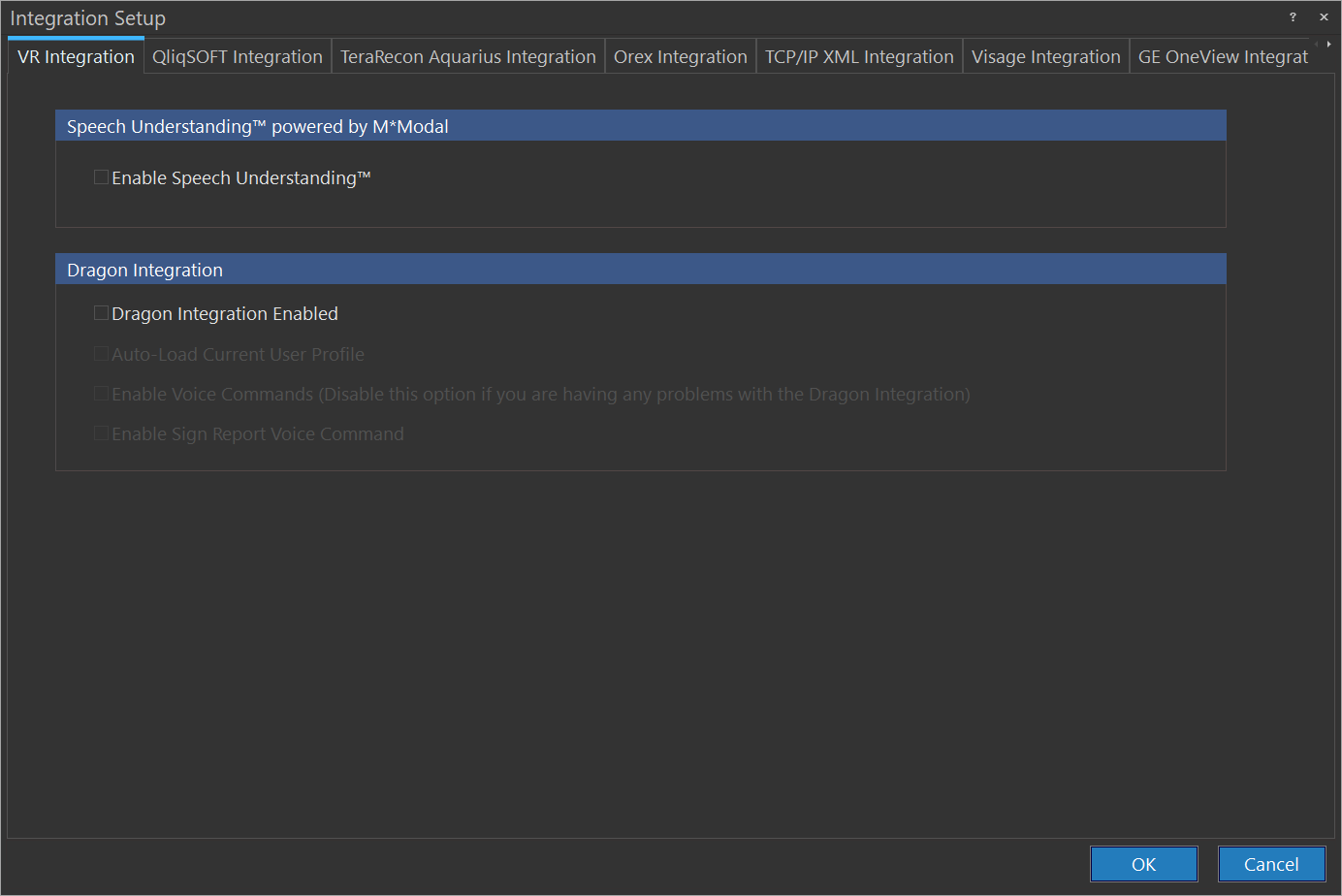
Click Settings > Client Integration Setup.
-
Click on the VR Integration tab.
-
If Dragon is enabled, Uncheck it. (This setting is used for Dragon NaturallySpeaking & not Dragon Medical One)
-
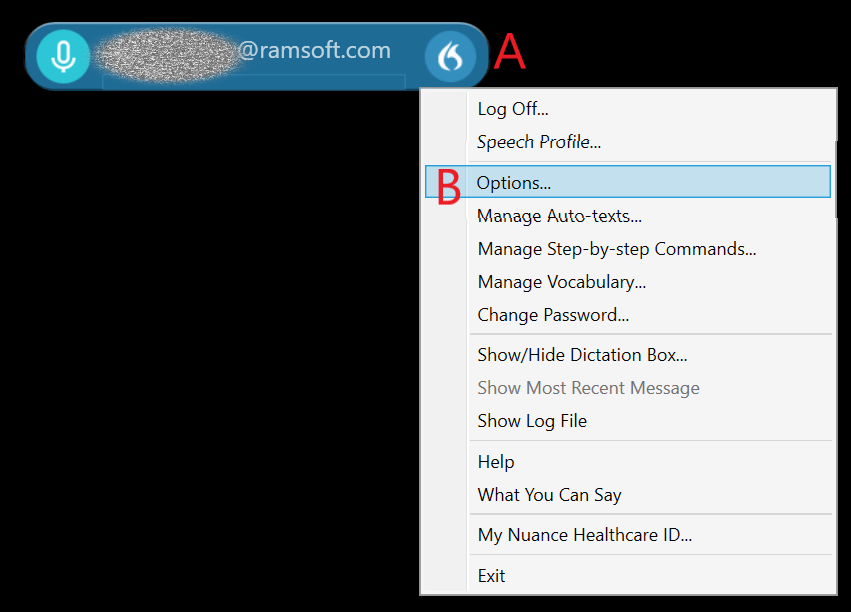
Run the Dragon Medical One application and click on the Dragon logo (A) to access the dragon medical one menu and select options (B):
-
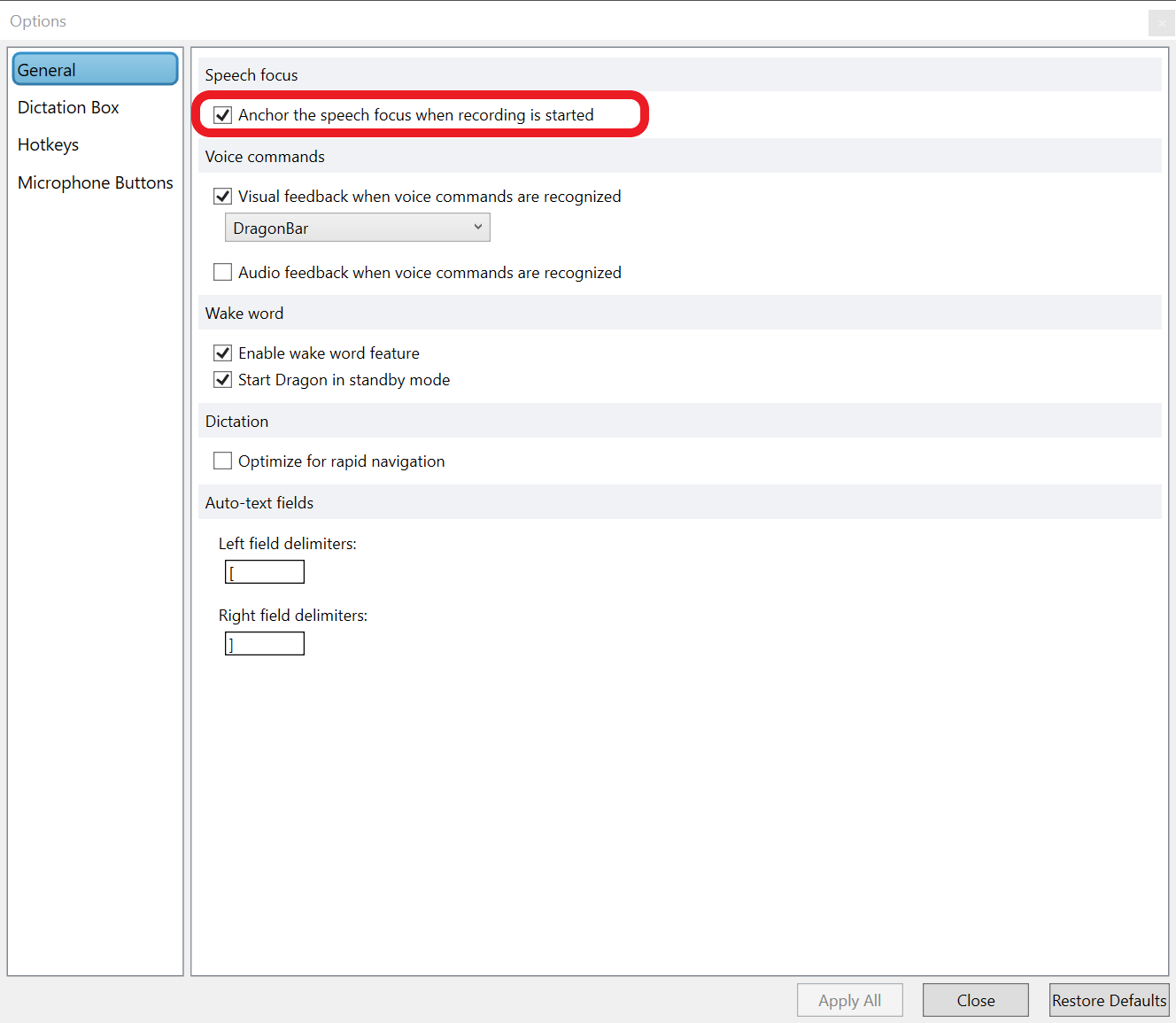
Enable the anchor the speech focus when recording is started (marked by red on the following screenshot), this setting is required if you want Dragon to keep the focus on the report when you start to dictate:
Dictation with Dragon Medical One
-
To start dictating, open the Document Viewer of a study.
-
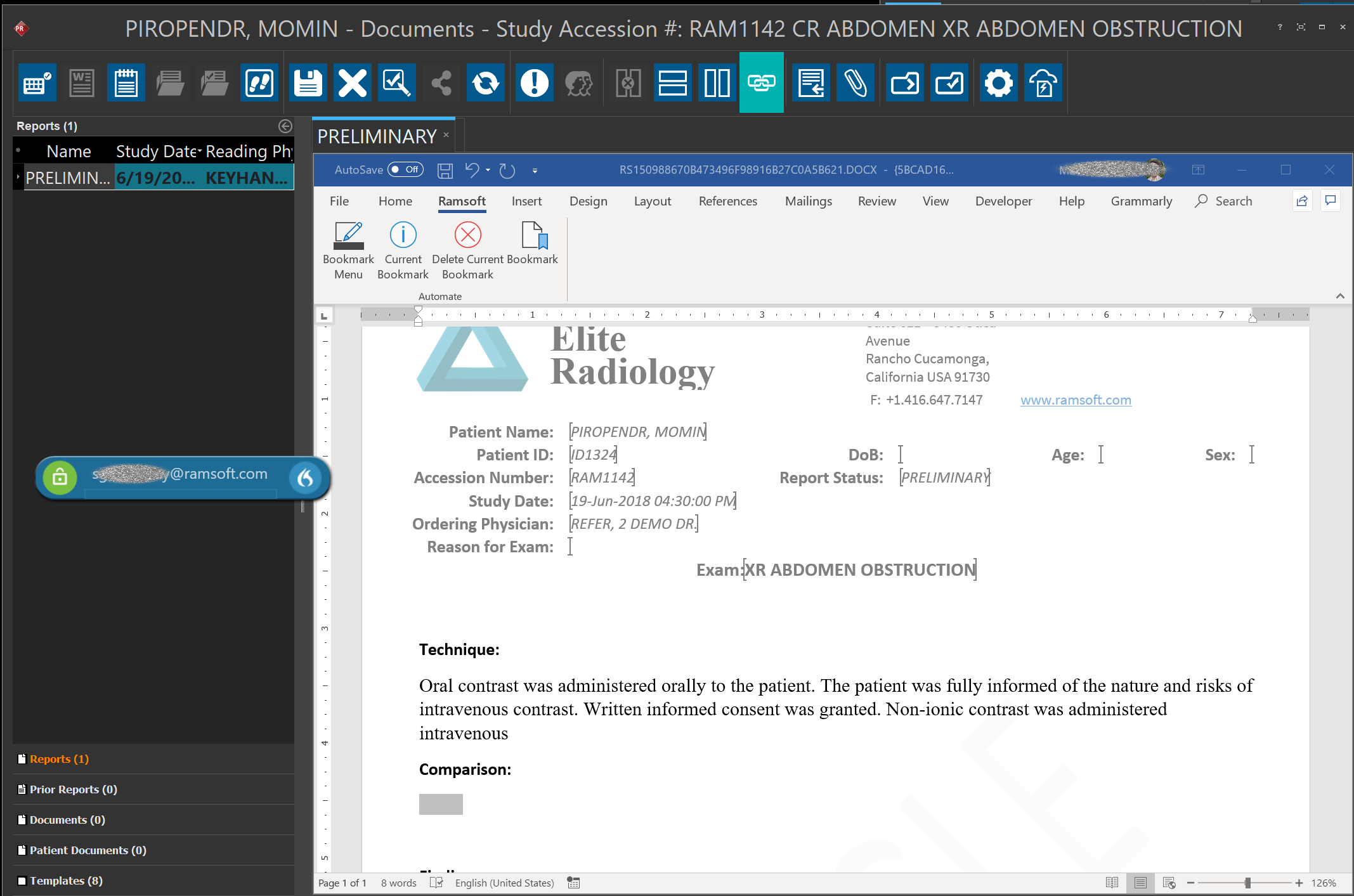
To make sure that Dragon is anchored to the report the blinking cursor (windows focus) should be on the report when you start the dictation. To do that, click on the part of the report that you want to start.
-
Click on the hotkey or physical key on your microphone that is mapped to Dragon Medical One to start dictating. As soon as you do that, Dragon will recognize the Word document that is open in document viewer as the anchoring point and you are free to change your focus to other windows or scroll the study images while dictating.
Voice Commands
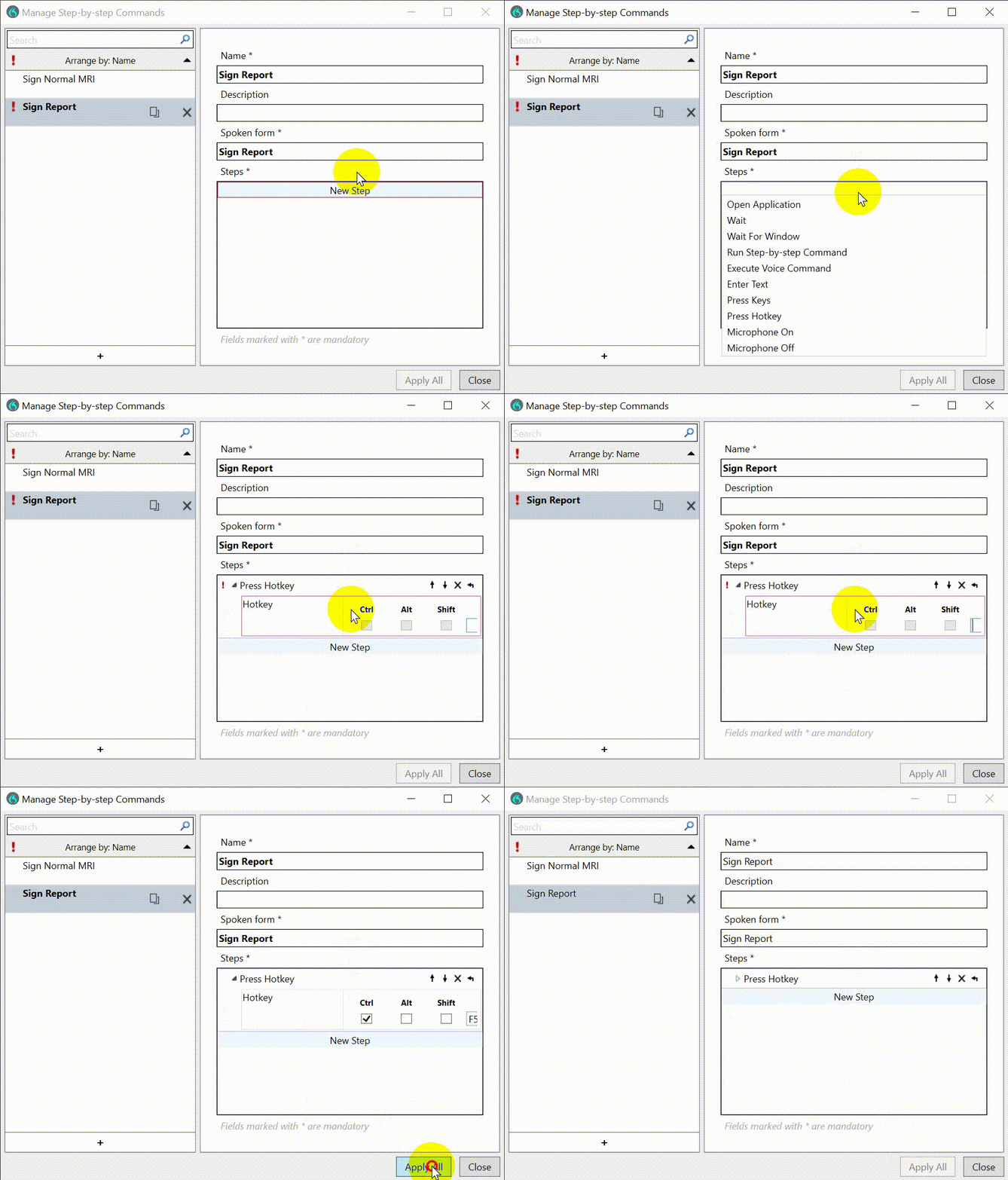
The Manage Step-by-Step Commands screen provides several functions. For example, you can use it to map a PowerReader hot-key to a voice command. Follow these steps to create a voice command for a PowerReader function such as signing a report:
-
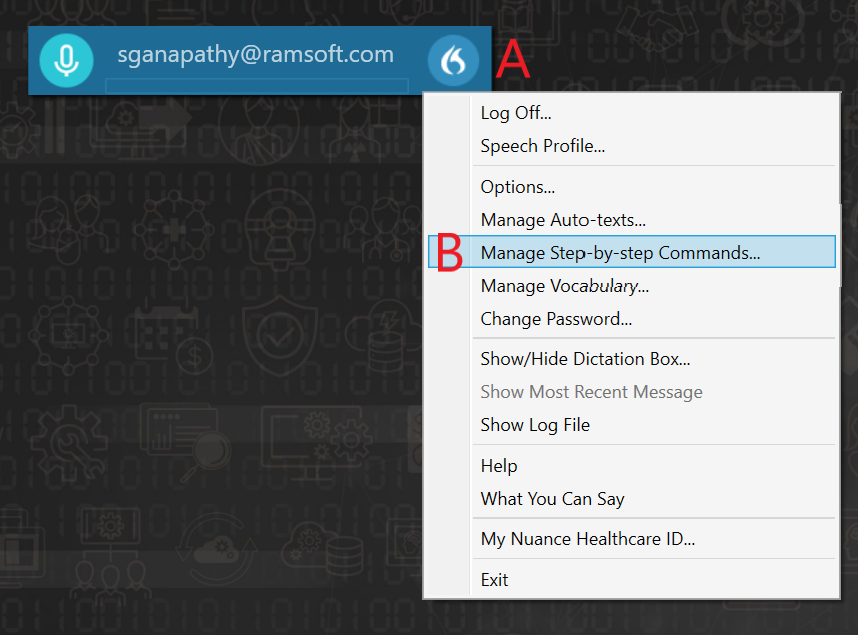
Run the Dragon Medical One application and click on the Dragon logo (A) on to access the dragon medical one menu and select Manage Step-By-Step Commands.. (B):
-
On the Manage Step-By-Step Commands screen, set a name & the spoken form you want to use to execute that command. Then Click on New Step & select hotkey. To assign the hot-key simply press it on your keyboard (For example, the shortcut for signing a report in PowerReader is Ctrl+F5:). Press Apply All to save your command.