Programmable Shortcut Keys
PowerReader allows users to customize their shortcuts keys for those that are used to using commands through the keyboard.
To customize the shortcut keys
- Click Settings > User Options > Shortcuts tab. User Options screen appears as shown below.
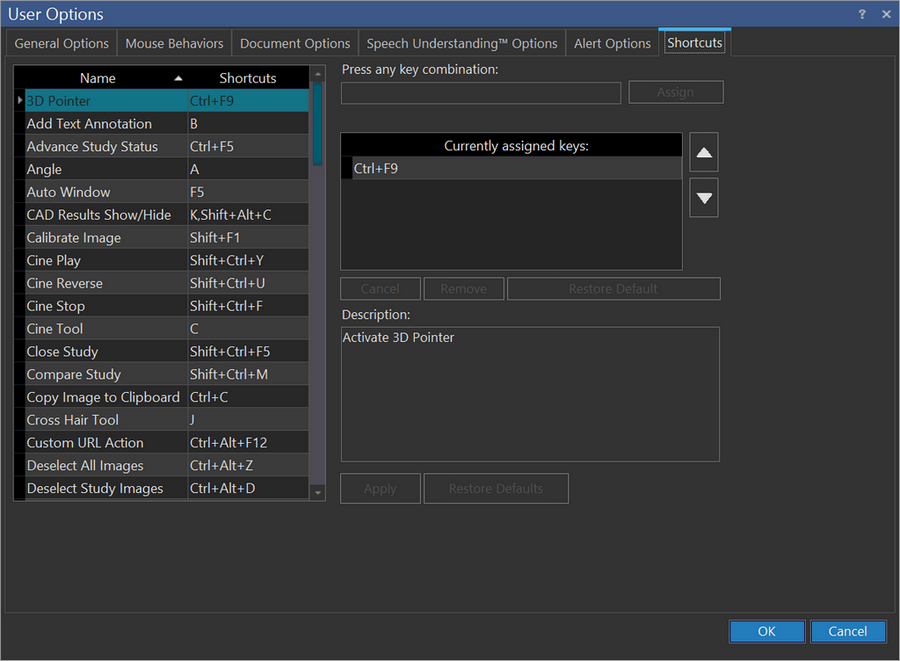
The left pane displays a list of all functionalities and its shortcut key combinations. In addition to the existing shortcut key(s), you can assign multiple shortcuts with any key combinations. You can create one or more shortcut keys only for the existing functionalities.
- Select a functionality from the left pane.
- Place the cursor in Press any key combination text field and type the key combination. For example (Shift + F2) press Shift key and hold it till you press F2.
- Click Assign.
- Click Apply and OK.
The newly assigned shortcut key can be used in addition to the default key or it can be used to replace a default key. If you want to revert it to the original shortcut, click on the Restore Default button on the right.
Explaining the programmable shortcut keys
| FIELD | DESCRIPTION |
|---|---|
| Name | Displays the list of all functionalities in PowerReader |
| Press any key combination | Press any key combination field is where you can enter a new shortcut key. If the key combination is already in use, a message will be displayed stating that the keys are already assigned to a specific function. |
| Assign | The Assign button is used to add a new shortcut key to an existing functionality. |
| Currently assigned keys | The Currently assigned keys list displays all the keys assigned to that functionality. This includes existing shortcut keys and newly created shortcut keys. |
 | The Up Arrow is used to move a particular shortcut key combination up in the existing list available under Currently Assigned Keys list. The shortcut key whichever available at the top of the Currently assigned keys list, will be displayed as a tool tip while the function is hovered over in PowerReader. |
 | The Down Arrow is used to move a particular shortcut key combination up in the existing list available under Currently Assigned Keys list. If a shortcut key is moved down in that list, it will not be displayed as a tool tip while the function is hovered over in PowerReader. |
| Cancel | The Cancel will allow to undo the previous function |
| Remove | The Remove button is used to delete a highlighted shortcut key in the Currently assigned keys list. |
| Restore Default | The Restore Default will remove the shortcut key(s) assigned/created by you and restores the default shortcut key(s). This function will restore the default shortcut for the selected functionality only. |
| Description | The Description displays an operation being executed in detail for the highlighted function. |
| Apply | The Apply will save the changes made to a particular function. The newly defined shortcuts will be saved only if apply button is clicked. |
| Restore Defaults | The Restore Defaults button will remove all user defined shortcut keys and restore the default shortcut keys of all functionalities. |
It is recommended not to assign commonly used MS Word shortcut keys (e.g. Ctrl+V, etc.) as programmable shortcut keys in PowerServer. Doing so may lead to unintended consequences.
Hardcoded Dictation Control Hotkeys
The dictation module's keyboard hotkeys are hardcoded in the RS1Dictate client (Delphi), not configurable. Explanation below:
Keyboard Hotkeys
| Hotkey | Action | Behaviour |
|---|---|---|
| Ctrl+Shift+Y | Play | Fires on key-down; starts playback (applies configured kickback offset) |
| Ctrl+Shift+F | Stop | Fires on key-down; stops record or playback, re-enables Play/Record |
| Ctrl+Shift+U | Rewind | Press-and-hold — rewind starts on key-down, ends on key-up |
What has no keyboard shortcut
Record, Pause, Record-Pause, Fast Forward, EOL, Critical Finding, Settings, and Cancel are mouse/toolbar-only or driven by the dictation hardware. Toolbar hints in MainDlg.dfm carry no accelerator text.
Key forwarding behaviour
While the dictation window has focus, it forwards all keystrokes (and mouse wheel) over IPC to the host application (PowerReader) — except those three Ctrl+Shift combos, which it swallows and handles locally, and F1 (MainDlg.pas:2162-2186). So, report-editor shortcuts still work while the dictation bar is focused.
Not user-configurable
The Settings dialog (DictationSettingsDlg.dfm) exposes no key mapping at all — only left-foot-pedal assignment (Rewind vs Fast Forward), "Hold Record to Dictate", beep tones, playback-while-seeking, truncate-on-overwrite, volumes, noise level, velocity/acceleration, playback speed, and kickback seconds. Changing the hotkeys requires a code change.
Hardware controls (for contrast)
Play/Pause toggle, Rewind, Fast Forward, Record (or Hold-to-Record), EOL, and Insert/Overwrite are mapped from device buttons for Philips SpeechMike, PowerMic / PowerMic 2 / PowerMic 4, and the X-Keys foot pedal (DictPowerMic2Unit.pas:60-130, DictXKeysUnit.pas) — pedal states, not keyboard scancodes.