Setting up Audio Export
RamSoft can export dictation and voice notes through Audio Export. It is disabled by default.
You can set up Audio Export in the system configuration.
There are a couple of configuration items you may want to consider, namely:
- How do I enable Audio Export?
- Which folder will the Audio Export send the files to?
- Login to PowerReader portal as an administrator and open PowerReader.
- Open the System Configuration menu by clicking on Settings > System Configuration.
- Type in "Audio" in the Search Configuration Items text box to see the list of configuration items related to Audio Export settings.
- Set Audio Export Output Directory to the folder location where you want to export the audio files to.
- Set the Audio Export Enabled value to "Y". By default, this value is set to "N".
- After setting these two options, click Save to commit your changes. Note that any changes to the system configuration will require a restart of the Report Distribution service.
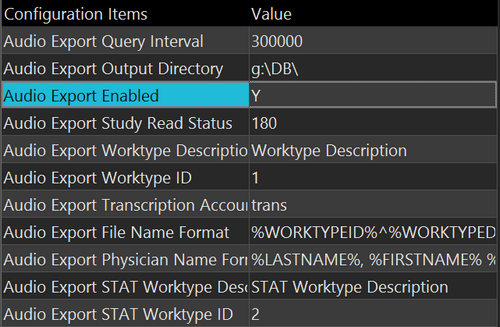
Audio Export is now up and running.
For more information on setting up other Audio Export configuration settings, please refer to the link http://help.ramsoft.com/helpmanuals/6.0/maintenance/index.htm?how_do_i_setup_audio_export.html