Viewing Study Images and Reports
This feature allows you to view the images captured during the examination/procedure and the reports on the image produced by the facility. In order to view study images and reports you will need to either select a study from "My Latest Exams" screen or perform a search using "Search" screen.
- Refer Searching for a Study
- Click the desired study from the list. Upon click, the application displays images as shown below. Users can view the following image formats in the Image Viewer: PNG, GIF, ICO, EMO and WMF.
Note: The images in the screenshot is based on the study and it differs from one study to the other.
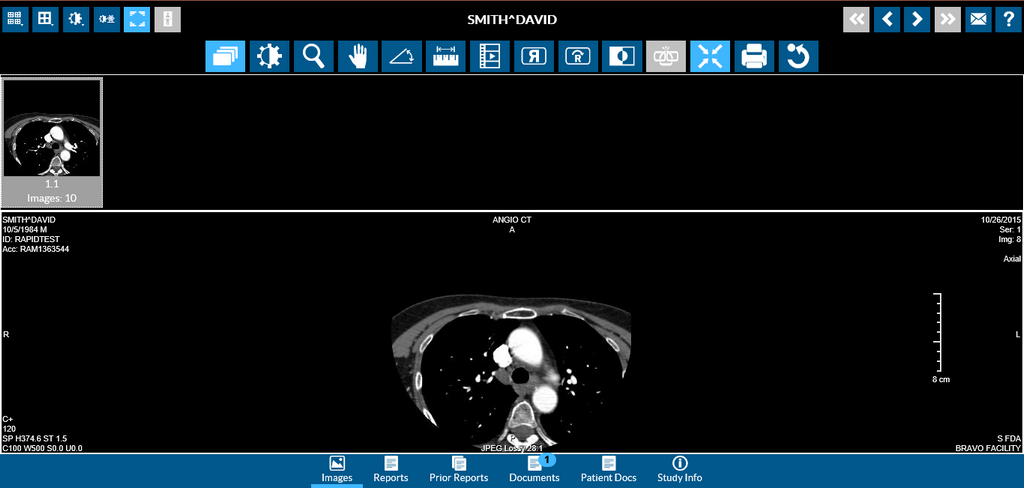
Listing of Reports:

This screen displays all the reports (Preliminary, Final and Addendum) associated with the study. The Report Date and Study Date columns on the left hand panel show the time and date the report was created and the time and date the study was performed. Scrolling horizontally to the left within the navigator lets you view the Reading Physician name assigned to the study. Users can adjust the margins of the columns in the Navigator section to view all the columns without having to scroll each time.

Users can view documents in the following formats in RapidResults : RTF, Word, JPG, JPEG, PNG, TIFF, TIF, Docx, DOTX, HTML, BMP, GIF and PDF.
Listing of Prior Reports
The following screenshot shows the image of sample prior report.
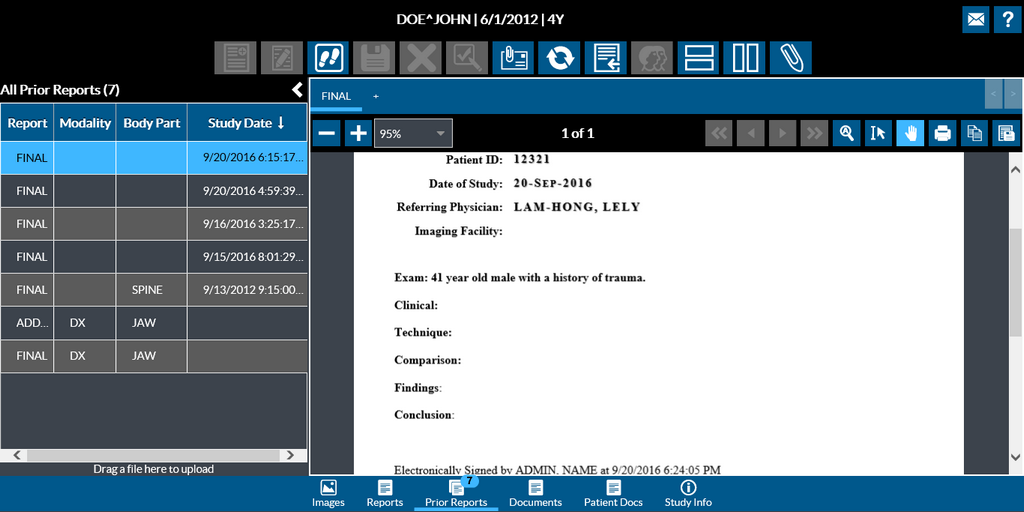
This screen displays the Prior reports of the study along with the study date and time.
Listing of Documents
The following screenshot shows the image of a sample document.
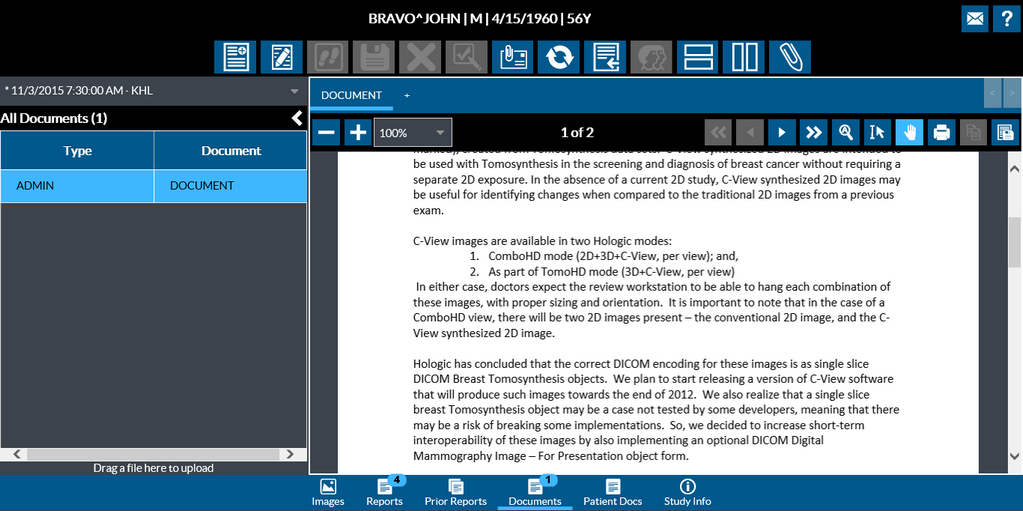
This screen displays all the documents that are associated with the study along with the type of the document. These can be documents (non diagnostic reports) that are associated with the study. The Study information text is displayed in white color text on the top of the Documents navigator as a Combo box listing all prior studies for the patient (including studies from linked patient records) and is available on the top of the Documents navigator as shown in the following image.
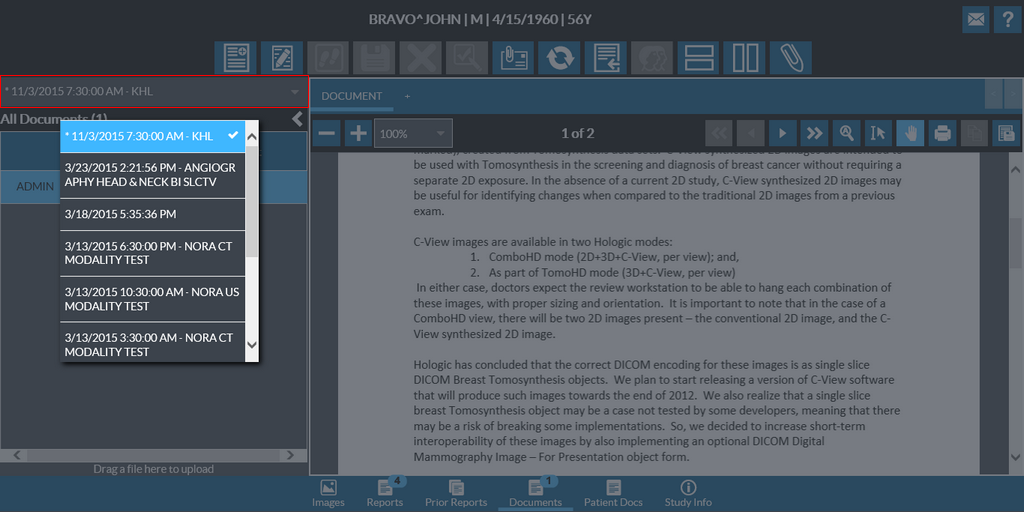
The study marked with an asterisk is the current study and is always at the top of the list followed by prior studies listed in chronological order based on study date.
If the study information has more characters than that can be displayed in the Document navigator, the text will be appended by "...". Hovering the mouse on the title displays the entire study information.
Selecting a study from this list will display all the documents for that study in the navigator below. Clicking on the document in the navigator would display the document in the Documents viewer.
List of Patient Documents
The following screenshot shows the image of sample patient document.
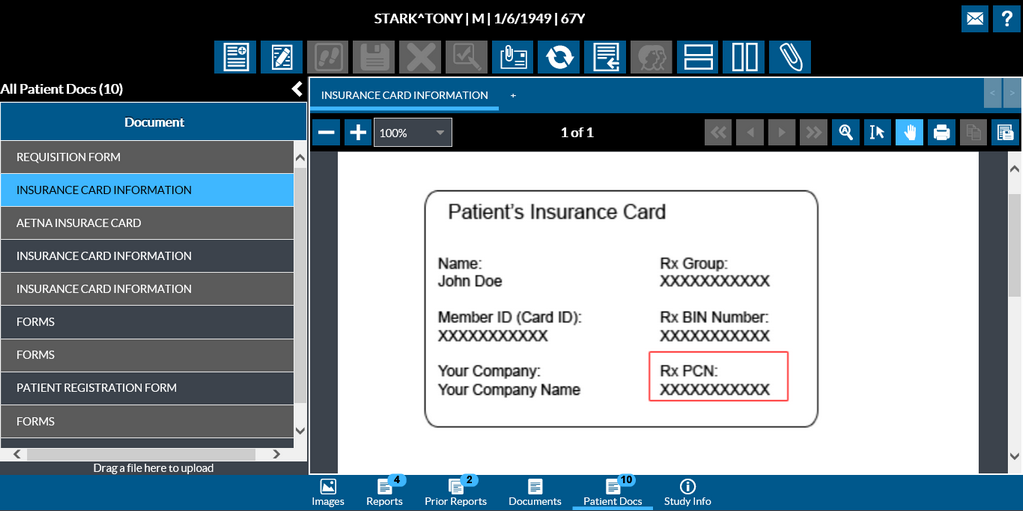
The patient level documents store specific information about the patient such as Patient Referral Info, Insurance Card, Patient Forms or Lab Reports.
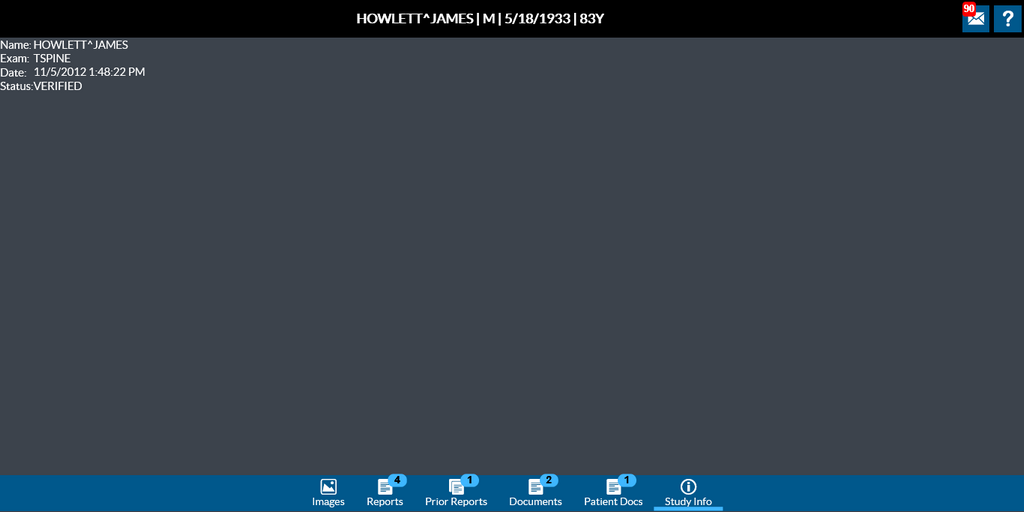
Study Information
The study information reveals the patient name, date & time of study, the exam being performed for the study and the status.
User Privileges
Reports, Prior Reports, Documents and Patient Documents are shown/hidden based on the "View Diagnostic Reports" and "View Documents" user privileges.
Users who have logged into Rapid Results using external authentication, have only the "View Diagnostic Reports" privilege enabled. Externally authenticated users can view only the selected study.