How Do I View a DICOM Worklist of Another Device?
Viewing studies on the current Worklist of another system can be used to acquire images or documents in that system. The Remote Worklist tab could be accessed from the PowerWorklist. Click Advanced > Remote Worklist tab.
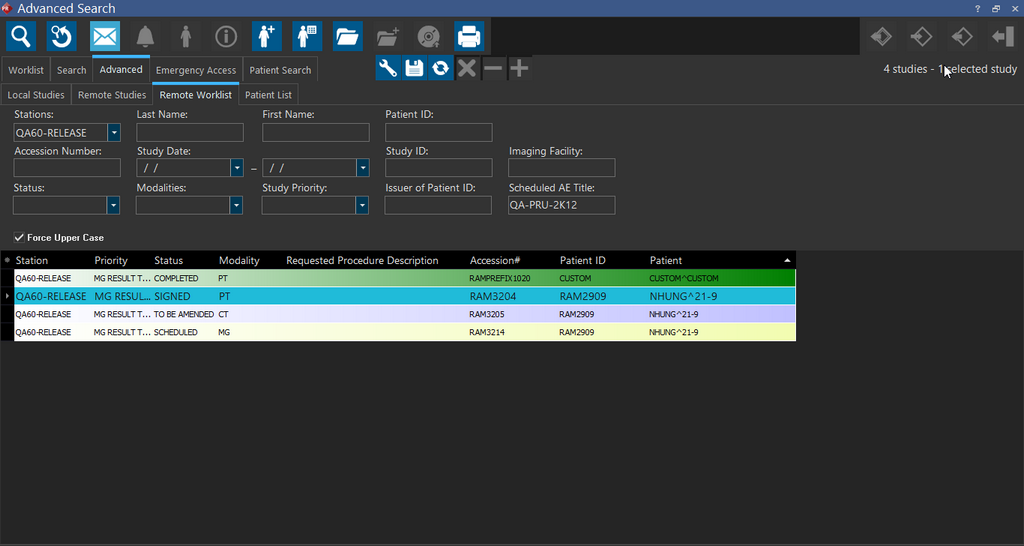
To view the Worklist of another device remotely, choose that device from the Stations drop-down menu. Type any other criteria that will help narrow down the search and press the Search button.
Note: All search text fields are case sensitive.
The Scheduled AE Title field can be used if it is supported by the station being queried. Certain systems will determine ahead of time the devices needed to access certain studies. For example, all studies that need to have films digitized are pre-assigned to the film digitizer workstation. If the intended RamSoft station is the film digitizer station, providing the AE Title along with the Remote Worklist query will return only the relevant studies.
The Force Upper Case option can be used to force all the information entered into the search fields to be upper case. This conversion is done in order to work with certain devices that do not support lowercase queries.
Once a desired study has been located in the list, the Open the selected study button will launch the Study Desktop. If the case does not already exist on the RamSoft station, and no new objects are added to it while it is opened, no data about the study will be found locally after it is closed. Using the Acquire, Film Digitize or Scan buttons to load the study will open the appropriate screen so the desired objects can be inserted into the study. The study will then be saved locally.