Study Info
The Study Info form contains information on a particular patient's study.
This form can be found by clicking on the View Study Information  icon in the toolbar on the Worklist or Search screen.
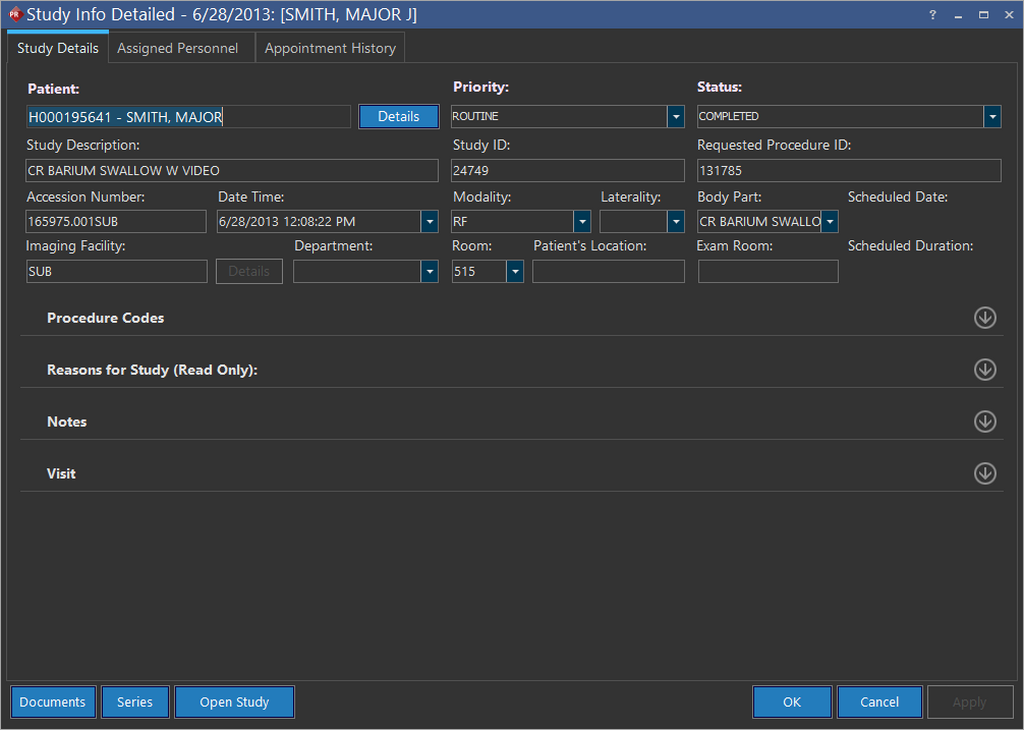
Study Details tab
The Study Details tab contains the Patient Info, Study Details and Notes about the study. The Patient's Location field provides information on the department the patient is assigned to. The Exam Room field provides information on the room where the exam is scheduled.
The Patient field is always mandatory. Note that the Imaging Facility field is mandatory when a user is not a system-wide Admin and also when there is at least one facility associated with the user. Available values matching the values entered are displayed along with the address, city and state information of the matching facilities when meta-searching for Referring Physicians.
Departments and Rooms can be set up independent of Resources. The following logic illustrates the selection of Rooms with Resources and Rooms without Resources:
| Scenario | Description |
|---|---|
| Scenario 1 | If the Modality field is left empty, all Rooms for the selected Department and filtered Facility are displayed in the Room drop-down menu. |
| Scenario 2 | If a Modality is selected, all Rooms that match the Modality are displayed in the Room drop-down menu along with other Rooms that do not have any Resources |
| Scenario 3 | If a Modality that does not match the filtered Room is selected, a warning message informing the user that the Room is invalid for the selected Modality is displayed. This message is displayed once. |
| Scenario 4 | The Room field is populated automatically when a department (with only one associated room) is selected. |
Procedure Codes: Assign a Procedure Code for the study being performed. For more information on Procedure Codes, please refer to the topic on Procedure Codes.
The Authorization Number is used to authenticate insurance coverage payments. Currently this field allows up to 64 characters. This number can be setup in FormConfig. By default, the number of characters to be allowed is set up as 16.
The Start date must be less than or equal to the End date.
In order to ensure that the correct Insurance Status is always selected, the Insurance Status field is reset when:
- The Configuration entry Max study status for scheduling is updated to a status order less than ORDERED or between ORDERED and SCHEDULED and
- An appointment is rescheduled for a time in future, or
- If the appointment is moved back to Ordered status using the Reschedule option
Reasons for Study (Read Only): reasons for performing the study can be identified by checking the Diagnosis Codes assigned to the study.
Notes: This section enables the user to enter any Study history, clinical notes pertaining to the study or any comments to share with other users.
Visit: Please refer the topic Visit Tab for more information on this feature.
Assigned Personnel tab
The Assigned Personnel tab allows the user to assign Physicians, a Technologist, and a Transcriptionist to the study.
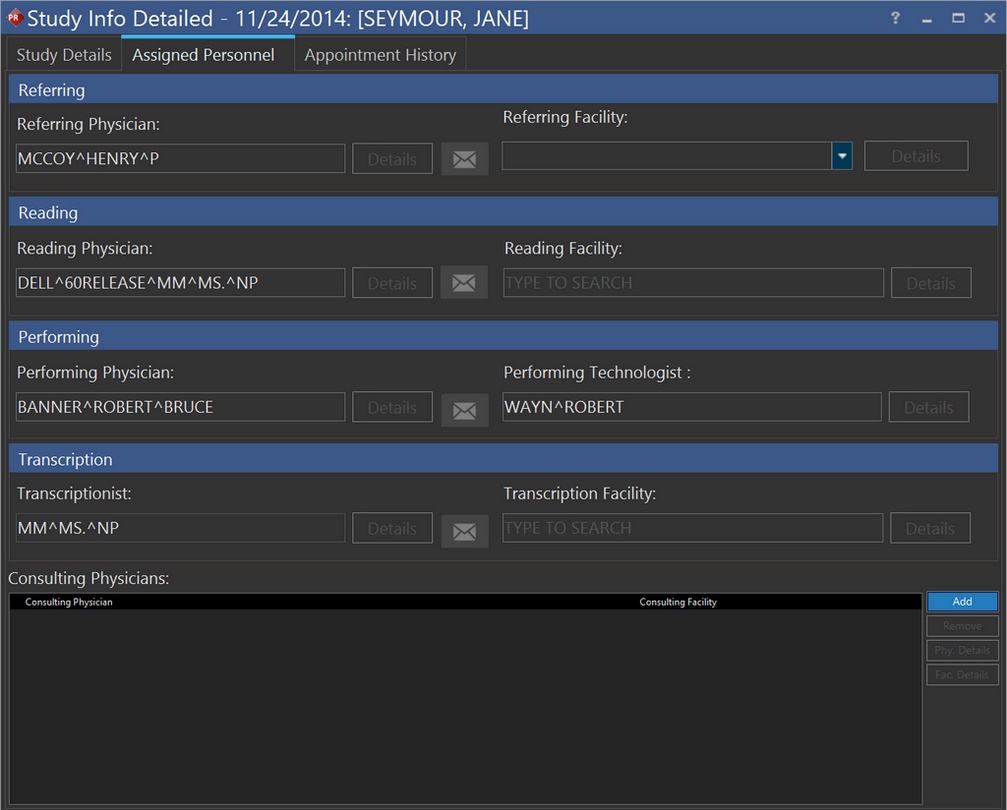
Any user limited to accessing only certain facilities can create new users that are associated with at least one of the facilities the logged in user is associated with. This applies for adding users through Users and Facilities and through the Assigned Personnel tab by typing into a personnel field and clicking "New".
To meta-search for personnel and facilities, see Meta-Searching for more details.
When a facility has been selected, the list of available personnel in the drop-down will be filtered to that facility. If the facility fields are left blank, the list of available personnel fields in the drop-down will be filtered to display only personnel from the facility the user belongs to.
The Meta Search feature behaves differently in different situations as mentioned below.
When Assigned personnel are based on a Reading Physician/Facility or Transcriptionist/Facility:
- When meta-searching a Reading Physician or a Transcriptionist, only those personnel based on the corresponding facility are listed. If no facility is selected, the meta-search will list all the Reading Physicians or Transcriptionists.
- Similarly, when meta-searching Reading Facility or a Transcription Facility, the facilities based on the corresponding physicians/transcriptionists are listed in the search. If a user does not belong to any facility, the meta search will not list any facility. If no user is selected, then the meta-search will list all the facilities that contain at least one reading physician or transcriptionist respectively.
- After a Reading Physician is selected, the Reading Facility meta-search can be used to choose from all the facilities the reading physician belongs to.
- If a Reading Physician is not associated with a Reading Facility but belongs to a group which has Issuer of Patient ID same as that of Reading Facility and patient, this Reading Physician appears in the meta-search when entering the Reading Facility and perform the meta-search.
When Assigned personnel are based on a Referring Physician/Facility or Consulting Physician/Facility:
- When a Referring Physician or a Consulting Physician is selected, the related facilities will be available on the Facility drop-down menu and you need to select one of them from the drop-down menu.
- In a case when the Referring or Consulting Physician is only associated with one facility, it is selected by default.
- A facility cannot be selected before assigning the respective Referring or Consulting Physician.
When meta-searching for Referring Physician or Reading Physician, the search results display the matching values along with the address, city and state details associated with the physician being assigned. Note that only the first 16 characters of Address, first 16 characters of City and first 16 characters of State are displayed in the search results.
Any of the Facility field (Referring, Reading or Transcription) is mandatory then:
- The Facility field is auto-populated if there is only one Facility associated with the Physician.
- An error message is displayed prompting the user to select a Facility from the list of Facilities, if a Physician is associated with multiple Facilities
Note that mandatory fields are indicated in bold. If the Facility fields are not mandatory, the Facility field can be left blank.
The Referring Facility field is not mandatory (even when set to TRUE in the Formconfig.xml file) if the selected Referring Physician has no associated Facilities to select from. Similarly, the Consulting Facility will not be mandatory if the selected Consulting Physician has no associated Facilities to select from.
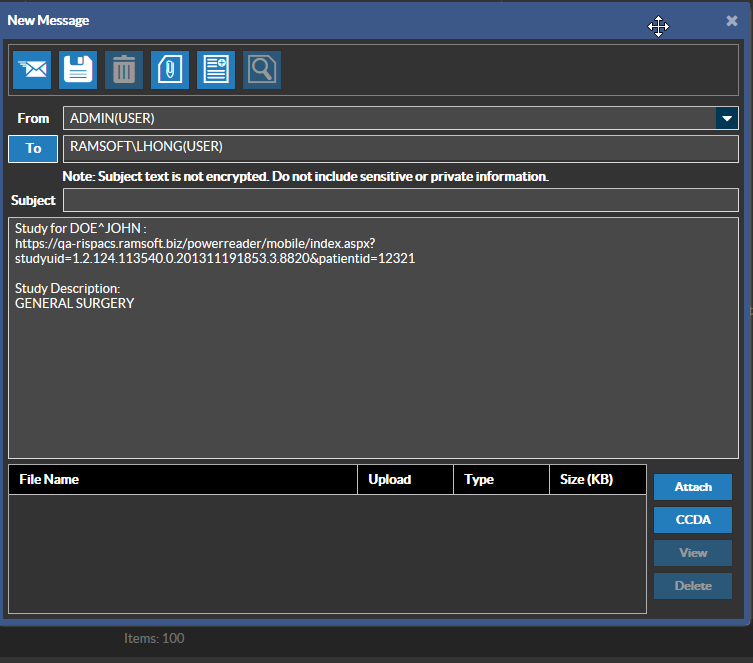
| When the Mail button to the right of the Details button is colored, it indicates that the assigned personnel has an email address. Clicking the Mail button directs the user to the Messaging application, allowing the user to send a secure direct message to the assigned personnel, if both the user and the physician have direct addresses. If not, a local message can be sent.
|

Hovering over a facility's name in any of the fields will display a popup describing the necessary info for that facility such as Primary Facility Contact, Country, Email, etc.
Appointment History tab
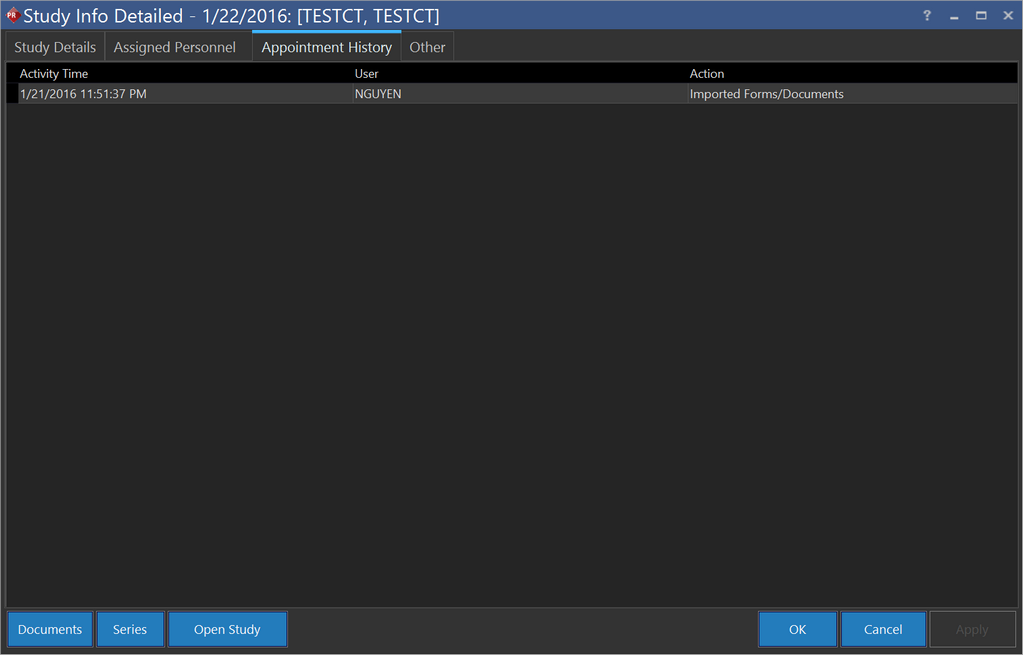
The Appointment History tab allows users to view the appointment history of the study. The tab displays the time when an activity (appointment bookings, cancellations, ordering studies, etc.) took place, the user who performed the activity, and a description of the activity performed.
The Appointment History tab only displays information which has been entered through the Scheduler.
Other tab
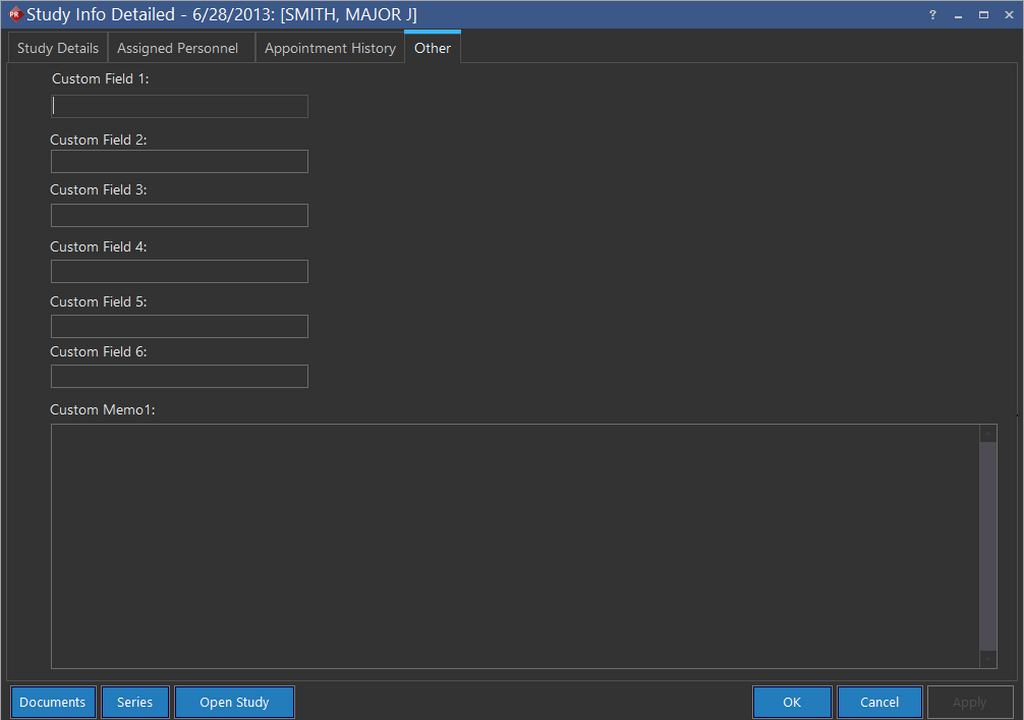
The Other tab allows an user to define custom fields. An authorized user can include user defined fields to hold patient specific data. The tab includes six blank text boxes, Custom Field 1 ... Custom Field 6, which can be used to include desired information. Also included is a Custom Memo1: field which can be used to write more detailed notes. The notes can have a maximum length of fifty thousand (50,000) characters.
"Other" Tab Availability
The Other tab's visibility can be configured by administrative users in the System Configuration module.
Note that the "Other" tab is only available if you have the relevant License option and the System Configuration entry "Show Study Info Other Tab" selected.
Documents
Clicking the Documents button will launch the Document Viewer. For more information on Document Viewer, please refer to the topic How Do I Create and View Reports?
Series
The Series button will open the form that displays the series information for the study. Please refer to the section How Do I View & Edit Details about a Series? for more information.
Open Study
Clicking the Open Study button will launch the Study Desktop with Image Viewer.