Auto Size Feature for MG Images
The purpose of the Auto Size feature is for mammograms (MG images) to be adjusted so that the scale (in real-world units) is the same between the current and prior studies, especially for images from different companies (for example, a current study from GE and a prior from Hologic, Siemens, or Fuji). To increase the zooming area, tissue edges are detected for each image before calculating the best-fitting zoom area for all MG images collectively (current and prior studies). One of our limitations is that our check for tissue edges looks only for black pixels and pixels based on the DICOM pixel padding value.
The black pixel value is configurable by the System Configuration entry Min Pixel Value for Edge Detection. The default value is 5 and the maximum value allowed is 100. If the examined pixel is less than this value, then it will be regarded as padding.
Steps to use Auto Size (MG)
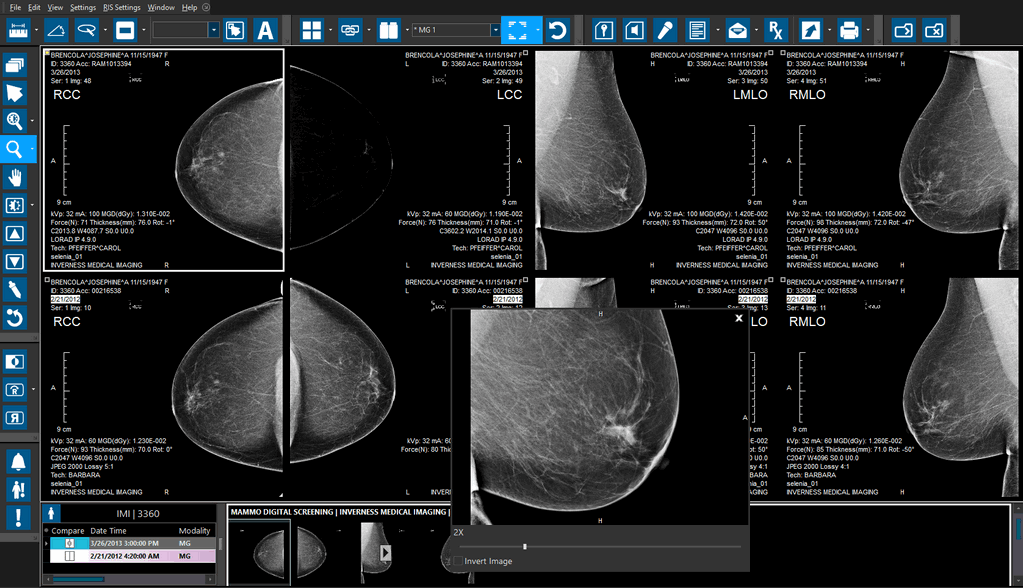
In PowerReader, open an MG study. In this example, the image is not fully zoomed in the viewport. Sometimes, MG studies received from other stations have this problem.
To rectify this problem, click Viewing Protocols settings  .
.
On the drop-down menu, click on the View Viewing Protocol's Details.
The Viewing Protocol Setup form will appear.
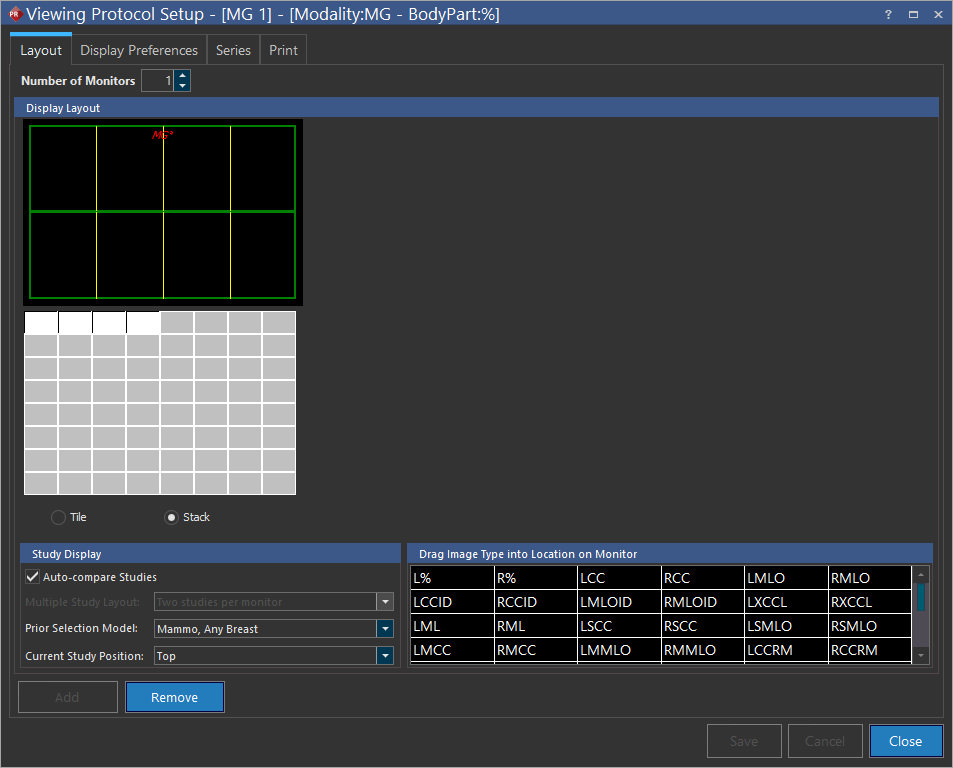
Click on the Series tab. This tab consists of additional options that can be used to tweak the protocol. One of the options listed is the Zoom Level menu which enables a study to occupy the whole viewport rather than a portion of it. The enhancement allows the Radiologist to view the study in detail.
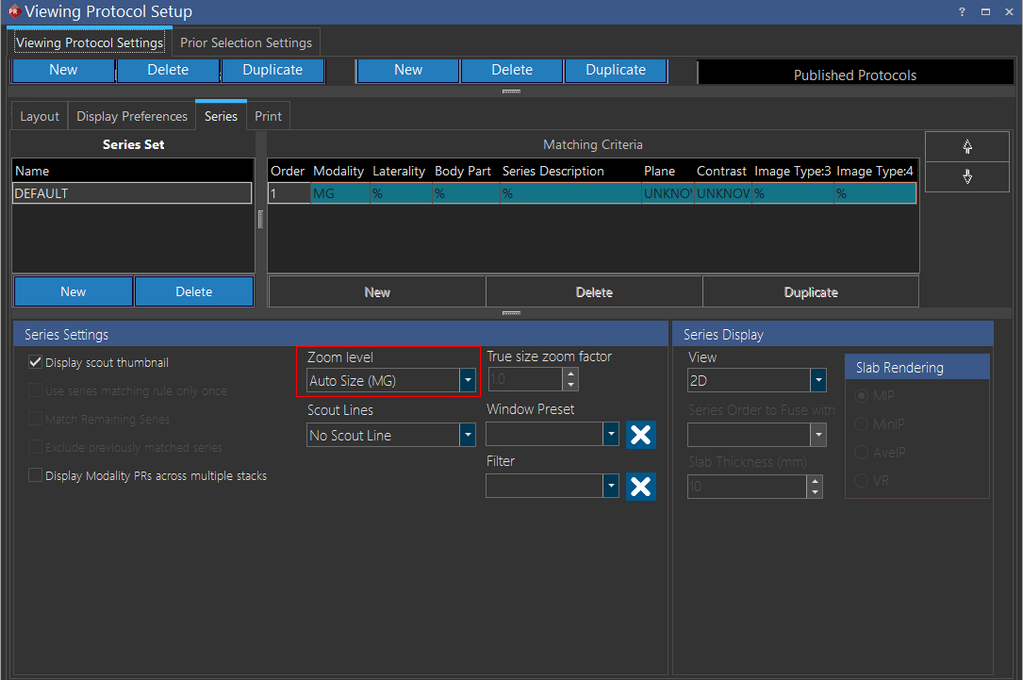
Click on the Zoom level drop-down menu and choose the option Auto Size (MG).
Note: This option is not available:
- if the software has no MG license enabled and
- if the Viewing Protocol is not an MG Viewing Protocol
Click Viewing Protocols settings icon study desktop toolbar and select Refresh Current Protocol for the changes to take effect.
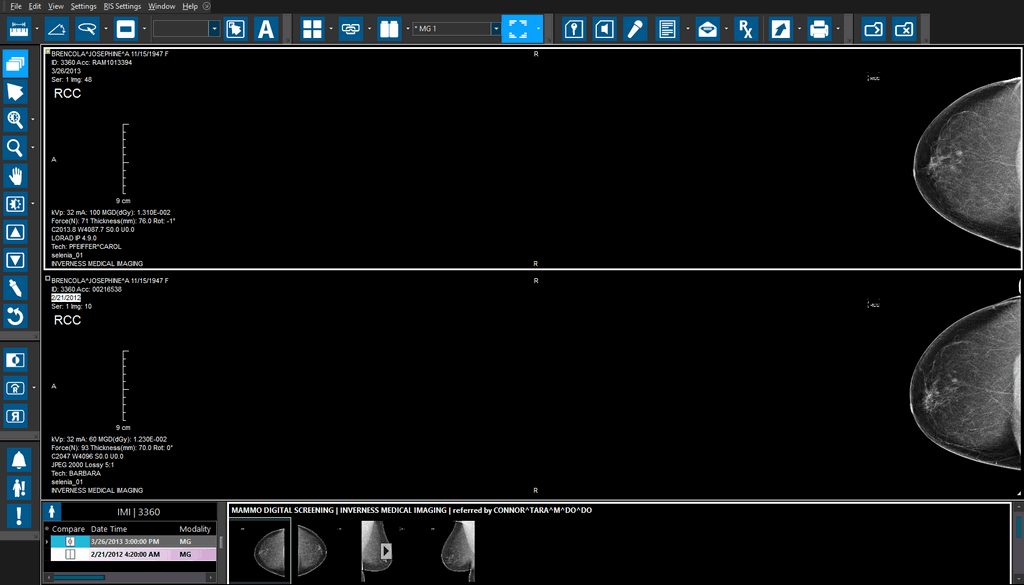
Once the protocol is refreshed, the study will display a larger scope of the viewport. This enlargement allows the user to examine the study in much more detail.