Speech Understanding (M-Modal)
Speech Understanding™ is a fast and efficient cloud-based speech recognition module that allows you dictate medical reports while reading studies. User profiles are stored on the cloud and easily move from one workstation to another. Custom commands can be created to add snippets of text, perform keyboard shortcuts and more. Speech understanding provides an easy-to-use interface which allows you speak in conversational tones and supports voice enabled commands to automate frequent tasks and normal text.
If multiple study instances have been opened by the user simultaneously, only one instance of Speech Understanding will be launched. The user must click on one of the opened studies to dictate in it.
Enabling Speech Understanding
Prerequisite: To enable speech understanding, you will need to install M*Modal Fluency Direct.
-
Login PowerReader.
-
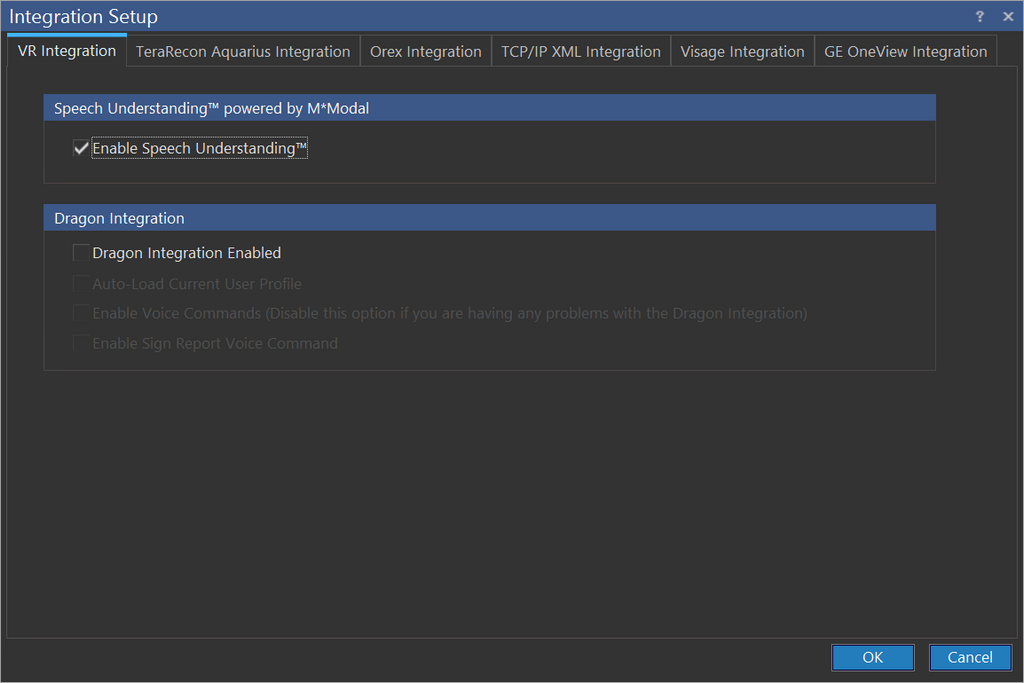
Click Settings > Client Integration Setup. Integration Setup screen appears showing VR Integration tab as shown below.
-
Check Enable Speech Understanding™ checkbox.
-
Click OK.
-
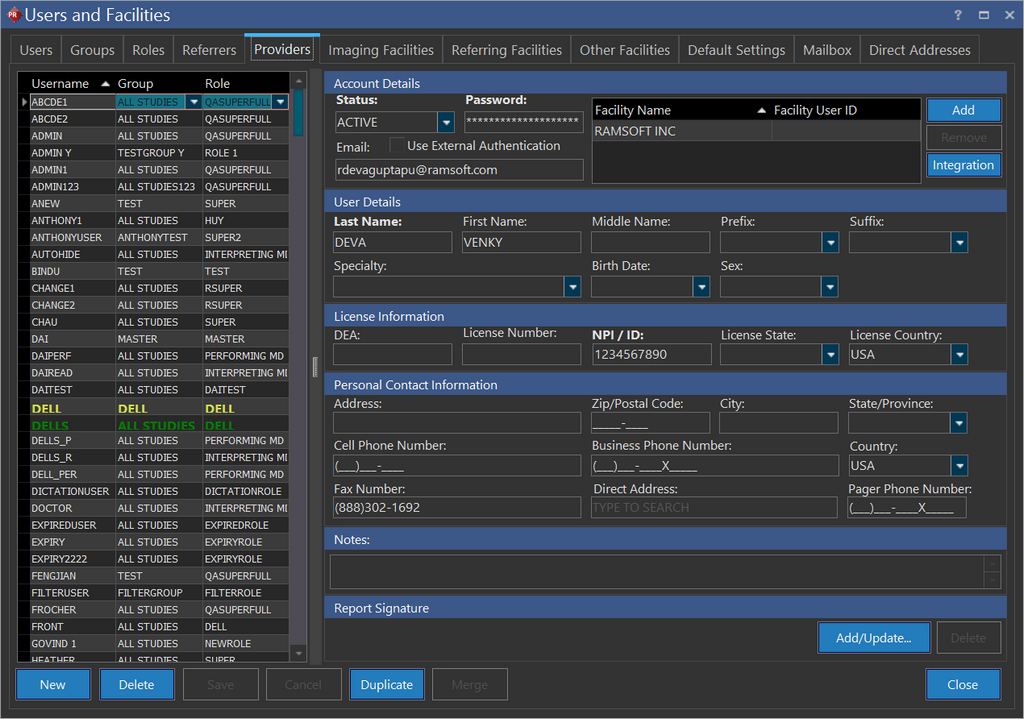
Click Settings > Users and Facilities > Providers tab. Providers tab appears as shown below.
-
Select the name of the user for whom you wish to grant access.
-
Click Integration. Integration screen appears as shown below.

-
Click Add. Upon click, the selected username will be populated under username column.
-
Click the drop-down menu in the Integration column and select M*Modal.
-
Since you being the administrator, define the password for the selected user in the Password text field.
-
Click Save.
-
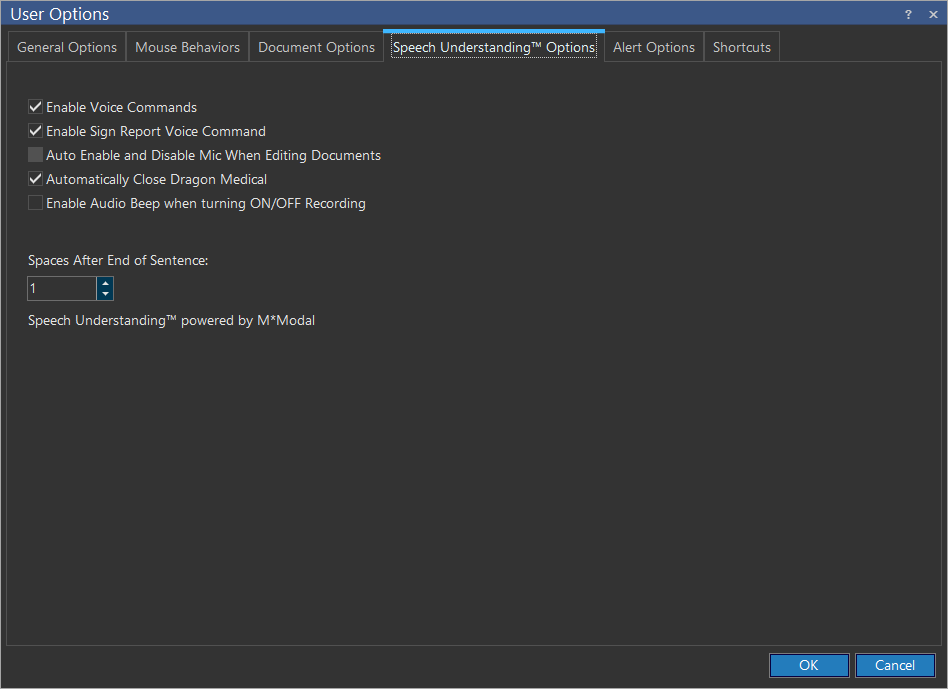
Click Settings > User Options > Speech Understanding™ Options tab. Speech Understanding™ Options tab appears as shown below. This tab displays additional features, which the users would prefer. You may check/un-check the check-boxes as per your requirement.
- Click OK to save.
Describing the Speech Understanding™ Options tab
| Field | DESCRIPTION |
|---|---|
| Enable Voice Commands | The Enable Voice Commands option will render capable to recognize the commands used by PowerReader while using Speech Understanding. |
| Enable Sign Report Voice Command | The Enable Sign Report Voice Command option will render capable to use the sign report voice command. |
| Auto Enable and Disable Mic When Editing Documents | The Auto Enable and Disable Mic When Editing Documents option will enable/disable the microphone depending on the status of the Document Viewer. If this option is checked, the microphone will be automatically enabled when the Document Viewer is opened and disabled when the Document Viewer is closed. |
| Automatically Close Dragon Medical | The Automatically Close Dragon Medical option will close any Dragon Medical processes running in the background when Speech Understanding is launched. Disabling this option will keep the Dragon Medical processes running in the background. |
| Enable Audio Beep when ON/OFF Recording | The Enable Audio Beep when turning ON/OFF Recording option determines if system should prompt "Beep" when speech mike is turned on or off. |
| Account | The Account field contains the name under which the account is based (e.g. RamSoft). |
| Spaces After End of Sentence | The Spaces After End of Sentence option will determine the number of spaces (1 or 2) to be inserted between sentences at the end of sentence. punctuation. This value is set to one by default. |
- Click OK. The M*Modal Fluency Direct will be launched automatically upon subsequent login.
