Blume Share – PowerServer Feature Overview
SKU: PSCR127GB
Feature Name: Blume Share
Applies to: PowerServer 6.0+
Overview
Blume Share is the official name of the feature developed to enable secure, web-based sharing of imaging studies directly from PowerServer. The feature is implemented consistently across PowerServer, OmegaAI, and Blume, and should be referred to only as “Blume Share” in all documentation, communications, and customer-facing material.
Blume Share introduces secure study-sharing capabilities within PowerServer using the OmegaAI interface. It enables PowerServer users to distribute imaging studies to external users or patients in a safe and compliant manner.
Blume Share works by first sending a study from PowerServer to OmegaAI and then securely sharing that study either via email (stand-alone page) or through the Blume Patient Portal.
Important Terminology Standardization
Alternative references, such as Power Share or Image Share, are incorrect and should not be used. The correct and approved feature name is Blume Share.
Blume Share allows PowerServer users to distribute imaging studies securely to:
- External recipients via a web-based share page
- Patients via the Blume Patient Portal
All access is authenticated, logged, and compliant with healthcare privacy regulations.
Prerequisites
The following prerequisites must be met before Blume Share can be enabled:
-
The PowerServer site must already have an organization configured in OmegaAI.
-
Shared migration storage connectivity between PowerServer and OmegaAI must be available to support study transfer and storage during the Blume Share workflow.
-
SSO and MFA with Azure AD B2C must be set up for PowerServer.
-
This is a mandatory requirement. Blume Share will not appear or function without Azure AD B2C–based SSO.
Note: Mirth must be running version 4.4.2 or higher.
-
PowerServer and OmegaAI (OAI) user integration must be completed.
Patch-level requirement
- The site must be running the latest PowerServer patches (dated January 7, 2026, or later). Older patch levels are not supported for Blume Share.
Product Availability & Versioning
PowerServer 6.0 Customers
- Blume Share is available as an add-on feature via patch installation
- Customers do not need to wait for PowerServer 6.7
- Once the patch is applied, Blume Share can be configured and enabled immediately
- SKU: PSCR127GB
PowerServer 6.7 Customers
- Blume Share is natively included (no patch required)
- The feature is enabled as an add-on with usage-based charging
- PowerServer 6.7 is not yet in General Availability (GA)
Configuration Overview (Post-Patch for PS 6.0)
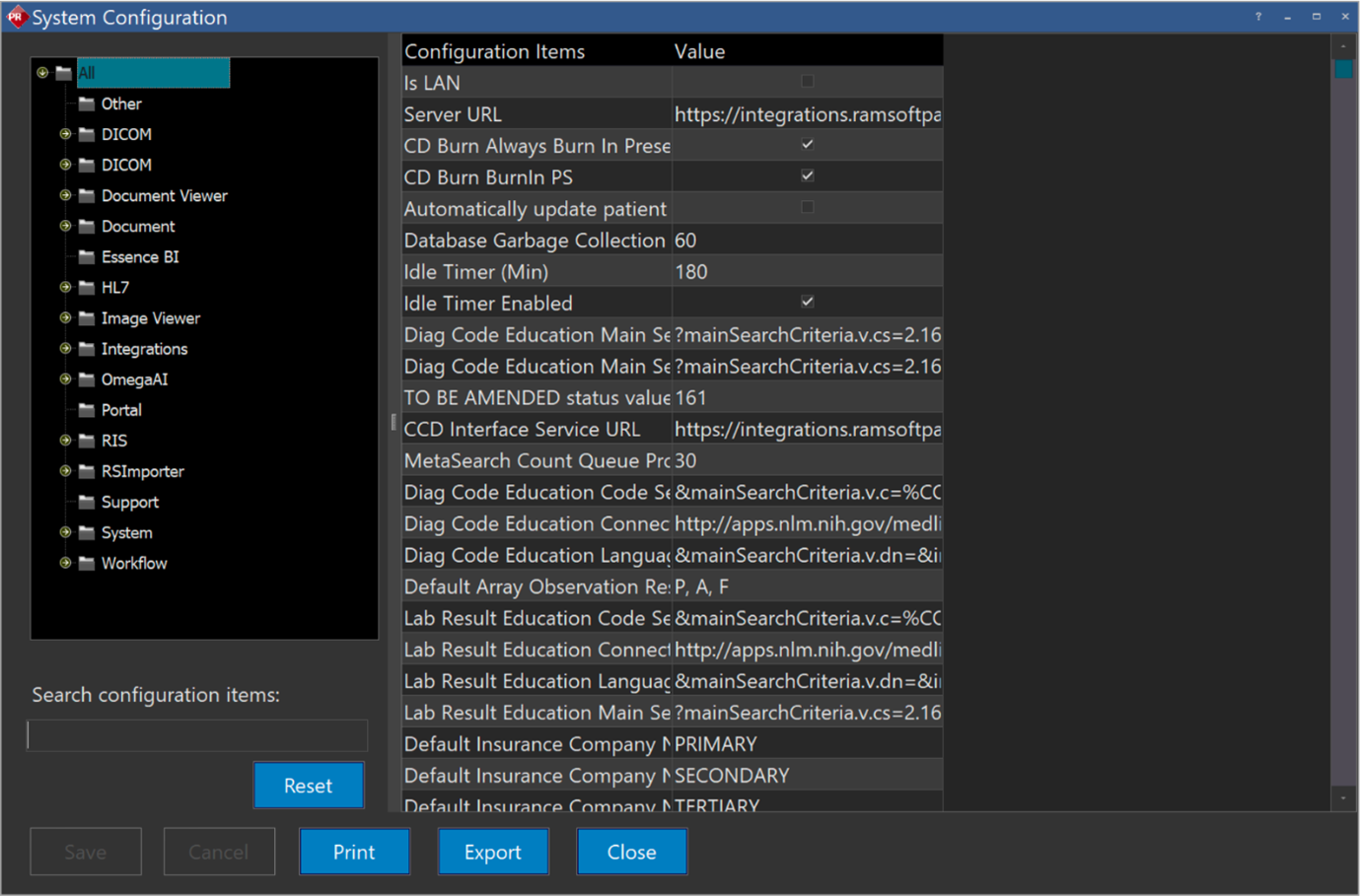
After applying the Blume Share patch on PowerServer 6.0, the configuration is completed within the PowerServer system settings.
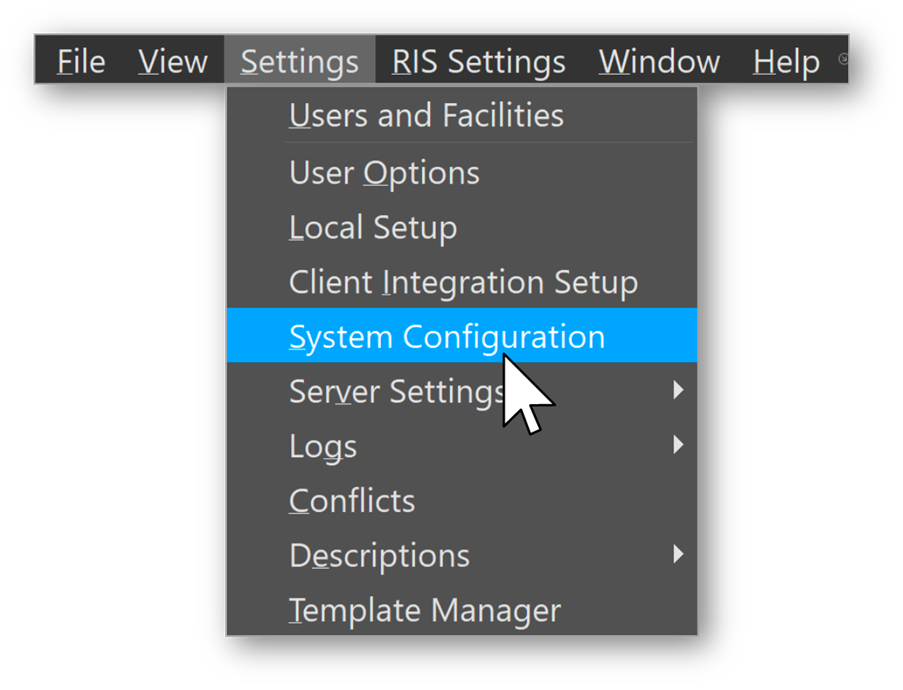
Navigation Path
PowerServer → Settings → System Configuration
Required Configuration Parameters
The following values must be configured to enable Blume Share functionality:
1. OmegaAI Migration Station Name
- Defines the DICOM destination used to send studies from PowerServer to OmegaAI
- Acts as the bridge for study transfer before sharing.
2. OmegaAI Migration Volume ID
- Identifies the target storage volume in OmegaAI
- Retrieved from OmegaAI Maintenance (BLOB volume reference)
3. OmegaAI Share URL
- Defines the OmegaAI-hosted share page used for web-based access
Format:
Format:
https://{host}/share-study/{organizationId}
Example: OmegaAI share example
4. OmegaAI Share Enabled
- Must be set to: true
All parameters must be correctly configured for the Study Share action to appear and function in PowerServer.
Note:
Blume Share requires specific OmegaAI Migration and Share parameters to be configured in PowerServer as part of the initial system setup. Only Blume Share–relevant parameters—OmegaAI Migration Station Name, Migration Volume ID, Share URL, and Share Enabled—directly impact Study Share availability and behavior.
While SSO with Azure AD B2C is mandatory, all backend authentication endpoints, internal SSO URLs, migration timers, performance limits, and other environment-specific system settings are system-managed and do not require manual configuration for Blume Share. These parameters should be excluded from this workflow to avoid confusion.
How Blume Share Works.
The Blume Share Project provides two integrated mechanisms for distributing imaging studies to external users or patients:
- Share Study via Email using a secure, stand-alone OmegaAI web URL
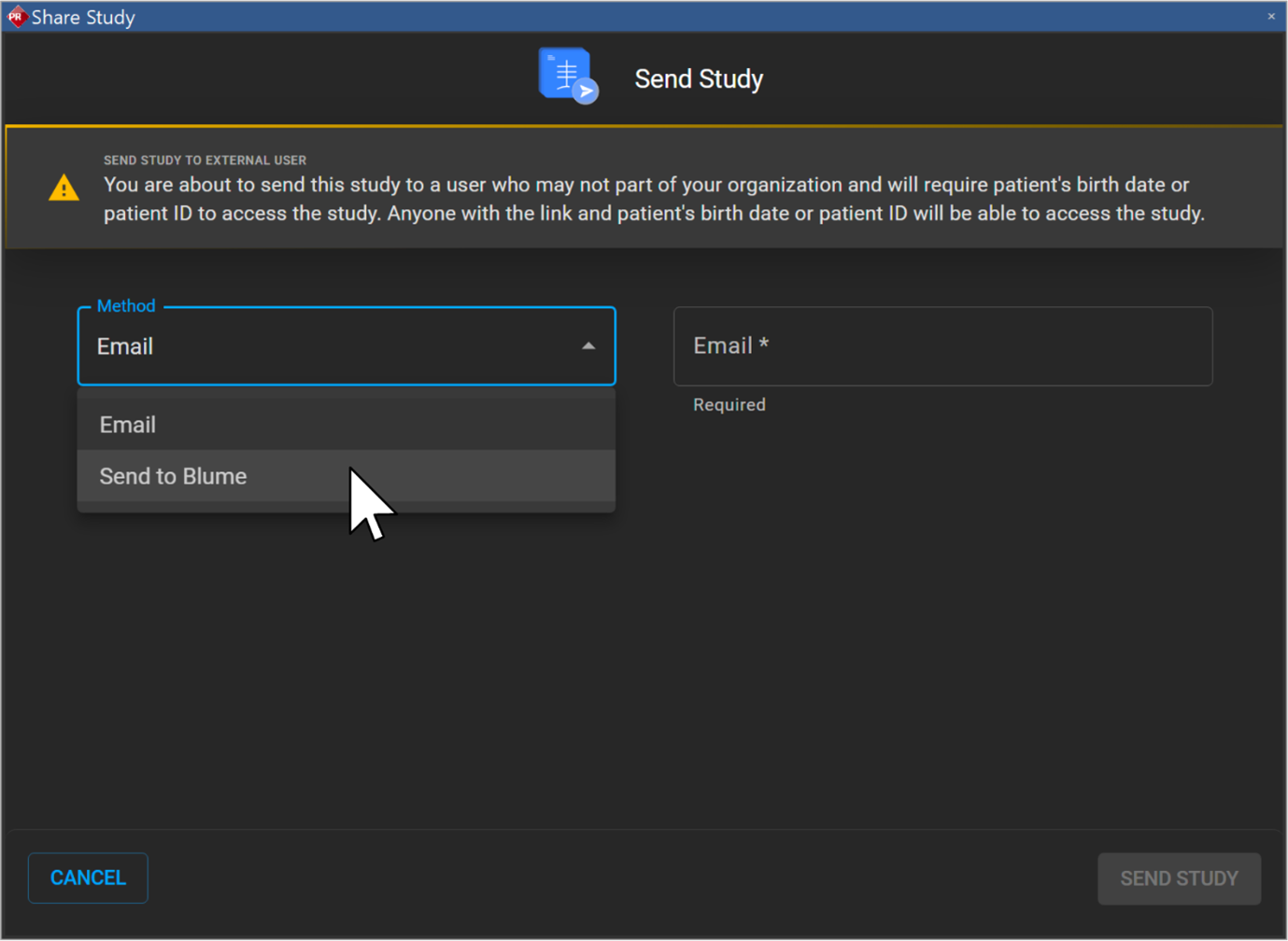
- Send to Blume to share studies with patients through the Blume Patient Portal
These capabilities replicate core OmegaAI workflows within PowerServer, enabling safe, compliant, and efficient study distribution. Both flows support robust authentication mechanisms, ensure privacy protection, and maintain full access logging for audit purposes.
End-to-end technical flow with dependency clarity
- When a user selects Study Share in PowerServer, the study is first sent from PowerServer to OmegaAI using the configured OmegaAI Migration Station Name.
- The study is received and stored in OmegaAI under the configured Migration Volume ID.
- Once migration is successful, the study becomes eligible for sharing.
- The study is then shared through one of the following methods:
- Via a secure email link using the OmegaAI stand-alone share page, or
- Through the Blume Patient Portal.
Important:
Study sharing is dependent on successful migration to OmegaAI. If migration does not complete successfully, sharing cannot proceed.
I. Share Study via Stand-Alone Page (External User Share)
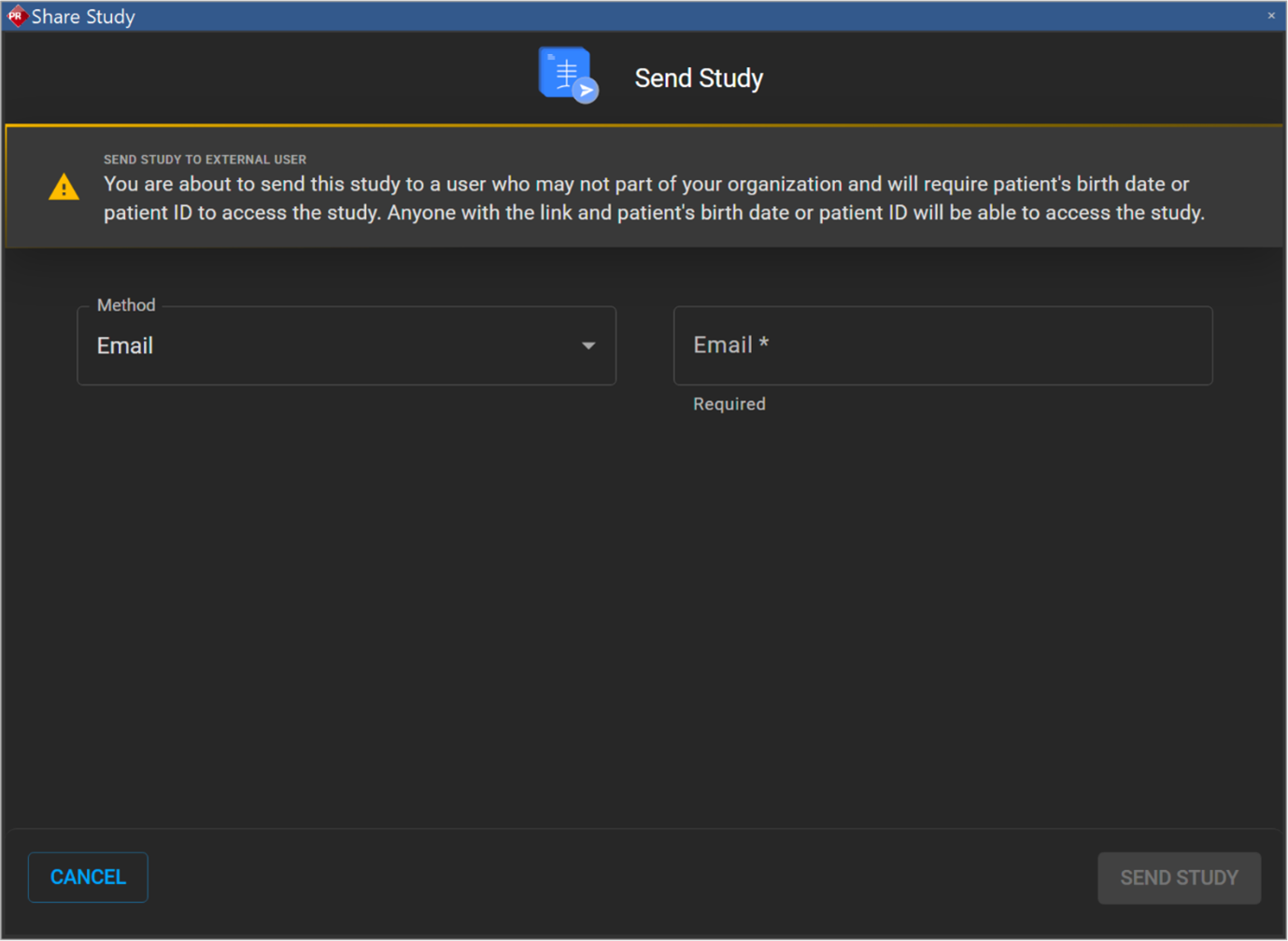
Purpose This feature provides PowerServer users with a direct, frictionless method to launch a secure, pre-populated OmegaAI web page for sharing a specific study via email.
It eliminates manual navigation, reduces errors, and facilitates faster collaboration with external physicians.
User Flow
- The user opens a study in PowerServer.
- The user selects Study Share from the right-side panel in PowerServer.
- PowerServer launches an embedded browser window using the system’s default browser.
- The embedded window loads the OmegaAI stand-alone study share page with organizational context pre-populated.
- A silent, headless SSO authentication is performed automatically (SSO is required).
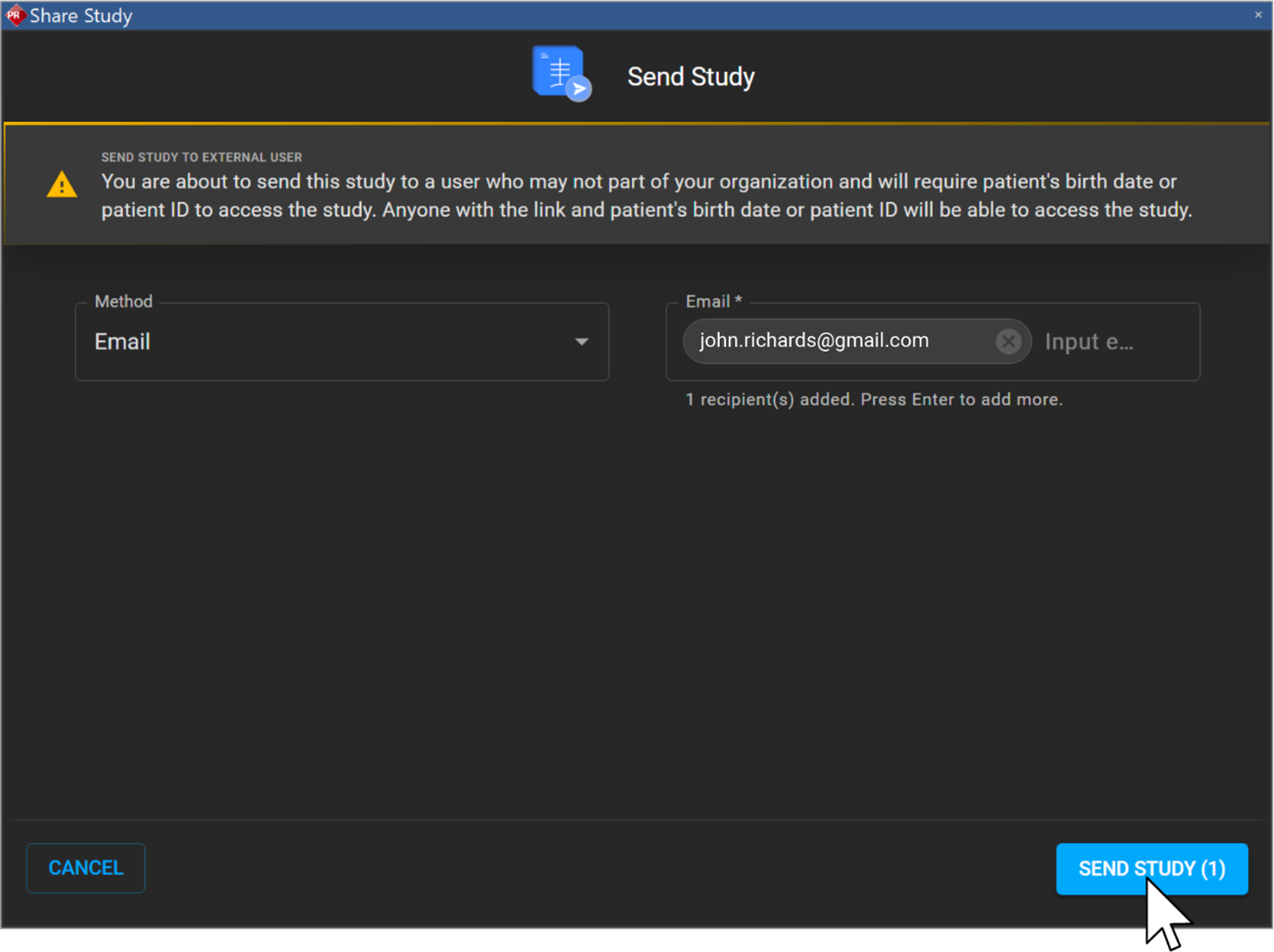
- The user enters the required recipient details.
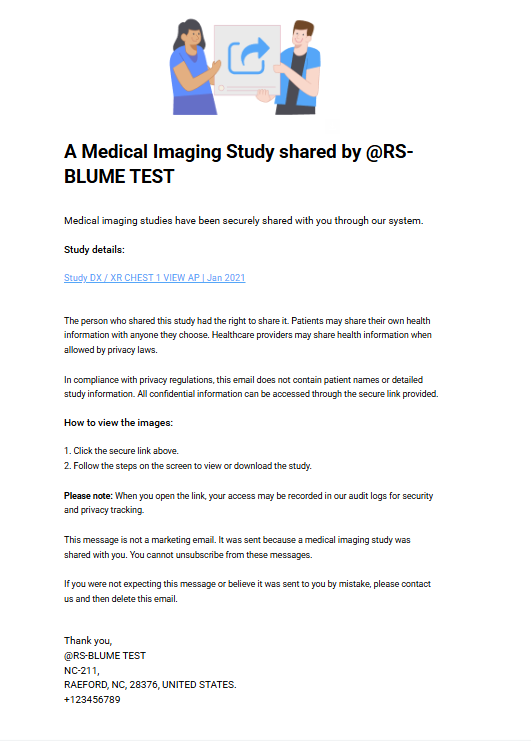
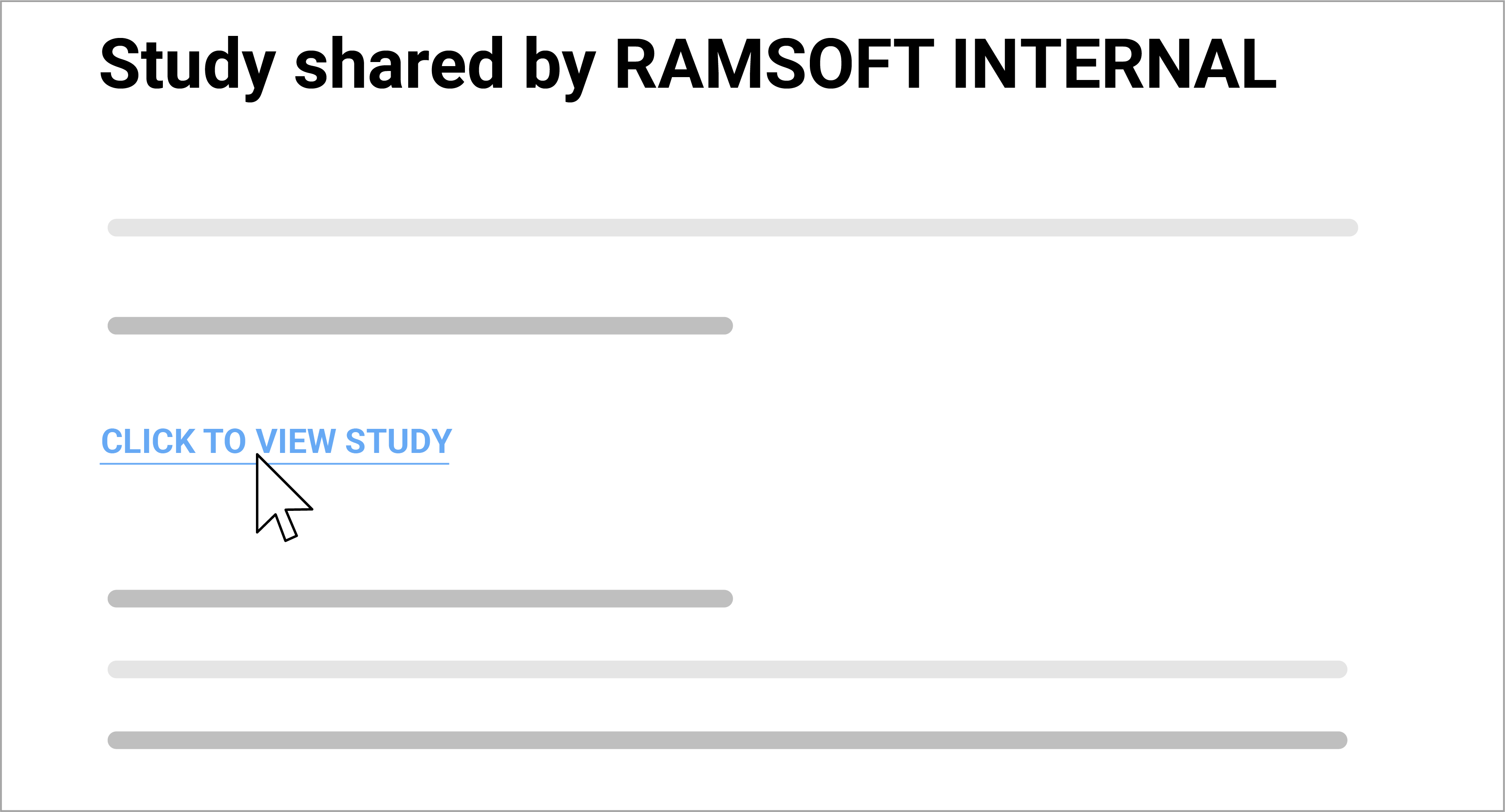
- The user submits the share request, and a secure email is sent to the recipient.
Workflow Diagram
User opens the study in PowerServer
↓
Clicks "Study Share"
↓
The embedded browser opens the OmegaAI share URL
↓
Silent SSO authentication
↓
User enters details and sends a secure email
Functional Requirements
Launch Behaviour
1. Button Click & Window Launch
-
Trigger: User selects Study Share in PowerServer.
-
Outcome:
- A new browser window opens inside PowerServer using the system’s default browser.
- The window loads the OmegaAI stand-alone share page.
2. Contextual URL Parameters
- The share URL is fully controlled by OmegaAI. It must be pre-populated with the organizational context obtained from PowerServer.
Sample URL Format:
OmegaAI - Cloud-native, Zero-Footprint RIS/PACS/VNA
3. Authentication Rules
OmegaAI and PowerServer must have Azure AD B2C SSO integration enabled.
When the share page loads:
- Silent, headless SSO authentication is performed automatically.
- The user is granted direct access without credential prompts.
- This ensures seamless navigation and removes user friction.
4. Enablement Rules The Send Study button activates only when:
- All required recipient fields and study details are completed.
- Form validation passes without missing or incorrect entries.
Note: Patient email addresses and portal access are managed within OmegaAI and Blume, rather than through DICOM transfer.
II. Send to Blume — Patient Portal Study Sharing
Purpose
This workflow allows PowerServer users to securely share studies with Blume patients.
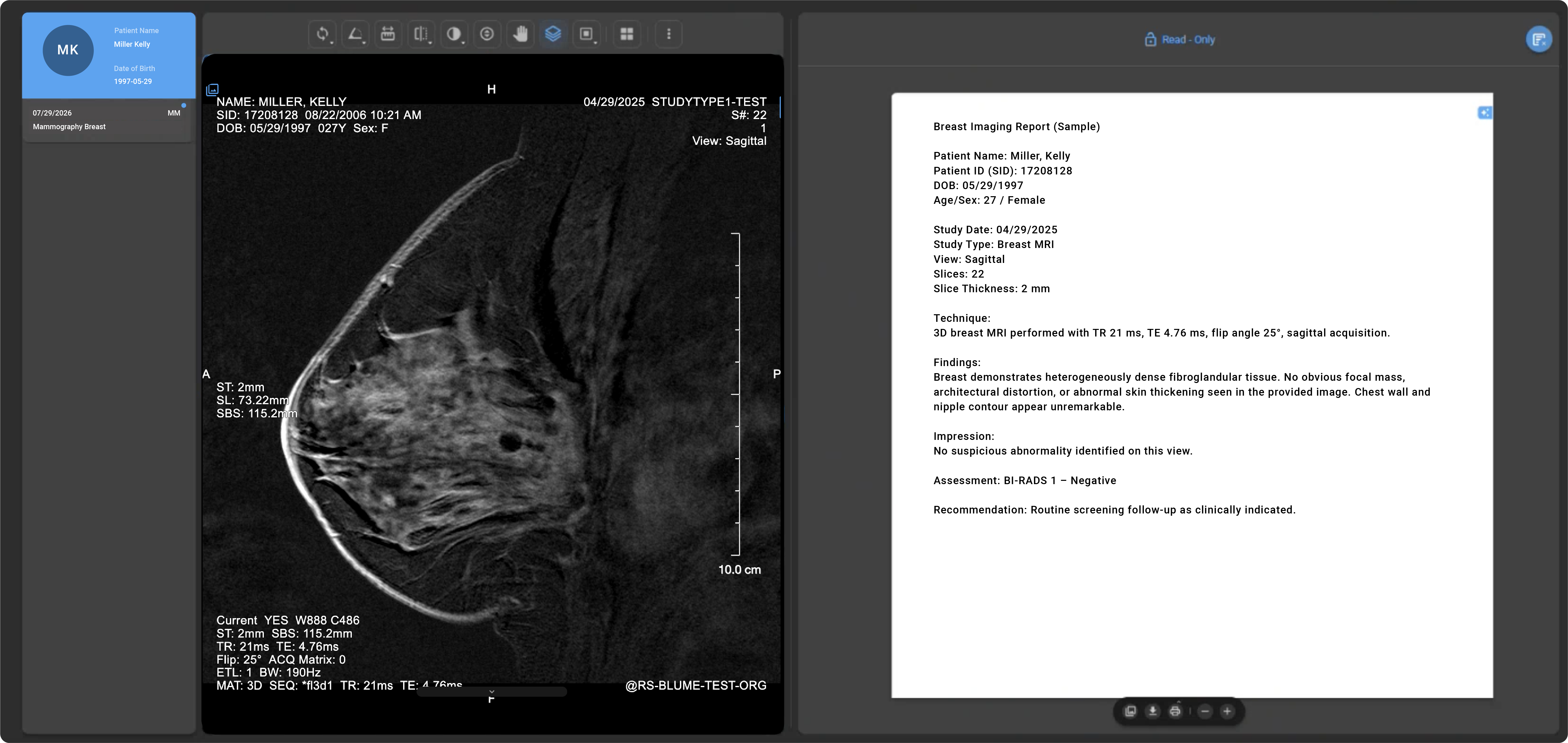
Patients receive a guided, authenticated experience within the Blume Patient Portal, where they can view their results and images.
User Flow
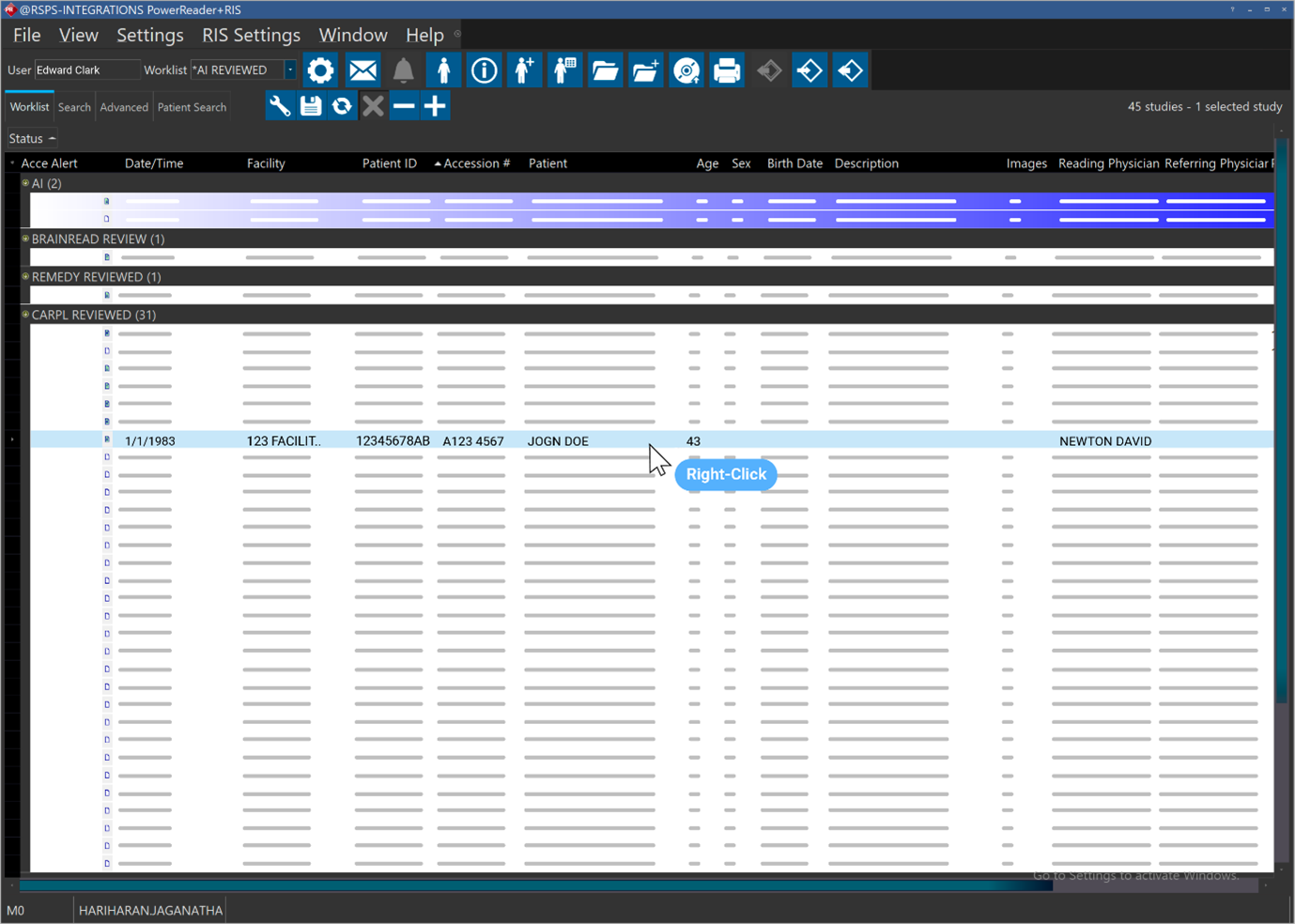
- The user right-clicks a study in PowerServer.
- Selects Send To < Study Share.
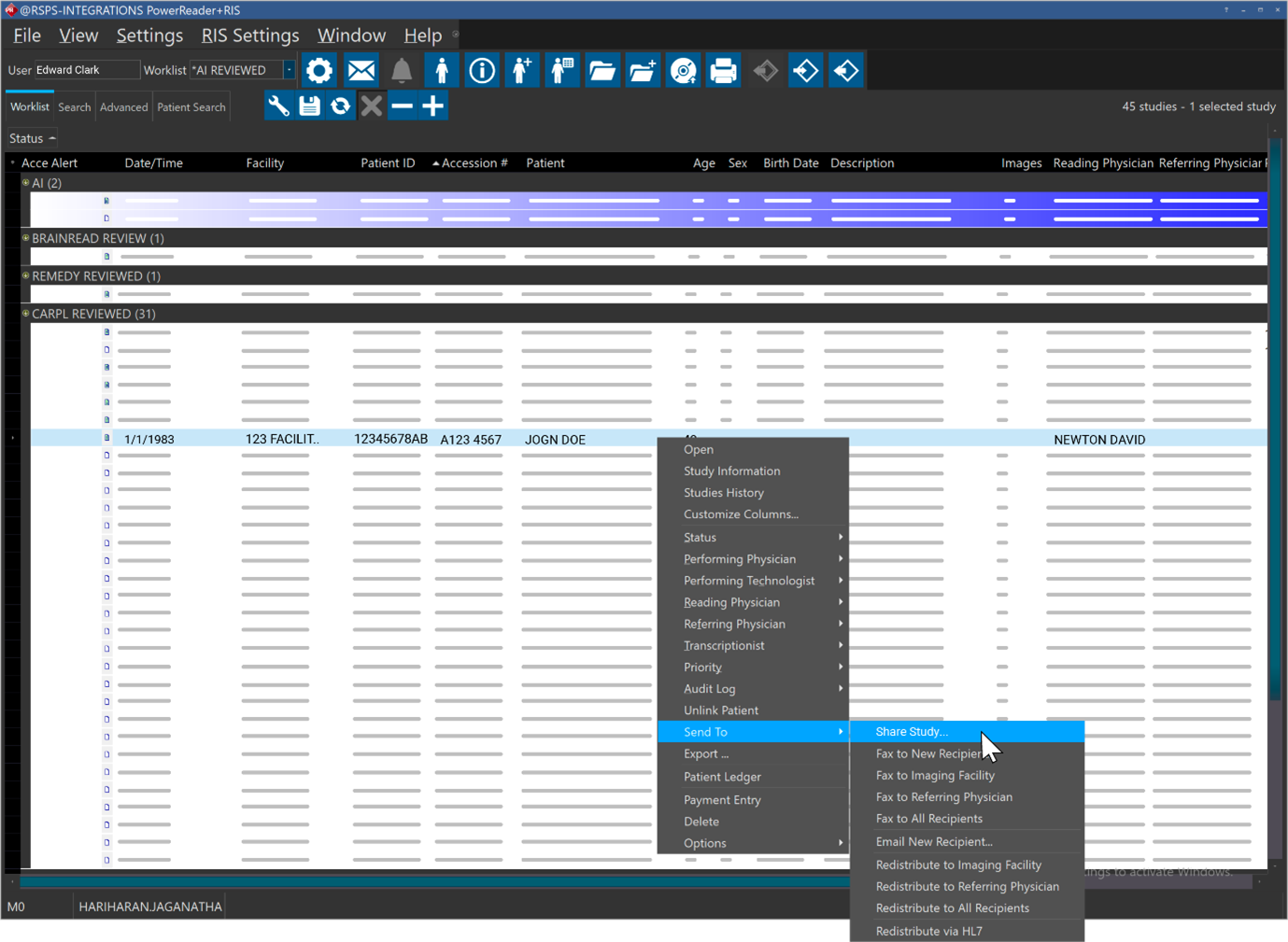
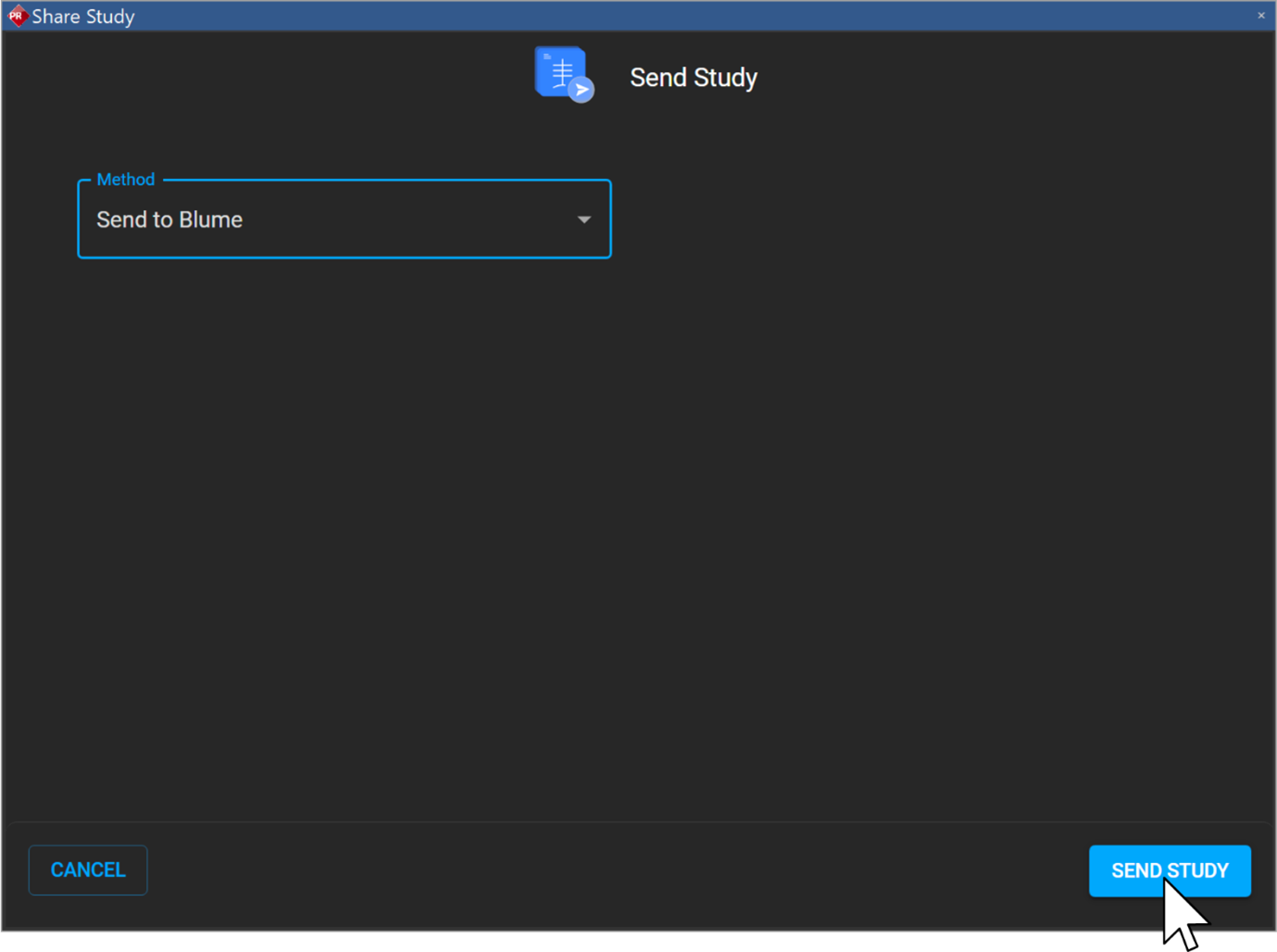
- From the Send Method dropdown, choose Send to Blume.
- The patient receives an email containing a “Step Into Blume” action button.
- Depending on the user’s state:
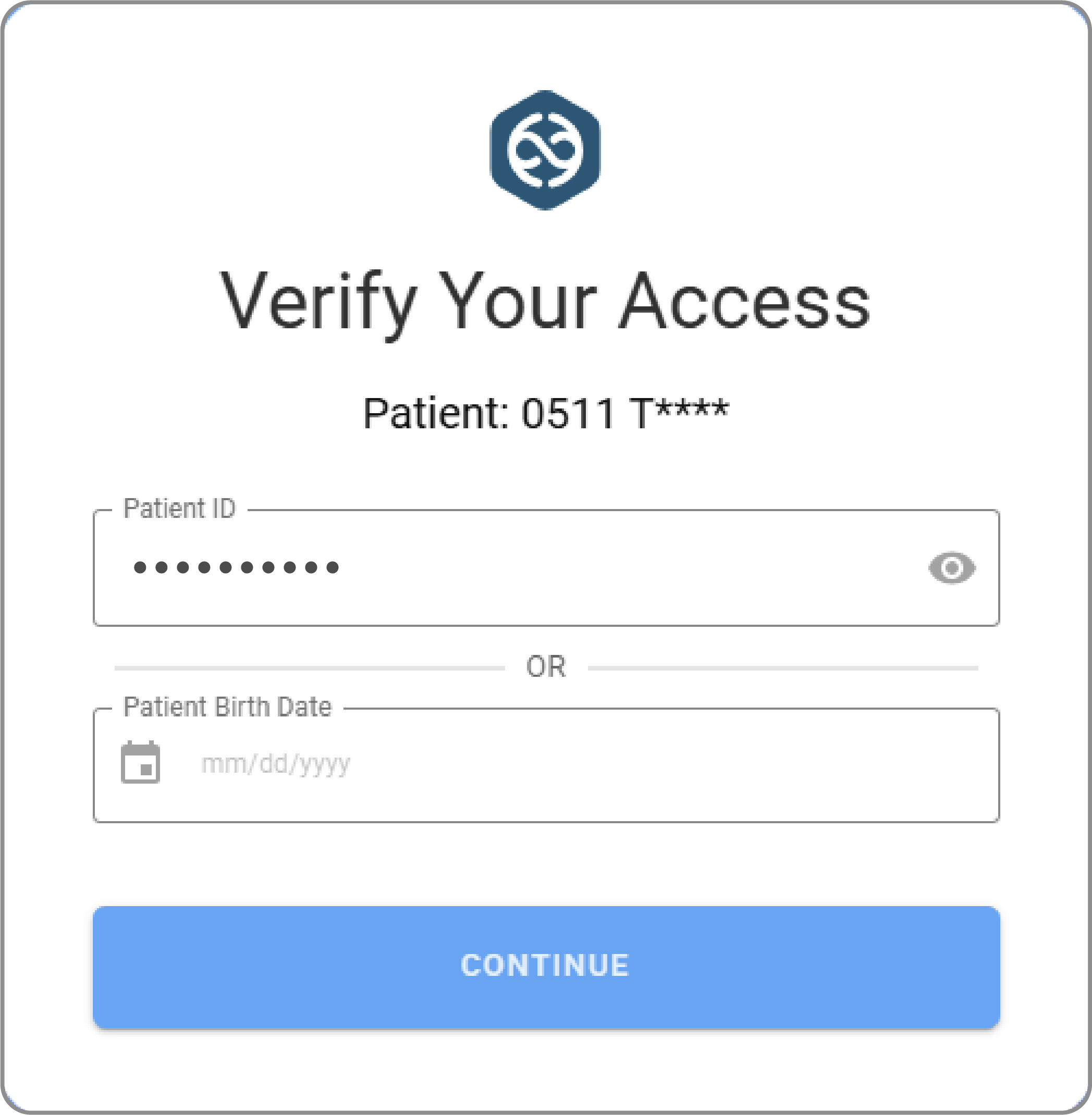
- If already logged in → The study opens immediately within Blume.
- If not logged in → The patient is prompted to authenticate, after which they are automatically redirected to the shared study view.
Security & Compliance
Blume Share (across both sharing methods) complies with enterprise-grade security controls and applicable regulatory standards.
- HIPAA, PHIPA, and regional privacy compliance
- No PHI embedded in URLs
- Authenticated access only
- Full audit logging of all study access events
- SSO authentication with Azure AD B2C is required for Blume Share functionality.
Summary
Blume Share is a standardised, add-on feature that extends PowerServer’s capabilities by enabling secure, compliant study sharing through OmegaAI and Blume. Available today for PowerServer 6.0 customers via patch (SKU PSCR127GB) and natively included in PowerServer 6.7, Blume Share provides a consistent and scalable solution for both external collaboration and patient engagement.