QliqSOFT Member
Member Privileges
QliqSOFT members can:
- Send and receive messages to and from Members and Non-Members
- Auto-launch installed qliqCONNECT desktop app when PowerReader is launched
- Change user's own QliqSOFT password from PowerReader
- Change other Member's QliqSOFT passwords from PowerReader, if the user has Administrator role privilege.
Creating QliqSOFT Member
QliqSOFT members are created within PowerReader. Follow the steps below to create a QliqSOFT Member:
- Create a PowerReader user or update an existing user to the following criteria via Users and Facilities:
- The User must belong to a Role with the Access Messaging privilege.
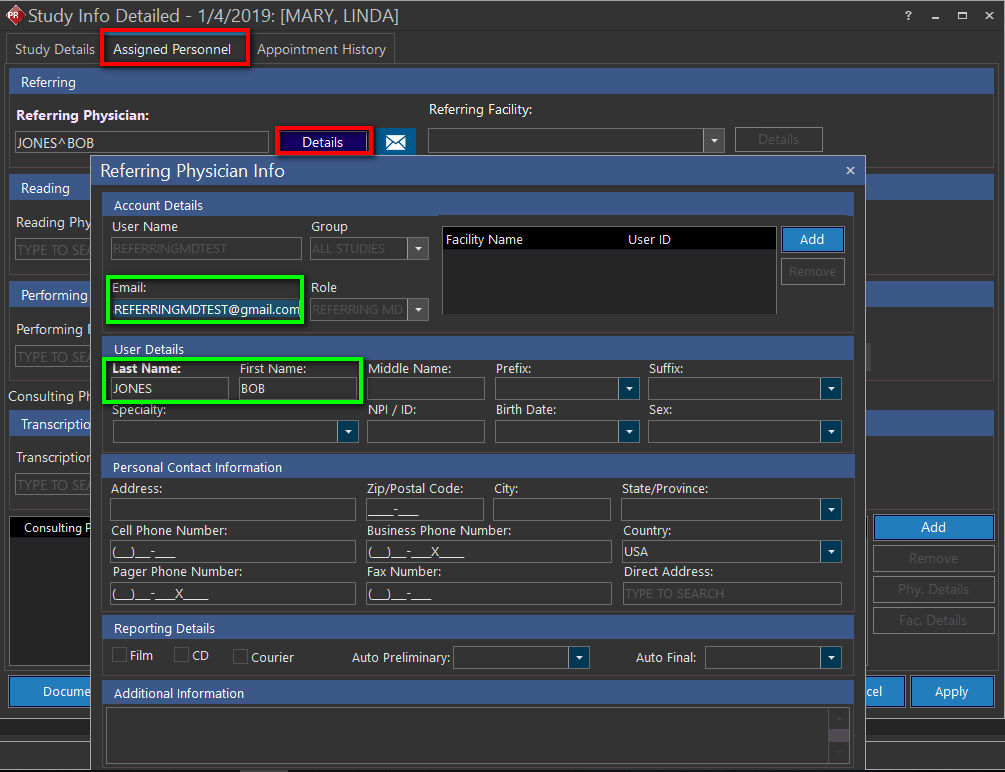
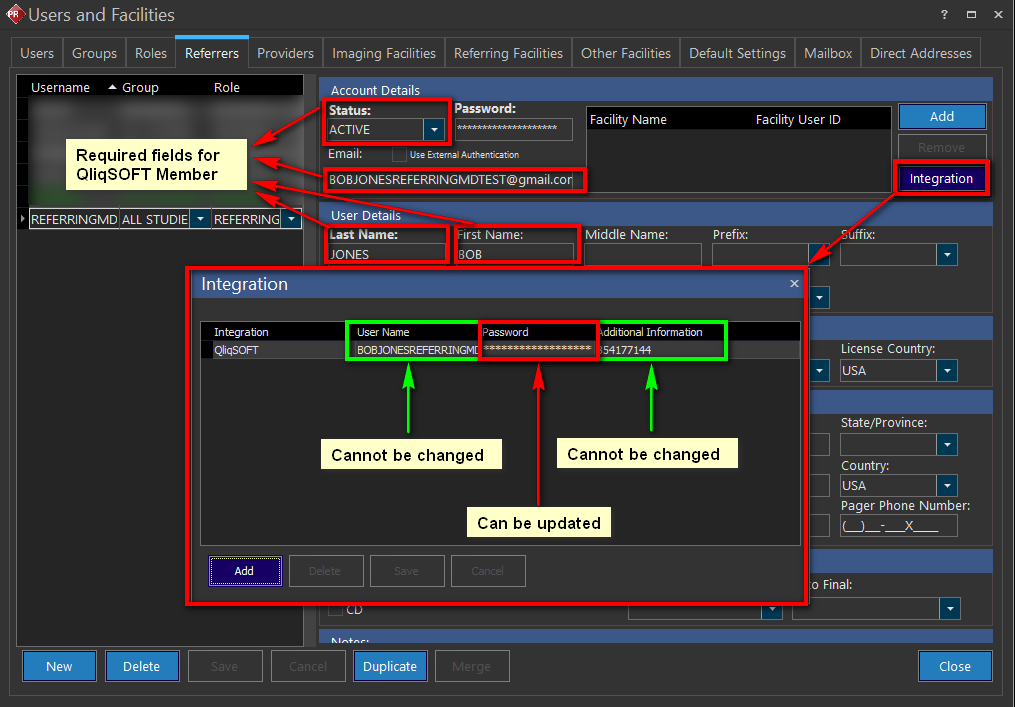
- Mandatory fields: Last Name, First Name, E-mail address. The E-mail should be unique for each user using QliqSOFT.
- The user must be set to "Active" Status.
- The Mobile Number is optional.
The above steps can also be performed via the Study Info Detailed screen -> Assigned Personnel -> Add a new Physician or update existing Physician
- Validate that the user has QliqSOFT integration enabled. For steps to set up QliqSOFT integration, please refer to the Service Manual.
- Select the user and click the Integration button. QliqSOFT Integration should be added for the user automatically as long as the user was saved with the criteria in the section above. The following fields should be populated for the user's QliqSOFT Integration:
- Username: the e-mail of the user. This field cannot be changed; if changed and saved, the value will revert to the original upon re-opening the integration screen.
- Password: when QliqSOFT integration is added for the user, a random password is generated. This password is sent to the user's E-mail, and can be updated by the user. See Changing the QliqSOFT Password for more information.
- Additional Information: this value is the QliqSOFT ID based on the user's email, and is generated by the system. This field cannot be changed; if changed and saved, the value will revert to the original upon re-opening the integration tab. Please do not attempt to change this value.
- Select the user and click the Integration button. QliqSOFT Integration should be added for the user automatically as long as the user was saved with the criteria in the section above. The following fields should be populated for the user's QliqSOFT Integration:
Note the following scenarios with two users, user A and B, user A created first and user B created second:
-
If user A and user B are created with the same E-mail (and fulfills all other criteria for Mandatory fields), a single QliqSOFT user is created with that E-mail and the first, last name of user B.
-
If user B's E-mail is updated to the same as user A's E-mail and user A already has a QliqSOFT account, the QliqSOFT account with user A's E-mail is retained and the first, last name is updated to user B.
-
If user A and user B reside on different PowerServers and uses the same E-mail address for QliqSOFT, then only the LAST user created (aka user B) is able to log into QliqSOFT (Ref #55399). Workaround: after creating the users, change the QliqSOFT password to be the same for each of the PowerReader users from different servers.
-
In the rare circumstance where a User A and User B reside on different PowerServers and uses the same E-mail address for their QliqSOFT account, only the last user created (User B) is able to log into QliqSOFT. To allow access for both users, change the QliqSOFT password to be the same for both users.
Updating QliqSOFT Member information
- When a Member's First or Last name is changed in PowerReader, the changes are automatically propagated to QliqSOFT. The user does not need to quit and re-open qliqCONNECT to see the changes.
- If the E-mail of the User is changed in PowerReader, the old user in QliqSOFT is retained while a new QliqSOFT user is created with the new E-mail address.
- If the QliqSOFT password of the User is changed in PowerReader, the password is propagated to QliqSOFT. Note that this is changing the QliqSOFT password of the user in QliqSOFT integration, NOT the PowerReader password. The user is automatically logged off from the qliqCONNECT app and must log back in again. See Changing the QliqSOFT Password for more details.