Point of Interest and Text Annotation
The Point of Interest and Add Annotation tools are used together.

The Point of Interest tool from the Annotation Tools toolbar is used to draw an arrow on the image pointing to a specific location. The tool is activated by clicking on the Point of Interest button in the tool bar.
This allows the user to click and drag on the image to create an arrow.
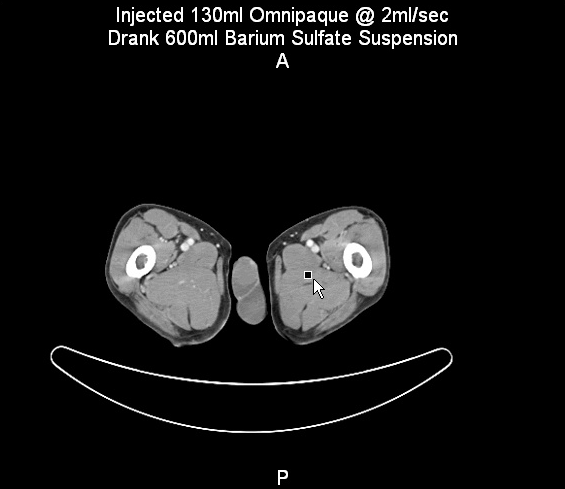
The arrow will point at the location of the initial click.
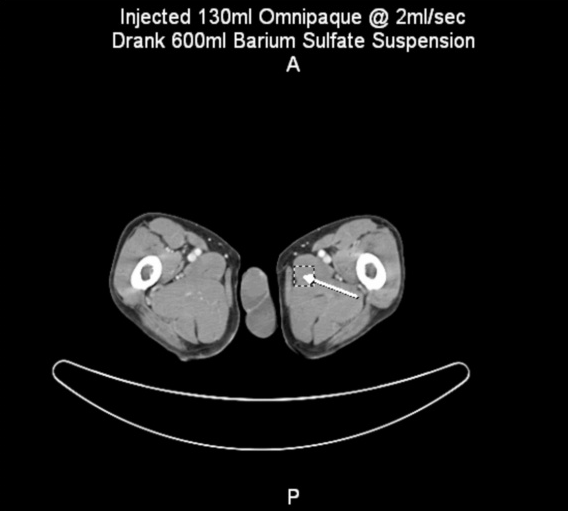

The Add Annotation option can be used to associate a text annotation with the arrow. The text of the annotation is entered into the text field next to the Point of Interest tool. The text can also be selected from the predefined list of annotations available from the drop-down menu associated with the text box.

The following image shows an arrow and a text annotation.
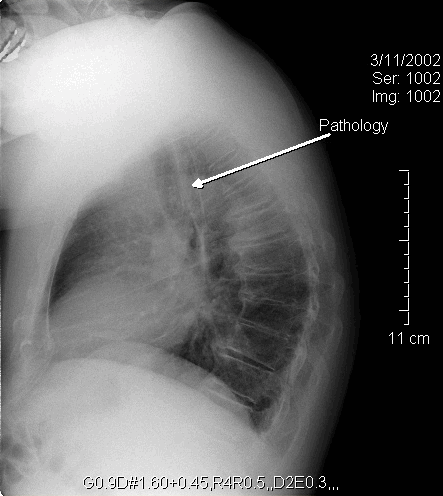
To add a combination of the two tools, simply enter the desired text into the field and then draw the arrow.
To place only a caption, click the Add Annotation tool and place the annotation on the image with a single click.
To draw only an arrow, make sure the text field is empty when using the Point of Interest tool.
Once any annotation has been drawn on the screen, several modifications can be made to it. To work with an existing annotation, first select it by clicking on it. This will enclose it with a dashed line. Now that the annotation is selected, clicking and dragging inside the dashed region will move the annotation around the image. Clicking on one of the dashed lines and dragging it re-sizes the annotation.
Any currently selected annotation can be deleted by pressing the Delete key on the keyboard. Finally, each type of annotation has a right-click menu associated with it. Right-clicking any annotation will open the following menu.

Choosing the Deselect option will simply deselect the current annotation. Each type of annotation has a slightly different menu.

The menu for the annotation and arrow combination is as shown. Here, the Annotation Text can be modified and the arrow can be hidden or removed. The whole object can be deleted if desired.