Changing the Scout Thumbnail Image
Unless the option is turned off in your hanging protocol, each series of images will have a reference Scout Thumbnail in the bottom right corner of the viewport. This image belongs to some other series in the study and has been determined by the software to be the best choice as the scout for that series. Sometimes, multiple images can be set as the scout and the one chosen by the software might not be the user preferred selection.
There are two possible options for manually assigning a Scout Image. The first option is to assign a scout for all the series within the study that it will work for. To do so, first find the image you will like to use. Next choose the Scout Thumbnail option from the Image Right Click Menu.
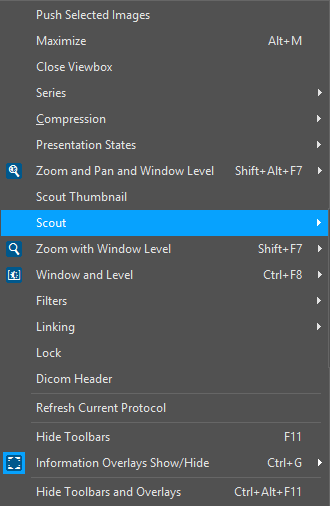
This will assign the currently selected image as the scout thumbnail for all the series within the study. This assignment will only take place for all images for which it makes sense. An image cannot be a scout for a series unless it is sliced perpendicular to the series being referenced. If the new scout cannot be used, the old scout thumbnail will be left intact.
A Scout Thumbnail can also be assigned for one specific series. To do this find and highlight the image you will like to use. Then click Scout from the Image Right Click Menu and click the arrow next to Series Scout Thumbnail in the scout menu.

This will open a listing of all the series in the study.
The series chosen here will be assigned the currently selected image as its scout, if this assignment can be done. If the chosen image cannot be used as a scout for the series, then the previous scout thumbnail assignment will be preserved. The Scout Thumbnail appears in the lower right hand corner of each image.