How Do I Set Up a Layout Within a Viewport?
You can set up number of image views within a Viewport using the Setup Layout Within Viewport tool.
Note that the Setup Layout Within Viewport tool is not visible when you have a series with one image.
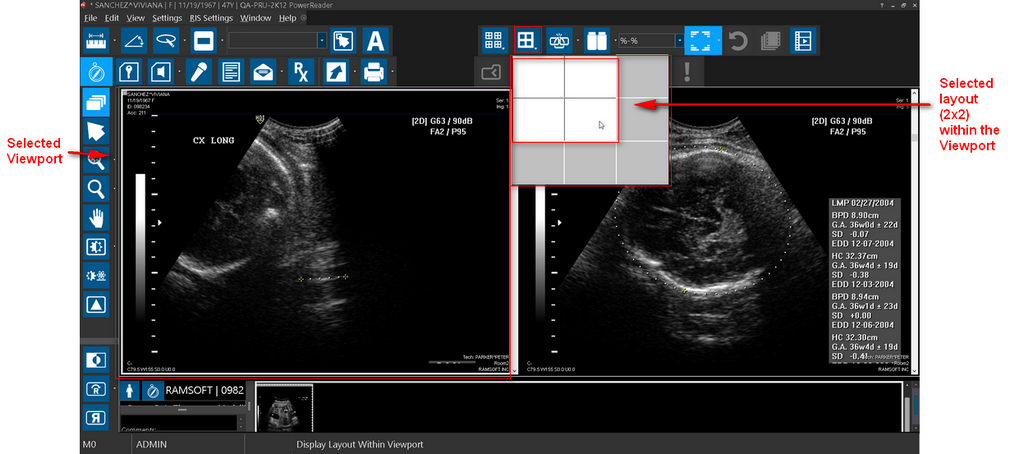
You can select a specific Viewport and then setup the desired number of images to display in the Viewport by clicking the Setup Layout Within Viewport tool.
For example, in this case the user has a multiple viewport layout with a single image in each Viewport. Note that a frameset with only one image will always be displayed in 1x1 layout.
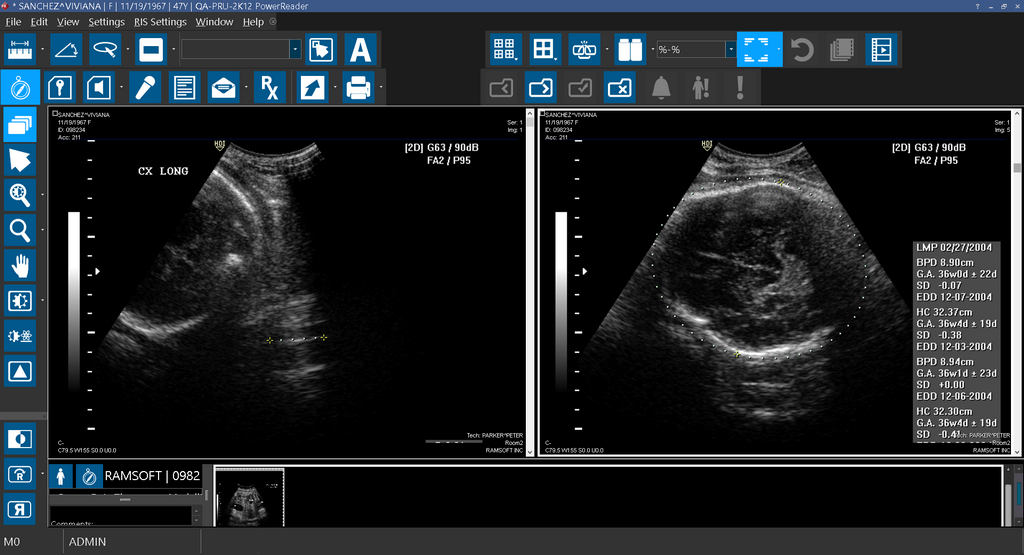
Now, the user can select the desired number of views for a specific Viewport and change the layout within the Viewport using the Setup Layout Within Viewport tool.
You can see that the number of image views for the specific Viewport selected have changed.
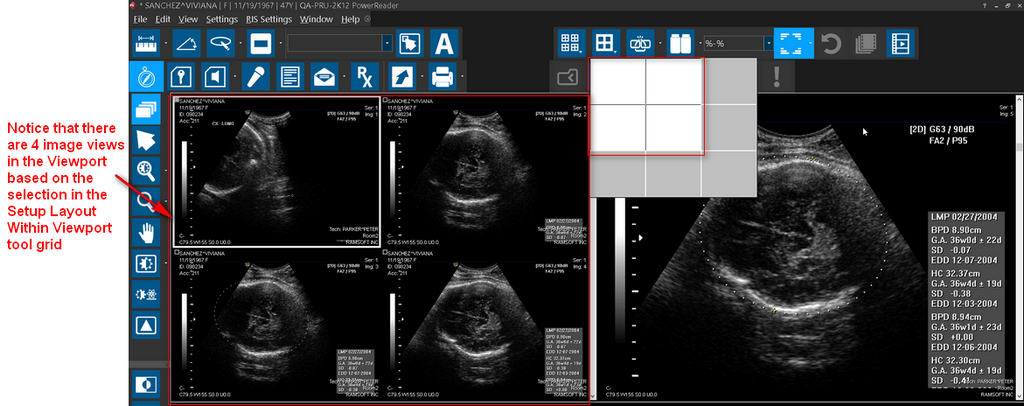
By default, you can see that a 3x3 layout grid is available for you to choose. If you wish to choose a layout with more views, selecting the maximum available views always automatically increases the layout grid by one scale.
When multiple images are set up within one viewport, the images are displayed in Tile mode. The following is a sample of a study in which both series (on the left and right) are displayed in Tile Mode with multiple images within each Viewport.
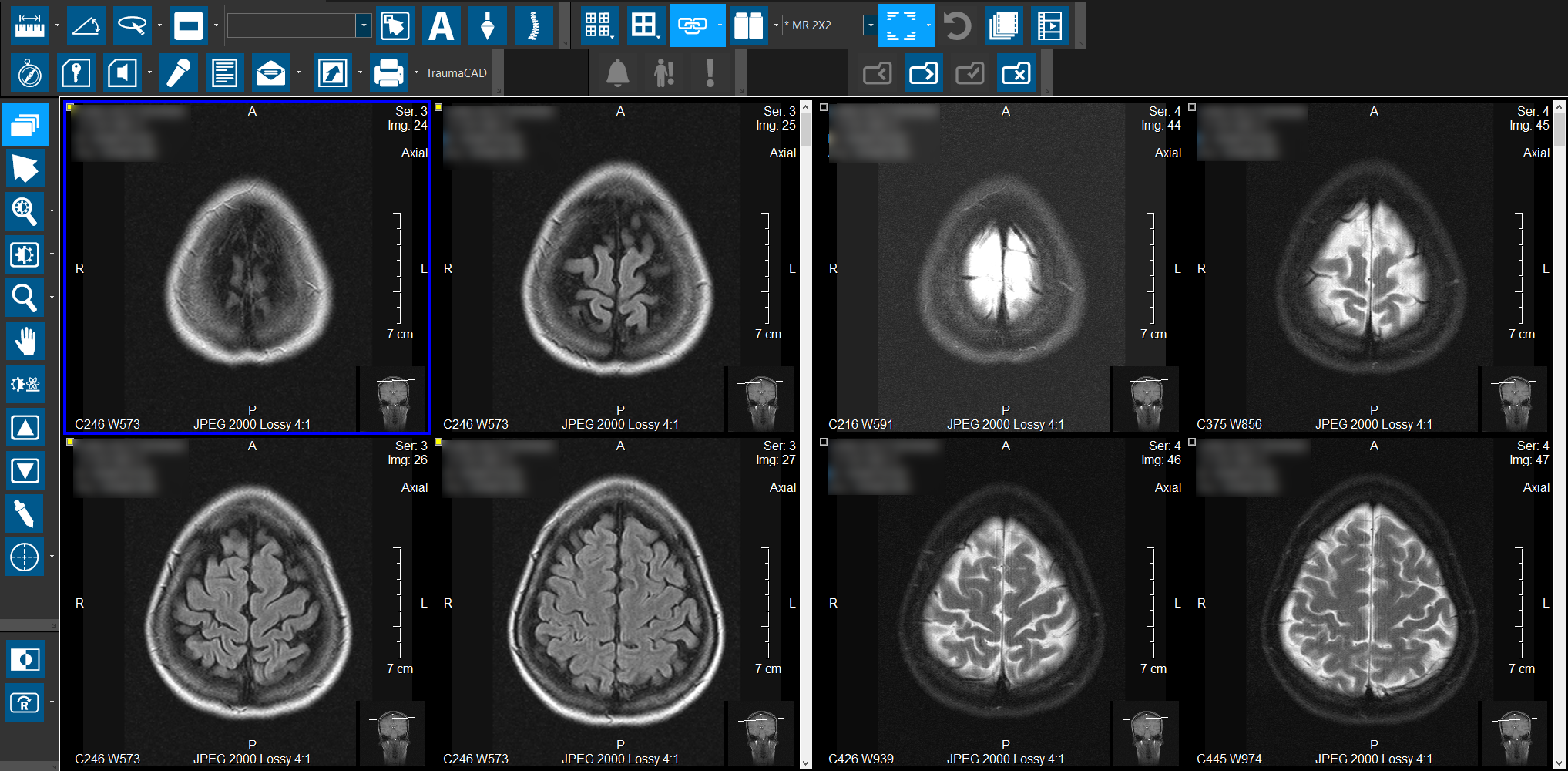
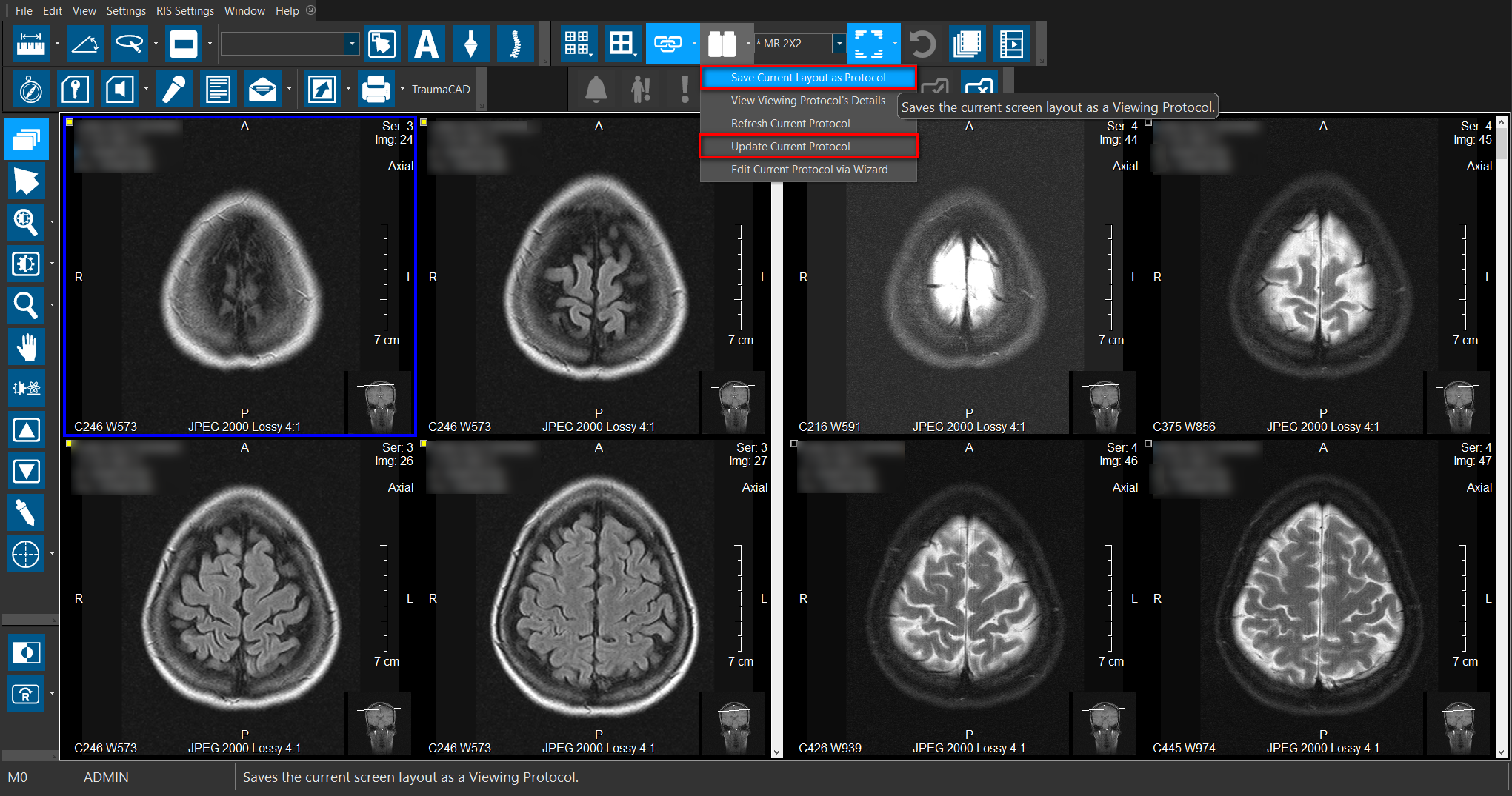
The layout within a viewport can be saved by clicking the Viewing Protocol Settings icon and selecting "Save Current Layout as Protocol" or "Update Current Protocol". When updating a protocol via the Update Protocol option, the layout within a viewport of the first viewport will be stored and applied to all viewports. Note that presently, in Viewing Protocol Setup: Layout, the Display Layout preview is unable to reflect multiple images within a viewport; the layout is nonetheless properly saved.