How Do I Monitor the Studies Exported by the System?
The RamSoft software maintains a list of all the studies that are currently being exported, are queued up to be exported, or have been exported out of the system. This list is accessible by clicking Settings > Logs > Communication > Report Export tab.

The Report Export log is composed of three sections. The first section is found under the Pending tab. This section contains a list of all the studies that are currently being exported, have been queued up to be exported or have failed.
The Priority column displays the priority of the study i.e. CRITFIND, CRITTEST, STAT, HIGH, MEDIUM, LOW etc. The Status column determines what is currently happening with the study. Any given study will have one of the following four statuses associated with it.
- SCHEDULED - Indicates the study has been requested and scheduled for exporting. It is queued up and will be sent once the communication lines are free or its scheduled time window occurs.
- IN PROGRESS - Indicates the study is currently being Exported.
- FAILED - Indicates the requested export job was attempted and failed. A study that has Failed has its priority value decreased by one. If after this demotion it is still the highest priority study in the list, it is reattempted immediately. If its priority value is now lower than other studies in the list, export of those studies will take place first. Once the Failed study becomes the highest priority again, it will be reattempted. The software will reattempt to export each failed study up to ten times.
- TOO MANY FAILURES - Indicates the system has attempted to export the study ten times and has failed in each attempt. Once this state has been reached, the system will wait for one hour before attempting to export it again.
The Detail column contains the details about the study while the Accession # column contains the Accession number of the study. The other important details such as Patient ID, Issuer of Patient ID and the Facility the study belongs to is displayed in the log. Export Type column displays the type of file which has been exported to the export folder. Currently PowerReader supports the following formats : PDF, DOC, DOC Body, RTF, RTF Body, Text Body, ChartScript XML Doc, ChartScript XML RTF and ChartScript XML ASCII.
The Export Folder contains the destination folder where the files are being exported to. These file types and their destination folders are determined by the System Admin in the Maintenance module.
The Completed tab contains a list of the studies which have been successfully exported by the system.
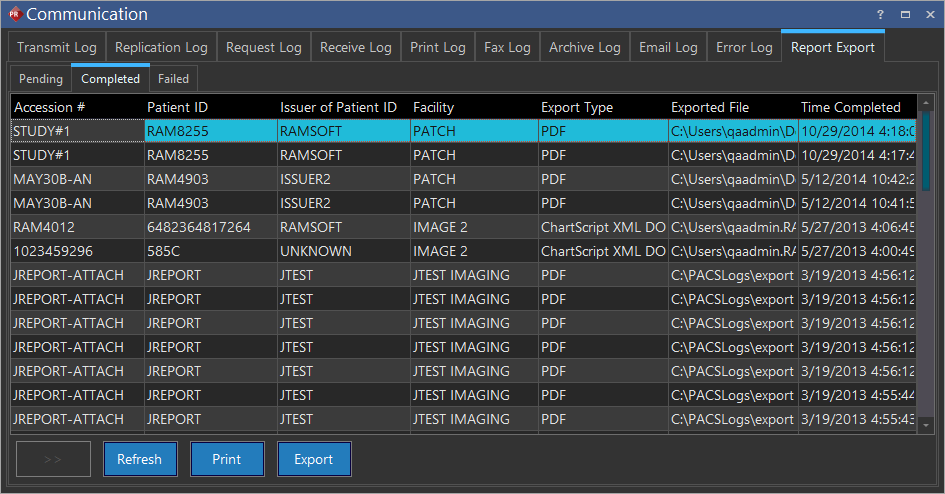
The list displays the time when studies were exported as well as other information related to the exported file. Entries in this list are a legal record and cannot be removed or edited.
The Failed tab in the Report Export Log consists of studies which could not be exported.
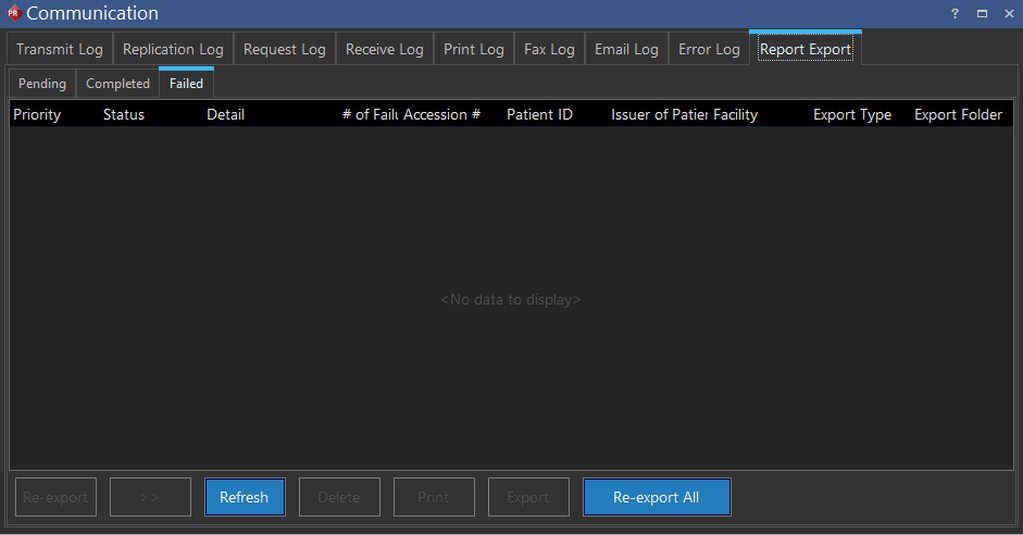
Any study which is listed in this tab has been exported and failed. Any study in this column can be exported again by pressing the Re-export button. The Re-export All button is used to export all the failed studies again. Any failed study can be deleted from the list by pressing the Delete button.