Online Archiving
Prerequisite:
The identified device (RAID/SAN/Tape library) has to be recognized as a DICOM station. Only then, the DICOM stations could be added to the Station List.
Any device (RAID/SAN/Tape library) will support DICOM Send and Receive, and these devices has the capability to service DICOM Queries. This task is covered in the Adding New DICOM Station section. Once the station has been added to the Station List and all the necessary DICOM services have been verified, it could be set to archive. This is also done from the Station List. The Station List is accessed through Settings > Server Settings > Station List.
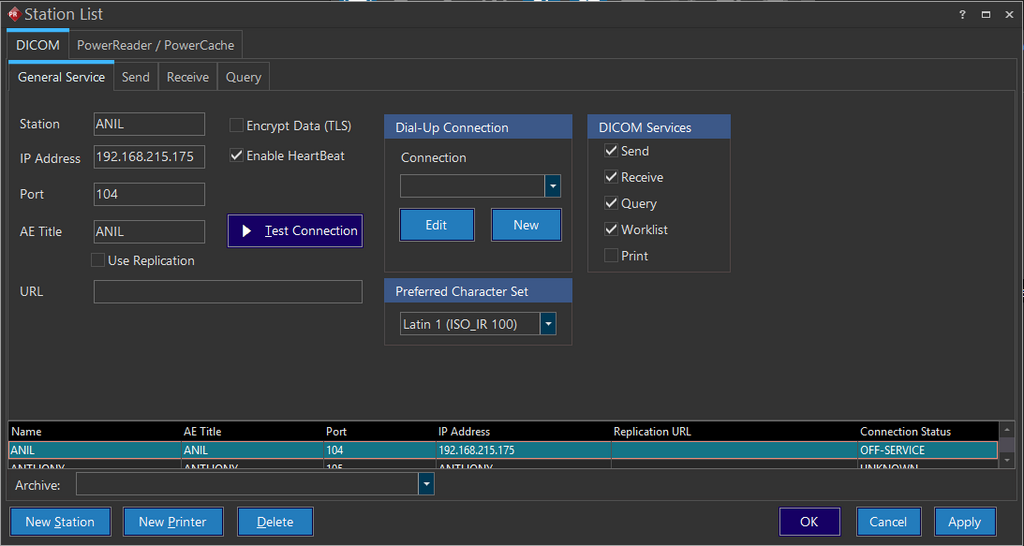
Select the device from the Archive drop down menu and click OK.
Now that an Archive device has been identified, the Pull From Archive  icon will become visible in the Patient Explorer.
The option becomes available for all studies. If a study already exists locally and the Pull From Archive option is clicked, the system will attempt to pull the study from the archive server. However, if any local objects are newer than what is on the archive, those will not be pulled over. If you open a case and find only the Pull From Archive option visible, that means the study is no longer stored locally, and needs to be pulled from the archive before the images can be viewed.
Now that the archive option is functional, the archive Workflow needs to be configured. This is performed by creating a new routing rule. This rule directs the system to push studies to the archive once they have reached a certain criteria. The most commonly used trigger for these is "Study Status". You will also be able to filter for criteria, such as study type/facilities name to determine which studies get pushed to the archive. Details on how to setup routing rules can be found in the Configuring Routing section.
The online archive is now fully functional. Studies will be pushed to the archive by the routing rule, and can be retrieved at any time by using the Pull From Archive option.