How to use the Film Digitizer?
-
Open a desired study. The Reporting Tools toolbar appears.
-
Click the Activate Film Digitizer Toolbar
 icon drop-down available in the Reporting Tools toolbar and select the Film Digitize option.
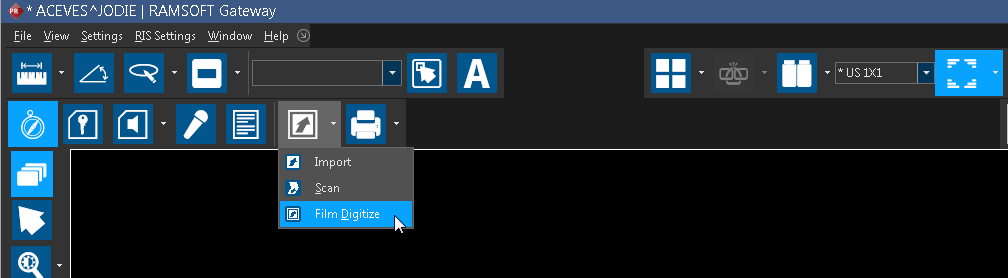
You will see the Information message "Scanner Warming up. Please Wait" displaying briefly followed by the Film Digitizer toolbar menu appearing on the Reporting Tools toolbar.
| FIELD | DESCRIPTION |
|---|---|
 Start Scanning Start Scanning | Start Scanning initiates the document scanning process |
 Eject the Film Eject the Film | Eject the Film allows you to eject the film from the digitizer |
 Configure Scanner Configure Scanner | Configure Scanner allows you configure the scanner settings. This screen can be opened by clicking Configure Scanner available in the toolbar. |
| Preset | Preset will load any previously created document scanning presets. These settings can be defined in Scanner Settings. |
 Manually Draw Cropping Lines Manually Draw Cropping Lines | To activate the cropping tool. This tool is used to remove unwanted areas of a scanned image. When the tool is selected, a scissors icon appears next to the mouse cursor. The cropping is performed by clicking on a spot and dragging out a square area. This will be the newly created cropped image. Anything outside the square will be cropped away. The new cropped image will be added to the study. The original image will remain intact. |
 Add a crop grid Add a crop grid | Allows you to add a grid boundary to select an area for cropping the image. |
 Crop the Image Crop the Image | The Crop the Image tool can use this function to crop the selected area of the image. To crop an image, click and drag a crop over the image. |
- The moment you click on the Start Scanning icon, the Start Scanning icon turn upside down
 indicating that the scan is in progress.
Once the scan is complete, you can see the digitized image in the Image Viewer as well as the Patient Explorer.
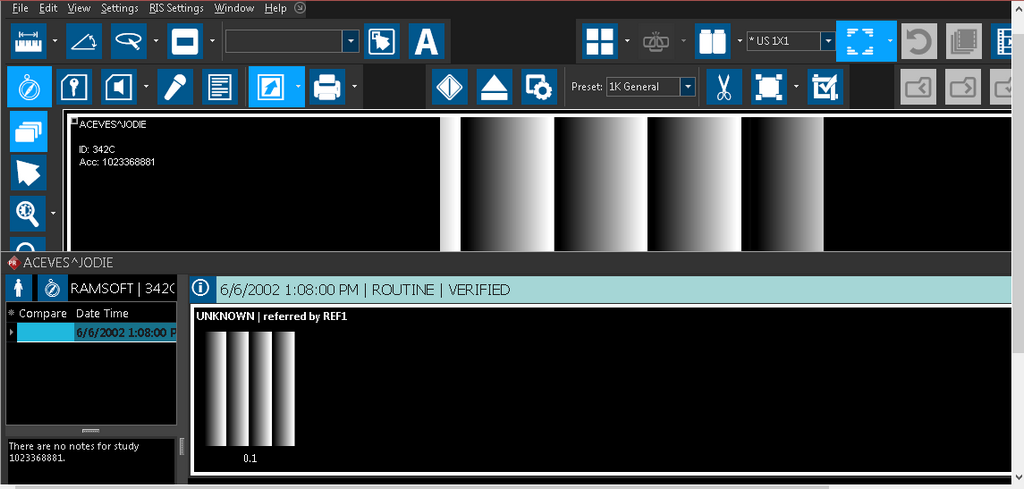
- You can check your Scanner Settings, Film Segmentation properties, Current Preset and Image Formats by clicking the Configure Scanner icon.

Currently, RamSoft PowerReader supports film digitizers from Vidar, Radlink, Howtek and Cobrascan. For specific film digitizer validation questions, contact RamSoft support.