Accessing DICOM MP4 Videos
Import videos associated to a study as media images (DICOM objects) using the Import Image File tool on the Image Viewer toolbar.
When importing a video, PowerReader converts the video into a DICOM MP4 video. The following video formats are supported by PowerReader: MOV, MPEG, MPG, AVI and WMV.
Importing a video into a study
To import a video into a study, perform the following steps:
-
Select and open the study in PowerReader.
-
On the study desktop, click the Import Image File
 icon on the Image Viewer toolbar.
 -
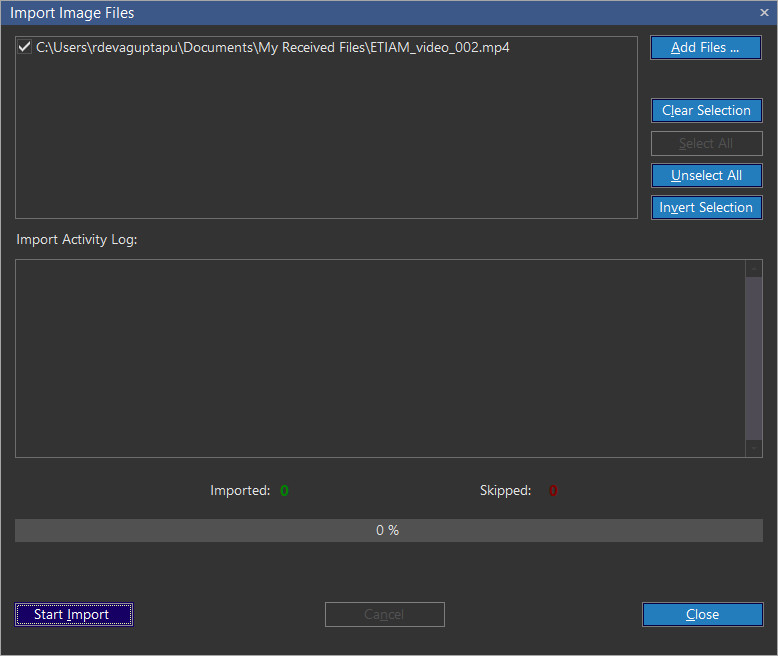
Select the video to be imported and click Open. The Import Image Files dialog is displayed.
-
Click Start Import.
-
Once the video is successfully imported, the message "Media File was Successfully Imported" is displayed in the Import Activity Log section.
-
Click Close. The video should start playing automatically.
Viewing Videos
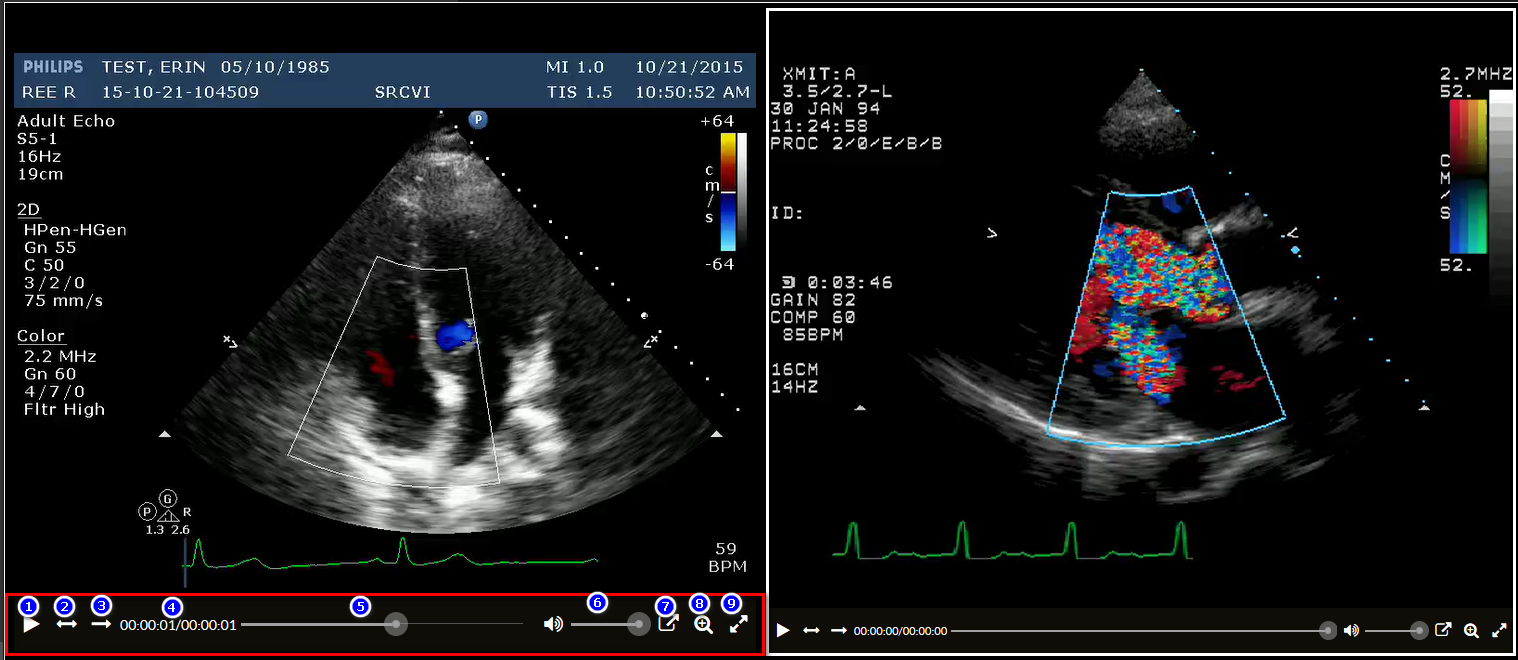
The following player controls are available when playing a DICOM MP4 video:
| Control | Description |
|---|---|
 / /  | Play/Pause - Click to play the video; click again to pause the video. Clicking on the video will also Play/Pause the video. |
 | Bounce On - Automatically plays video on a loop that goes forwards and backwards. |
 | Play Once On - Does not loop video: plays video once and stops. |
 | Timeline tracker - Displays current time frame of video versus total time. |
 | Timeline slider control - Drag the control to another point in the video. |
 | Volume control - Click the volume icon to toggle Mute/Unmute, or use the slider to adjust video volume. |
 | Open in Web Browser - Opens video in external web browser. |
 | Zoom - Click to Zoom In and Out of the video. |
 | Full Screen - Displays video in full screen mode. |
If a study has a video, the thumbnail image corresponding to the video has play icon overlay indicating that the thumbnail is a ready-to-play video.

Scrolling Behaviour
Scrolling the mouse wheel can be used to scroll between frames on the video. If the video clip is not playing, and the last frame of the video frameset is displayed, the mouse wheel scrolls into the next frameset. Similarly, scrolling past the first frame of the video will scroll to the previous frameset. Note: it is not possible to scroll to the last few frames of a video in Windows 7.
Scrolling between video framesets:
-
Keyboard Pg Up / Pg Dn: the keyboard Page Up and Page Down keys can be used to scroll through framesets.
-
Mouse default setting: the mouse can be configured to have a default Next Frameset function, i.e. Middle Click (clicking the Scroll Wheel). The default functions of the mouse is customizable and specified in Mouse Presets. Perform the scrolling operation by activating the mouse default setting for Next Frameset, if set.
Linked Videos
When the "Link" option is turned on (via the dropdown menu on the image toolbar), all opened DICOM videos can be played simultaneously. The current frame position is preserved such that users can manually sync frameset and then press Play.
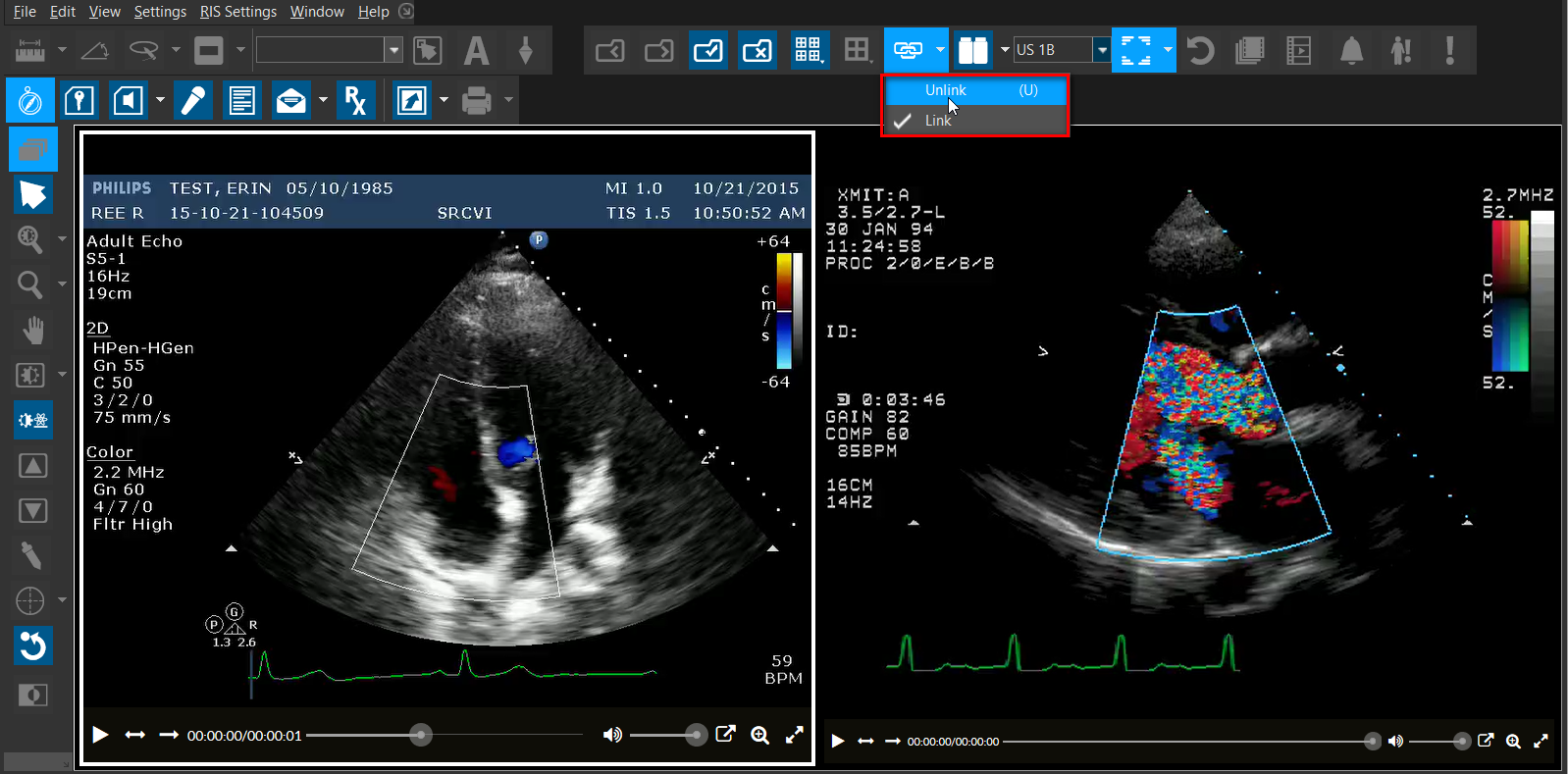
The number of simultaneous videos that can be played is configured with the System Configuration keyword "Number of Simultaneous Videos that can be played", which has a default value of 4.