How to Import DICOM Objects Directly into a Study?
To import DICOM objects directly into a study, you will need to open a study.
Select and open a study available in the Worklist. The Import Image File option can be accessed from the Image Viewer toolbar. The acquire tools toolbar appears as shown below. This acquire toolbar is available on top of the study desktop.

This import option will allow the importing of objects (both DICOM and non-DICOM) into the current study.
Prerequisite:
Before importing images, determine the location to save the imported objects. The DICOM objects will be imported into the series highlighted in the Patient Explorer.
Creating a new series from the Study Desktop
- Right click on the image found in the Patient Explorer and click Series Info. Series for Study screen of the selected patient appears as shown below.
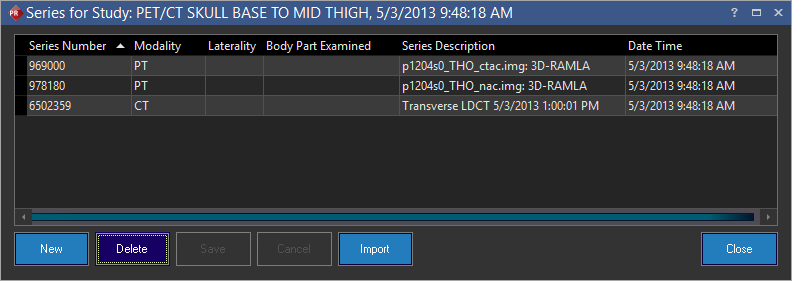
- Click New.
- Fill the Series Description. The Body Part, Laterality and Modality are populated.
- Click Save.
- Click Close.
Importing a DICOM object into an existing series
-
Select the desired series in the Patient Explorer.
-
Click the Import Image File
 tool available in the Image Viewer toolbar. Import Image screen appears as shown below.
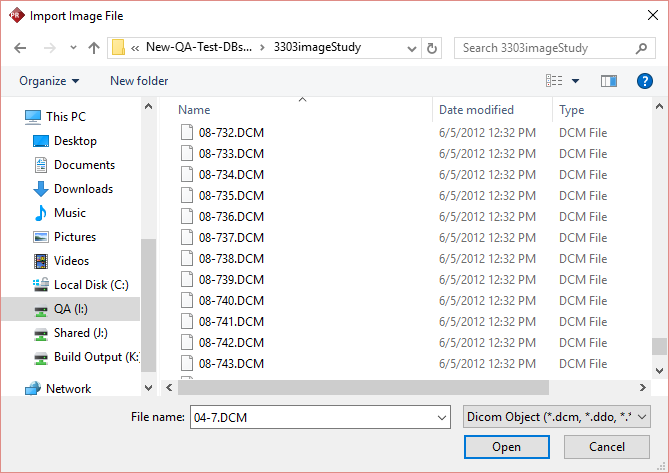
- Select the desired object(s) from the list and click Open.
- Click Start Import.

- The application displays the summary of the import as shown below.
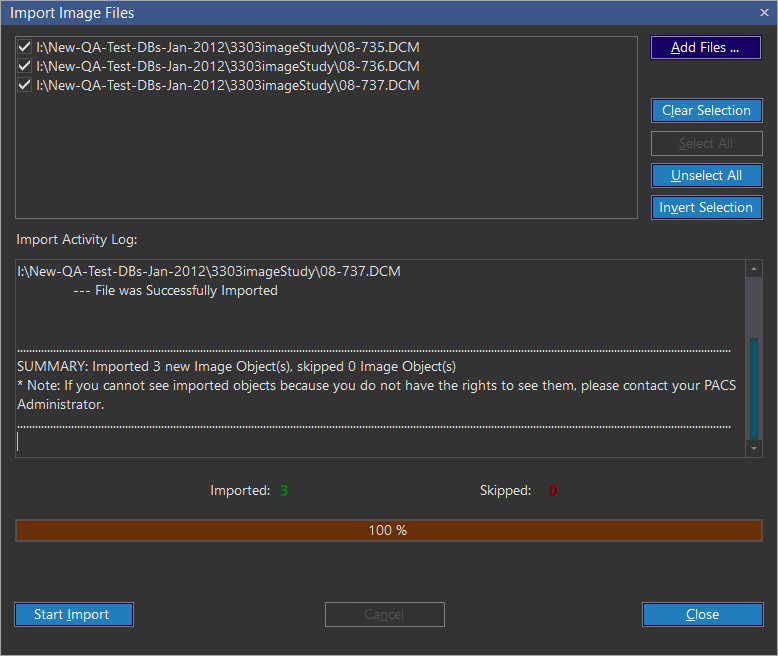
Imported: Displays the total count of files been successfully imported.
Skipped: Denotes that if any of the DICOM files were been already imported in the database or not a valid DICOM file.
- Click Close. The selected DICOM objects will be imported into the study.
Note: For MG modality, when you import several DICOM objects to one series in a study, only one DICOM image type 3 and image type 4 would be copied for all objects imported into that series. If you want to avoid this situation, you need to import each DICOM object into separate series in a study.
Note: You can also import non-DICOM objects as you would import a DICOM object.
Windows Bitmap (.bmp) images that are encoded using 24 more bits will have their colors preserved. Any lower quality images will be converted to black and white.