How to Scan Documents?
-
Open a desired study. The Image Viewer toolbar appears.
-
Click the Document Importer
 icon drop-down available in the Image Viewer.
The Document Importer tool now gets launched.
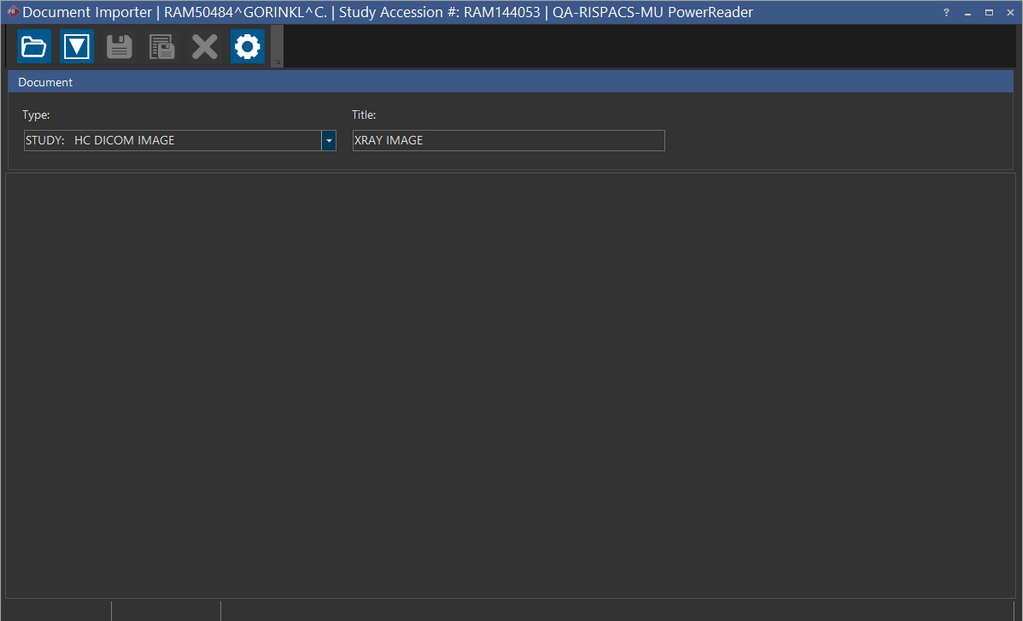
The following scanning tools are available on the Document Importer.
| FIELD | DESCRIPTION |
|---|---|
 Scan Scan | Initiates the document scanning process |
 Save Save | Allows you to save the document to the desired Study based on the Document Type selected. |
 Save All Save All | Allows you to save all the documents that are currently open in different tabs based on the Document Type selected. |
 Close All Close All | Allows you to close all the documents that are open in different tabs. To close a specific document, click the  button of the Tab containing the document. You can also close all documents by right-clicking on any document and selecting the Close All Documents option. button of the Tab containing the document. You can also close all documents by right-clicking on any document and selecting the Close All Documents option. |
 Settings Settings | Allows you to select a scanner and configure the scanner settings |
Note that the Save, Save All and Close All tools are enabled only when you have a document or an image open in the Document Importer.
For steps on scanning a document in Document Importer, refer to the section Scanning Documents in Document Importer. To configure Scanner settings, refer to the section on Scanner Settings.
You can manipulate scanned documents in the Document Importer. For more information on managing documents in Document Importer, refer to the section on Managing Documents in Document Importer.
For more information on scanning a document into multiple studies or for a different patient, please refer to the section on Context Switching.
Duplex Scanning
Duplex Scanning is a feature of computer scanners that allows the automatic scanning of a sheet of paper on both sides. This feature is available from Document Importer only when you use the TWAIN32 driver subject to the availability of a scanner with this feature.