Formatting Overlays and Annotations Fonts
You can set the Default text Font and custom Annotations Fonts to your desired font style by using the Overlay Font and Annotation Font buttons.
Go to View > Setup Viewport and then choose the required button to format the Font settings for Annotations.
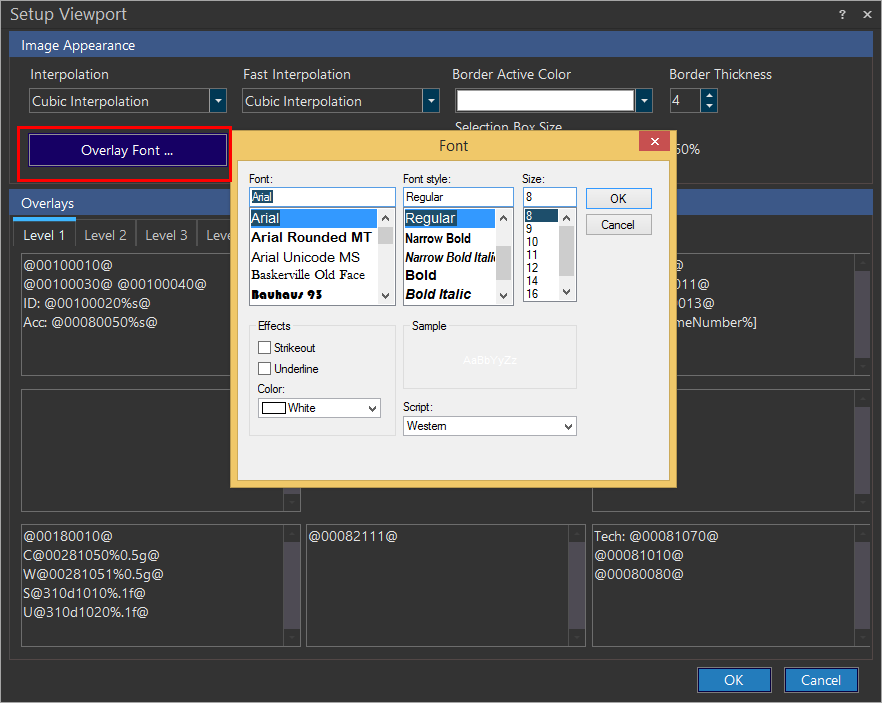
Setting up Overlay Font:
When images are displayed in the RamSoft software, there are several annotation overlays composed of patient and study data. These annotations are useful when navigating through or working with the images.
The Overlays fonts are used by the Overlay Annotations to describe this information.
You can setup the Overlays Font by clicking the Overlay Font button in the View > Setup Viewport window.
You can see that the Font window appears listing all the available Fonts and Font styles along with size and other options.
Setting up Annotation Font:
The Annotation Fonts are used to format the font style of Annotations created by users.
You can select an Annotation Font by clicking the Annotation Font button in View > Setup Viewport window.
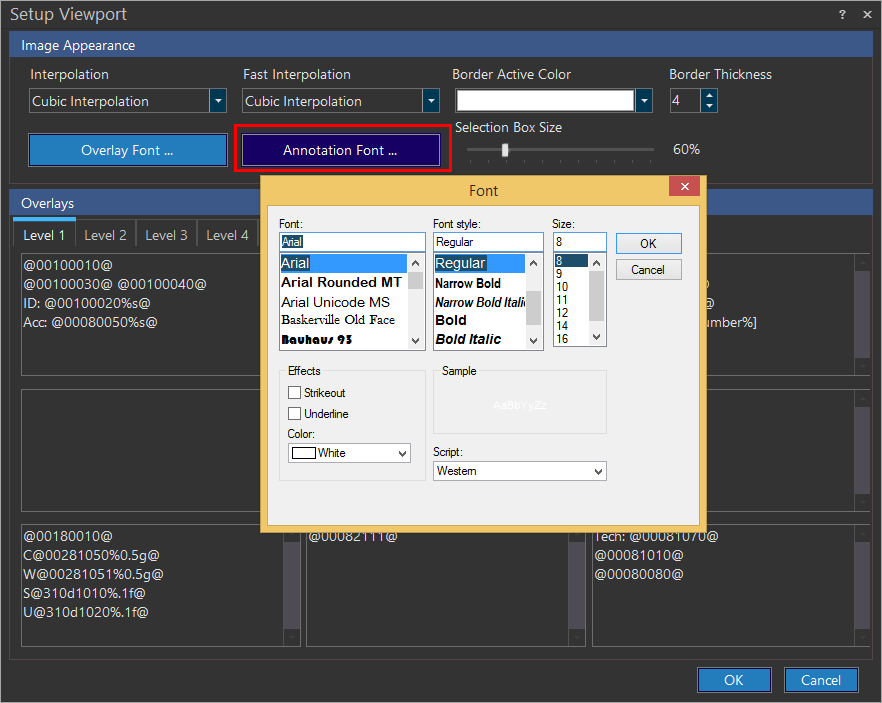
Note: If the Annotation Font is not explicitly set, it would use the font style set for the Overlays.