How Do I View Comparison Study Documents?
From PRU10 it is possible to open and view any of the comparison study documents directly from Study desktop, without closing the current study or opening the comparison study's document viewer.
To do that, we use patient explorer.
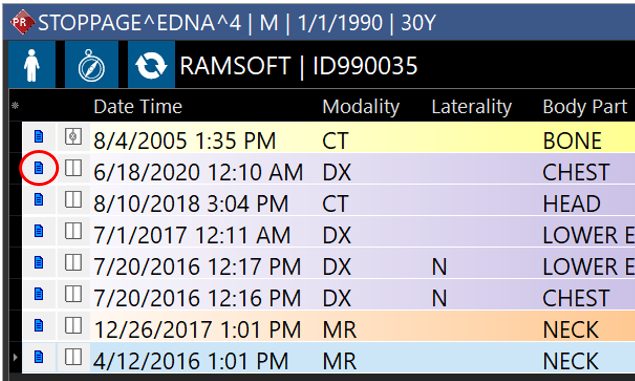
Option 1: from StudyGrid
Locate the study that you want to see its study documents, and click on the blue document icon (marked by a red circle on the following screenshot)
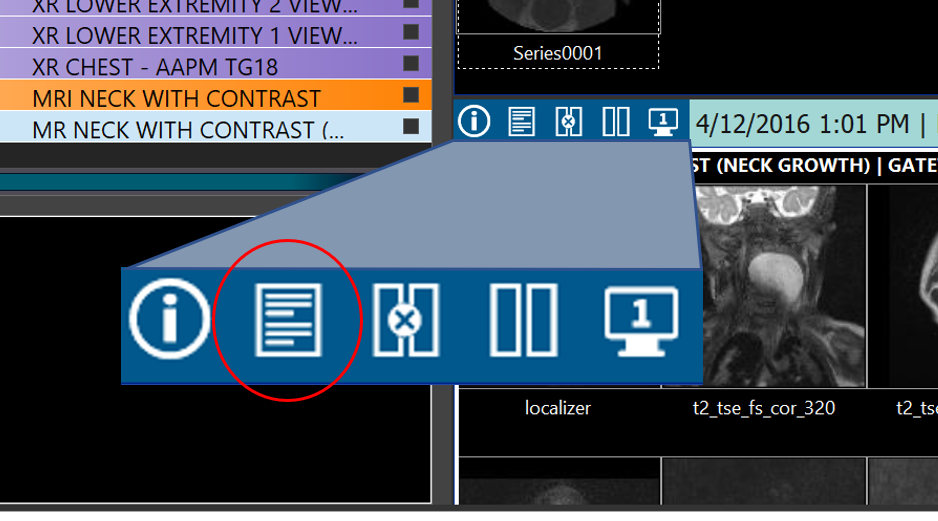
Option 2: from series thumbnails
Locate the series thumbnails for the study that you want to see its study documents, click on the document icon on top of thumbnails.
Study documents displayed in RapidResults in a window that could be resized & moved to your preferred location on your desktop. For example, you can move it to a secondary monitor to view it side by side with current study's document viewer:
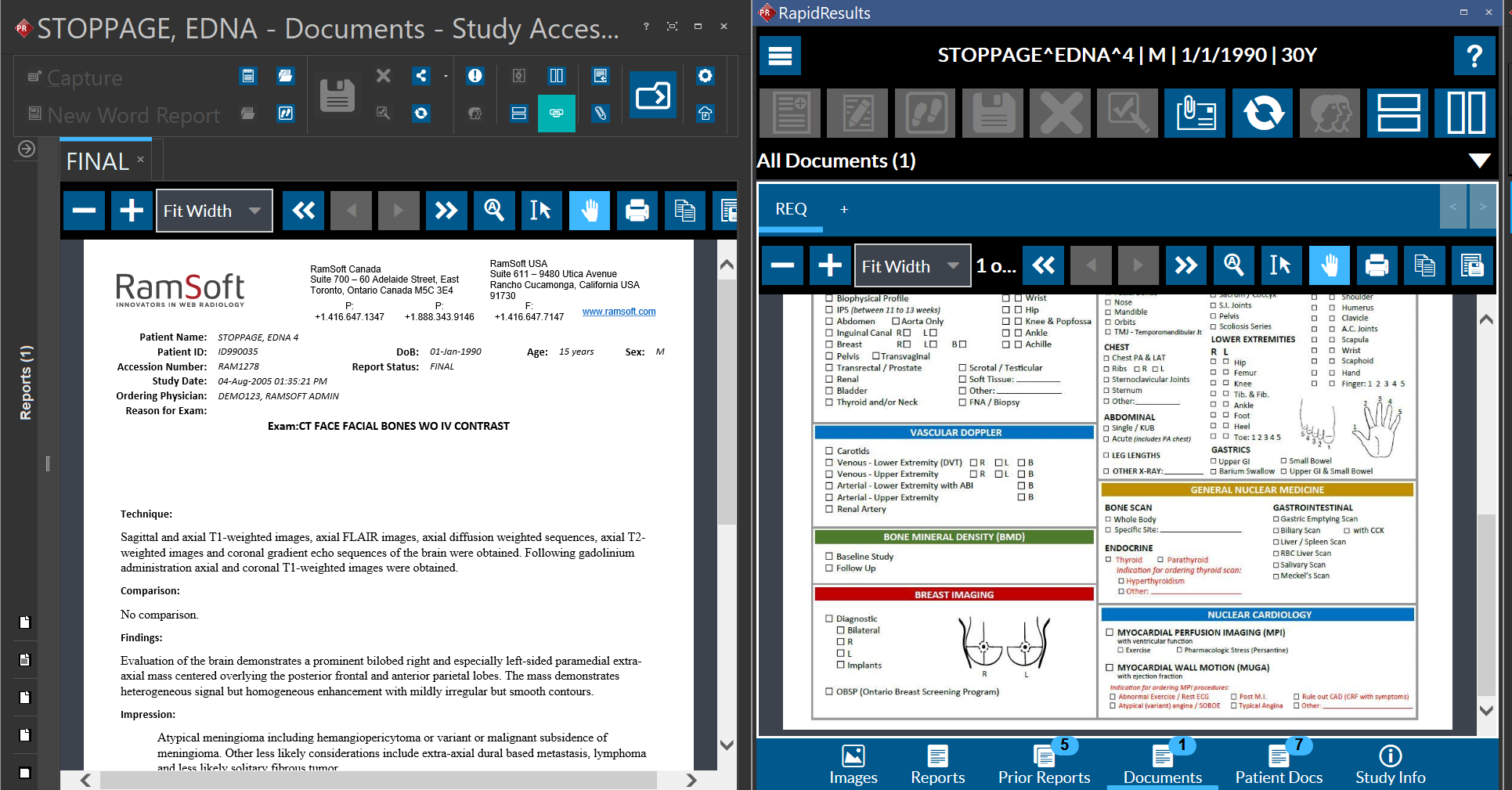
Clicking on the study documents icon for other comparison studies will open study documents for that study without changing the location of this window. Note that while RapidResults window is open you can also navigate to other tabs such as Prior Reports, Patient Docs, etc.