Roles Overview
Role membership determine the available actions (privileges) a user has on the system. It is recommended that roles are based on the profession of the system users (e.g. radiologist, technologist, etc.), as these usually determine what functions the user will be performing on the system. Each RamSoft system comes with a number of pre-configured roles based on the general tasks performed by users at medical facilities. These defaults may suit your installation, they may need the addition or removal of one or more privileges, or they may be unsuitable for the facility. Either way, they are a good initial starting point when creating new roles.
The following table contains a detailed explanation of what each privilege gives the user access to, or consequently what it restricts the user from doing.
User Type
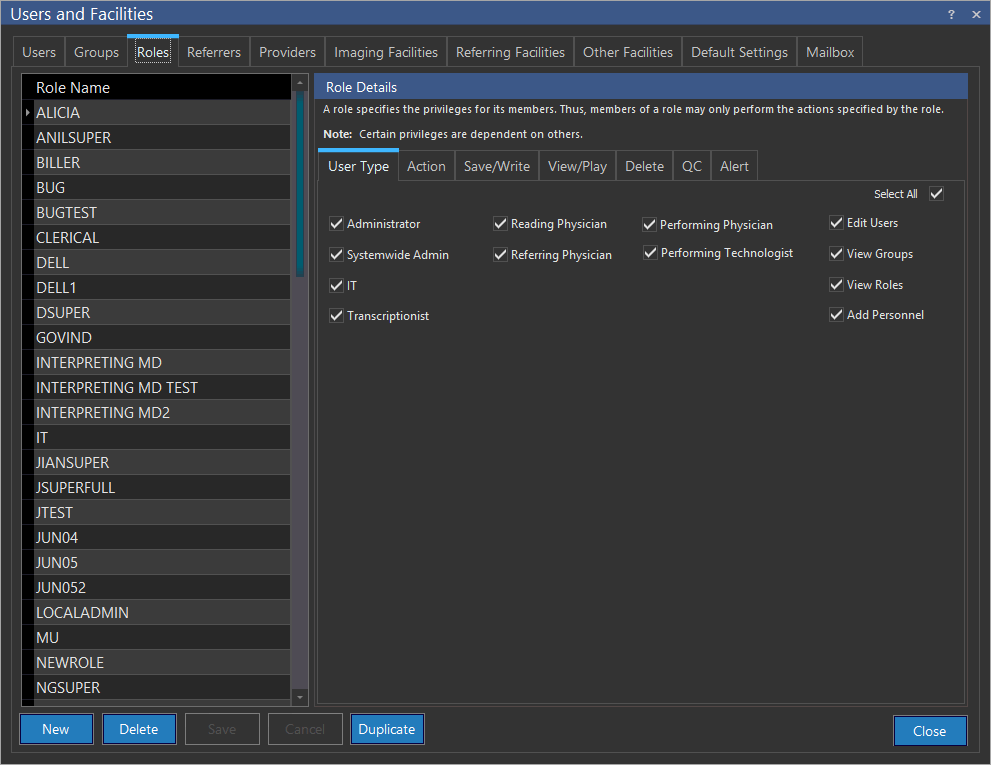
Click Settings > Users and Facilities > Roles tab. Roles tab appears as shown below. By default, User Type tab remains opened.
| Privilege | Description |
|---|---|
| Administrator | • Can access and modify * User List of the facility you belong to • Can modify Default Viewing Protocol • Can view Audit Logs of the facility you belong to • Can modify Default Modality & SOP Class in Local Setup menu • Can access and modify Role Worklist in Worklist Editor ** of the facility you belong to • Can access and modify User Worklist in Worklist Editor ** of the facility you belong to • Can access and modify Workflow menu of the facility you belong to • Can modify default Image Annotations • Can modify Study Statuses • Can modify Report Distribution behavior of the facility you belong to • Can access all * Communication Logs of the facility you belong to • Can modify Server Settings * Cannot modify the account of Systemwide admin * Customize Worklist privilege is needed in order to see the Role and User Worklists * Access Worklist privilege is needed in order to view the Worklist * One of the following privileges is needed additionally to access all Communication Logs: - IT (User Type) - DICOM Print (Action) - Send Studies (Action) - Access Remote Search (Action) - Send Fax (Action) - Send Email (Action) |
| Systemwide Admin | • Can access and modify User List of all the facilities including Administrators • Can modify Default Viewing Protocol of all the facilities • Can view Audit Logs of all the facilities • Can modify Default Modality & SOP Class in Local Setup menus of all the facilities • Can access and modify Role Worklist in Worklist Editors of all the facilities • Can access and modify User Worklist in Worklist Editors of all the facilities • Can access and modify Workflow menus of all the facilities • Can modify default Image Annotations of all the facilities • Can modify Study Statuses used by all the facilities • Can modify Reports behavior of all the facilities • Can access * Communication Logs of all the facilities * One of the following privileges is needed additionally to access all Communication Logs: - IT (User Type) - DICOM Print (Action) - Send Studies (Action) - Access Remote Search (Action) - Send Fax (Action) - Send Email (Action) Note that the access restrictions for Groups do not apply for Roles, and vice versa. A user with a Systemwide Admin role would be able to access studies of all Facilities, as the Facility access criteria is a Role access criteria. However, if the Group type restricts the user to only studies within a Status Range, the Systemwide Admin would still be bound by such Status Range restrictions. |
| IT | • Can modify DICOM Communication/ Import settings • Can access and modify DICOM Film Setup dialog • Can access System Configuration menu • Can modify Service Tasks settings • Can access Connection Paths dialog to modify cache distribution settings • Can access all Communication Logs • Can modify Server Settings |
| Transcriptionists | • When user opens a case without a transcriptionist assigned to it, user is automatically assigned as transcriptionist • Can be manually assigned as the transcriptionist for any study by a user with the Assign other Study Players privilege |
| Reading Physician | • When user opens a case without a reading physician assigned to it, user is automatically assigned as the reading physician • Can be manually assigned as the reading physician for any study by a user with the Assign Reading Physician privilege |
| Referring Physician | • Can be manually assigned as the referring physician for any study by a user with the Assign other Study Players privilege • Can be manually assigned as a consulting physician for any study by a user with the Update Study Info privilege |
| Performing Physician | • Can be manually assigned as the performing physician for any study by a user with the Assign other Study Players privilege |
| Performing Technologist | • Can be manually assigned as the technologist for any study by a user with the Assign other Study Players privilege |
| Edit Users | • Allows user to edit their own properties |
| View Groups | • Allows user to view the group they belong to |
| View Roles | • Allows user to view the role they belong to |
| Add Personnel | • Allows user to add new personnel on the 'Study Info Detailed' form > 'Assigned Personnel' tab and on 'New Order' form using the 'New' item in the meta-search provided, the user has 'Assign Reading Physician' and/or 'Assign Other Personnel' privilege(s) under 'QC' privileges'. When assigning a Referring Physician, the user has the privilege to assign the associated Referring Facility. |
Action
- Click Settings > Users and Facilities > Roles tab.
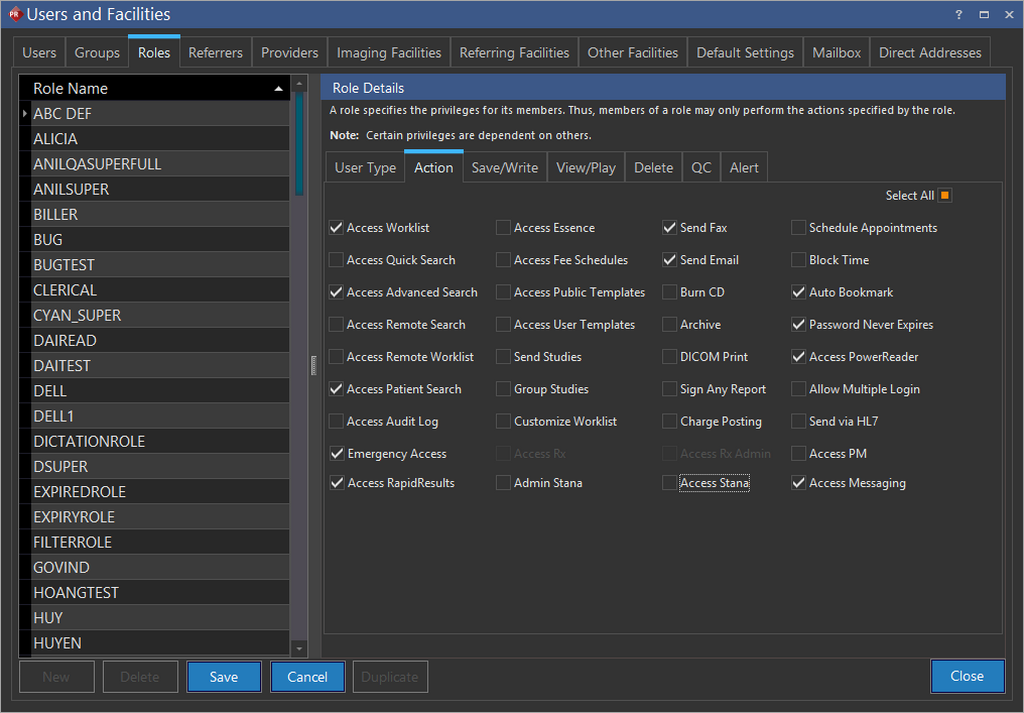
- Click Action tab. Action tab appears as shown below.
| Privilege | Description |
|---|---|
| Access Worklist | • User can access Worklist |
| Access Quick Search | • User can access Quick Search |
| Access Advanced Search | • User can access Advanced Search |
| Access Remote Search | • Can access Request Log and Error Log • Can access Remote Search section of Advanced Search, Advanced Search will also be enabled |
| Access Remote Worklist | • Can access Remote Worklist section of Advanced Search, Advanced Search will also be enabled |
| Access Patient Search | • User can access Patient Search under Advanced Search, Advanced Search will also be enabled |
| Access Audit Log | • Can view all Audit Logs |
| Emergency Access | • Emergency Access tab is available only on selection of this option. |
| Access RapidResults | • User can access RapidResults |
| Access Essence | • Allow users access into Essence |
| Access Fee Schedules | • Allows user to access the Fee Schedules window (RIS only) |
| Access Public Templates | • Allows the user to access 'Public Templates' under Settings >> Template Manager |
| Access User Templates | • Allow access to access 'User Templates' under Settings >> Template Manager |
| Send Studies | • Can access Transmit Log and Error Log • Can DICOM send studies to other machines |
| Group Studies | • Allow the user to group studies under the same patient through the right-click menu |
| Customize Worklist | • Gives user access to Worklist Editor • User can see and modify My Worklist * • Administrator privilege is needed in order to see the Role and User Worklists * |
| Access Rx | • Allows users to access NewCrop. • Allows user to prescribe medication for patients through NewCrop, if facility authorizes prescription of medication • Allows users to order medication online through NewCrop, if facility authorizes ordering medication through NewCrop • Can enter allergies for patients. • Can perform some administrative tasks in the Admin tab of NewCrop |
| Admin Stana | • Enables Administrative privileges when accessing stana |
| Send Fax | • Allow the user to have send fax options available |
| Send Email | • Allow users to have the send email options available |
| Burn CD | • Can burn DICOM CDs |
| Archive | • User can access Archival List • User can mark studies for Archival |
| DICOM Print | • Can access Print Log and Error Log • Can print using a DICOM Printer |
| Sign Any Report | • Allows users to sign reports with the Sign Report button |
| Charge Posting | • Allows user to post charges |
| Access Rx Admin | • Allows users to access NewCrop • Allows users to view the prescribed medication and move them to list of current medications • Can enter allergies for patients • Can perform some administrative tasks in the Admin tab of NewCrop |
| Access Stana | • Enables access to RamSoft Stana |
| Schedule Appointments | • Only users with this privilege can schedule Ordered status studies in the Scheduler |
| Block Time | • Allows user to be able block a time slot on the Scheduler |
| Auto Bookmark | • User can save and access study bookmarks |
| Password Never Expires | • User will not be prompted to change their password |
| Access PowerReader | • Allow users to access into the PowerReader |
| Allow Multiple Login | • User can login into multiple PowerReader clients simultaneously • This privilege has been designed to work with integrated systems such as RIS. It should not be used for any regular user account. |
| Send via HL7 | • Displays the Distribute via HL7 option when the "Send To" option is selected through the right-click menu. • Distributes diagnostic reports via HL7 |
| Access Messaging | • Allows users to access the Messaging feature |
Save/Write
- Click Settings > Users and Facilities > Roles tab.
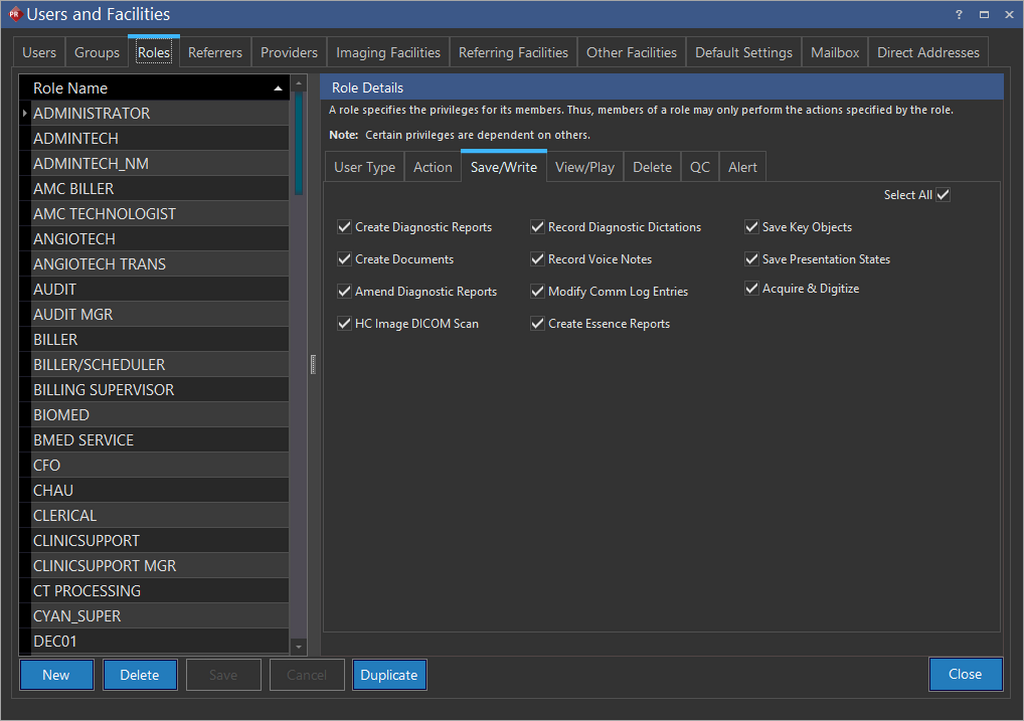
- Click Save/Write tab. Save/Write tab appears as shown below.
| Privilege | Description |
|---|---|
| Create Diagnostic Reports | • Can create Diagnostic Reports |
| Create Documents | • Can create Documents |
| Amend Diagnostic Reports | • Allow users to Amend Diagnostic Reports |
| HC Image DICOM Scan | • Can Scan HC DICOM images |
| Record Diagnostic Dictations | • Can record Dictations |
| Record Voice Notes | • Can record Voice Notes |
| Modify Comm Log Entries | • User can modify Priorities and Resume Failed Entries |
| Save Key Objects | • Can create Key Object Documents |
| Save Presentation States | • All changes made by user in study desktop are saved as a presentation state • If user does not have this privilege, all changes are discarded when study is closed |
| Acquire & Digitize | • Can Digitize images using a film digitizer • Can Import individual images from files |
| Creates Essence Reports | • Can create Essence reports |
View/Play
- Click Settings > Users and Facilities > Roles tab.
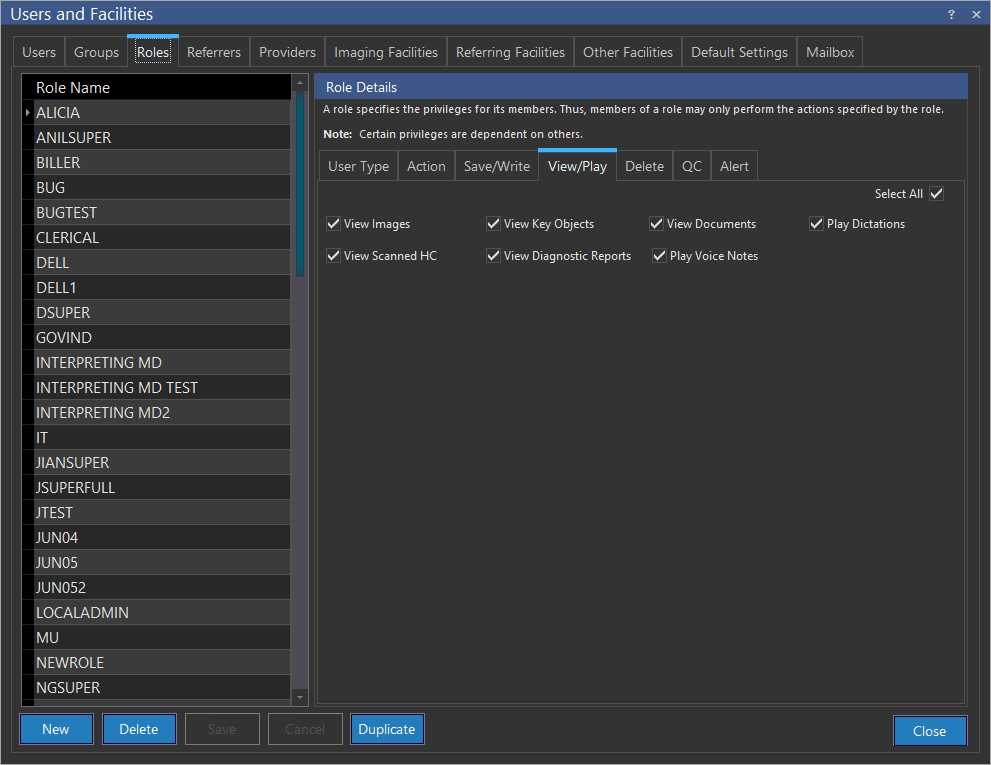
- Click View/Play tab. View/Play tab appears as shown below.
| Privilege | Description |
|---|---|
| View Images | • Can View study images |
| View Scanned HC | • Can view Scanned HC |
| View Key Objects | • Can view Key Object Documents |
| View Diagnostic Reports | • Can view Diagnostic Reports |
| View Documents | • Can view Documents |
| Play Voice Notes | • Can play existing Voice Notes |
| Play Dictations | • Can play existing Dictations |
Delete
- Click Settings > Users and Facilities > Roles tab.
- Click Delete tab. Delete tab appears as shown below.
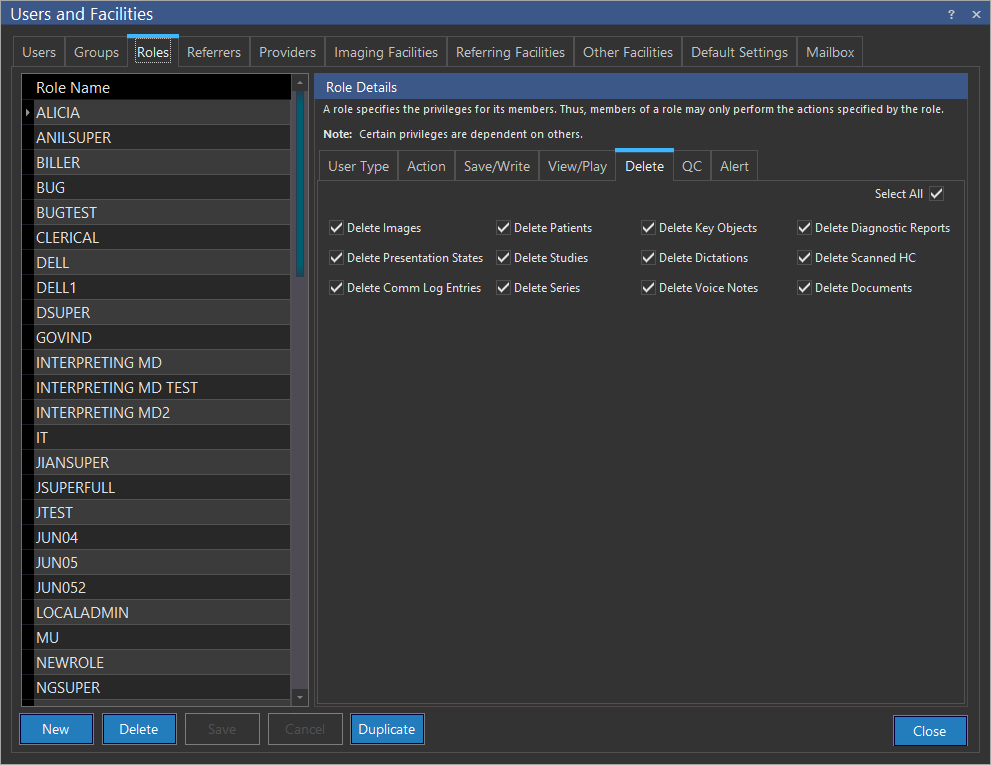
| Privilege | Description |
|---|---|
| Delete Images | • Can Delete individual images |
| Delete Presentation States | • Can Delete Presentation States |
| Delete Comm Log Entries | • Can delete entries in communication log otherwise, Delete button will not be visible to user |
| Delete Patients | • Can Delete Patients |
| Delete Studies | • Can Delete Studies |
| Delete Series | • Can Delete Series |
| Delete Key Objects | • Can delete Key Object Documents |
| Delete Dictations | • Can delete existing Dictations |
| Delete Voice Notes | • Can delete existing Voice Notes |
| Delete Diagnostic Reports | • Can delete Diagnostic Reports |
| Delete Scanned HC | • Can delete Scanned HC |
| Delete Documents | • Can delete Documents |
QC
- Click Settings > Users and Facilities > Roles tab.
- Click QC tab. QC tab appears as shown below.
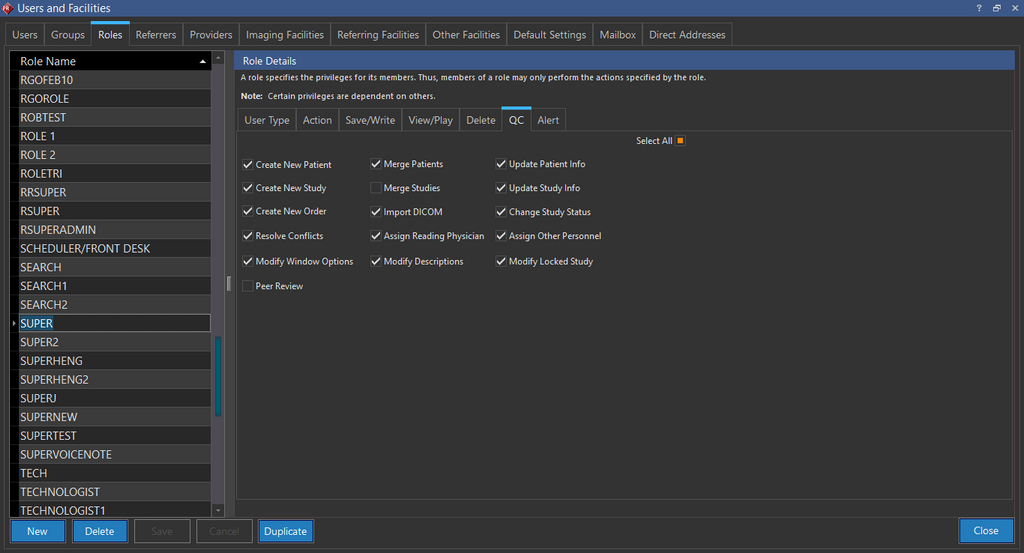
| Privilege | Description |
|---|---|
| Create New Patient | • Can create New Patients |
| Create New Study | • Can create New Studies |
| Create New Order | • Allow the New Order button to be available in the Worklist |
| Resolve Conflicts | • Can Resolve Conflicts between patients with similar information |
| Modify Window Options | • Can modify W/L presets, filters, and color mapping settings |
| Merge Patients | • Can merge two patients into one patient |
| Merge Studies | • Can Merge Studies into one study |
| Import DICOM | • Can import DICOM folders and files |
| Assign Reading Physician | • Can manually assign the reading physician for any study through the Worklist right click menu |
| Modify Descriptions | • Can add/edit/delete descriptions of annotations and image types |
| Update Patient Info | • Can update Patient Information in the Patient Info dialog |
| Update Study Info | • Can update information contained in the Study Info form |
| Change Study Status | • Can manually change the status of studies through the Worklist right click menu |
| Assign other Personnel | • Can manually assign study players other than referring physician and reading physician such as consulting physicians, transcriptionists, performing physician, etc., to any study through the Worklist right-click menu |
| Modify Locked Study | • Can alter studies even if their status is after the Prevent Modification Status defined in the Workflow window. |
| Peer Review | • Can perform Peer Review |
Alert
- Click Settings > Users and Facilities > Roles tab.
- Click Alert tab. Alert tab appears as shown below.
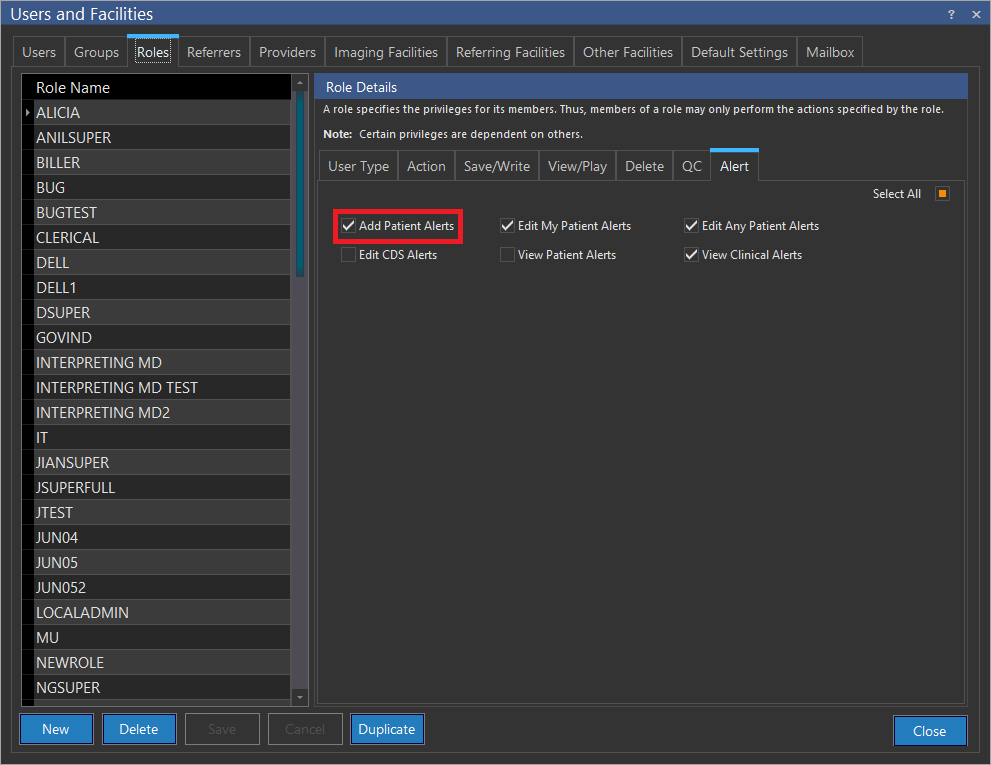
| Privilege | Description |
|---|---|
| Add Patient Alerts | • The user can add a Patient Alert |
| Edit CDS Alerts | • The user can edit CDS Alert |
| Edit My Patient Alerts | • The user can edit My Patient Alerts |
| View Patient Alerts | • The user can view the Patient Alerts |
| Edit Any Patient Alerts | • The user can edit any Patient Alerts |
| View Clinical Alerts | • The user can view Clinical Alerts |