Telling if a Study Contains a Bookmark
Bookmarking provides the ability to switch between studies without having to reorganize the layout and other customizations. Bookmarks are automatically saved when a study is closed if the user has been given the privilege to create them. Each user can only view the bookmarks they created. The following is a list of features which bookmarking saves:
- Viewport layout and location
- Image form layout and location
- Active Image form
- Viewing Protocol
- Scout Line
- Patient Explorer orientation and height
- Scroll to next series
- Maximize / Restore
- Manual Linking
When a bookmark is created, a yellow flag is placed beside the study in the Worklist column Access. In order to see this column in the Worklist, it must be selected from the top left drop-down in the Worklist. This will display the Bookmark column in the Worklist.
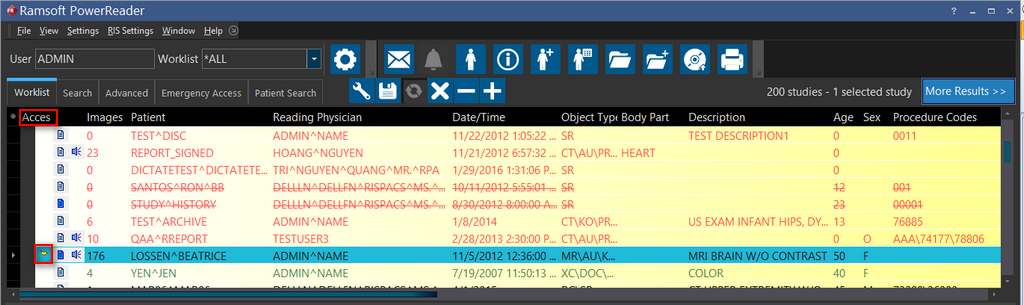
Once the status of a study changes, the bookmark will automatically be deleted and a viewing protocol will be used the next time the study is opened. If a study's status is greater than or equal to the prevent modification status, bookmarking will be disabled for that study.
Bookmarking ability is assigned at the role level. To enable bookmarking, Auto Bookmark must be selected in the Roles tab of the Settings > User and Facilities.
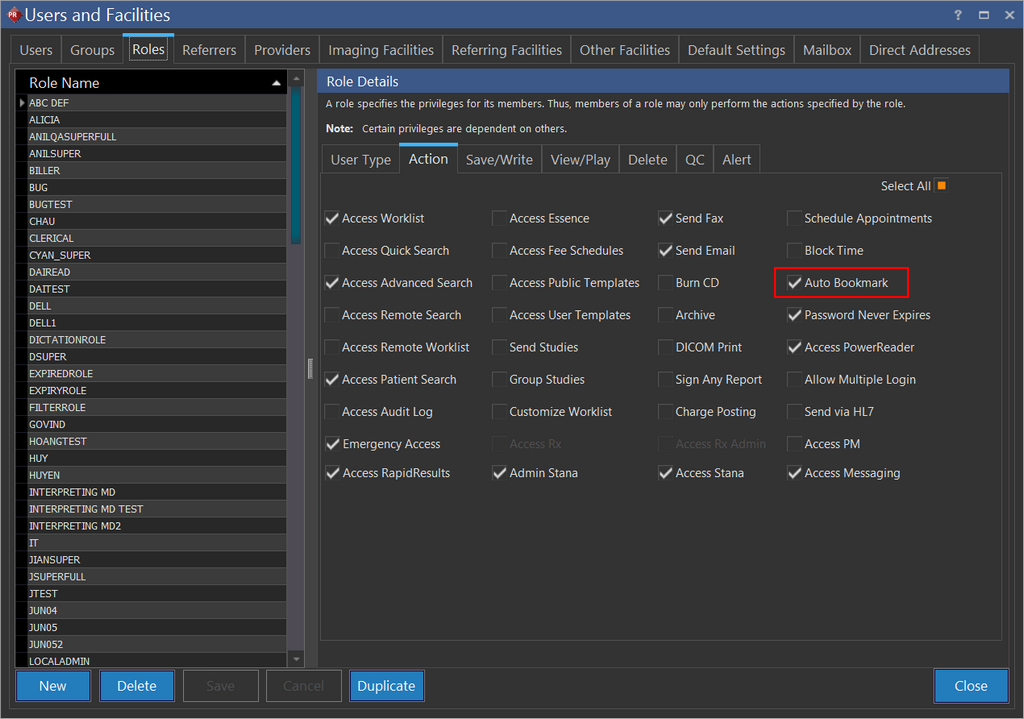
The "Auto bookmark when study closed" system configuration entry enables or disables the Auto Bookmark feature and takes precedence over the role privilege "Auto Bookmark". In order to use this feature it is imperative that the system configuration entry is enabled and the user's role has the "Auto Bookmark" privilege.