How Can I Tell If a Study is Being Read By Someone Else?
Sometimes a study may be viewed by more than one individual at the same moment. If these multiple users update patient info or study info, each user might not notice the changes which have been done to the study. In some cases, a user might not even be aware that changes made to the study have been overwritten by another user reviewing the study. RamSoft PowerReader now has the capability to inform each user accessing the study about patient or study info updates. The system also refreshes study info to have the latest update available.
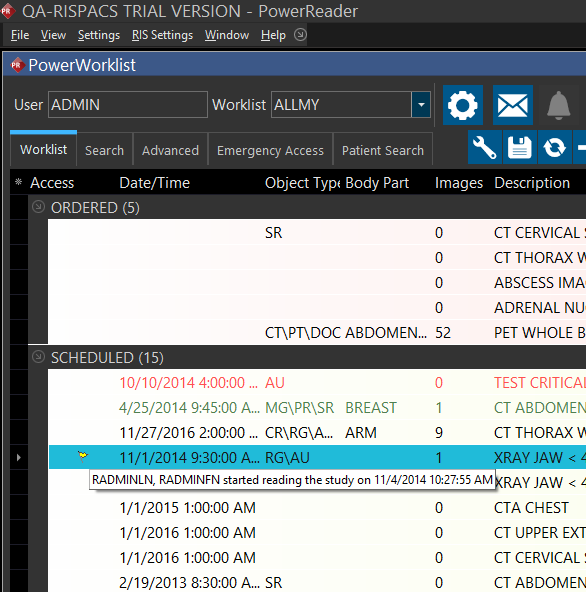
If two users logs into the system and the first user opens a study to review it, the second's user's Worklist will display a small flag. The flag is displayed in a column in the Worklist called Access and can be added or removed by clicking on the Add Visible Column button in the toolbar and choosing Access.

Placing the mouse over the flag icon will display a small message stating the username and the time when the first user started reading the study.
Scenario 1
If a user makes changes in the study info form of a patient and saves them while a second user has the same study info form open in another location, the second user is notified of the changes by the first user.
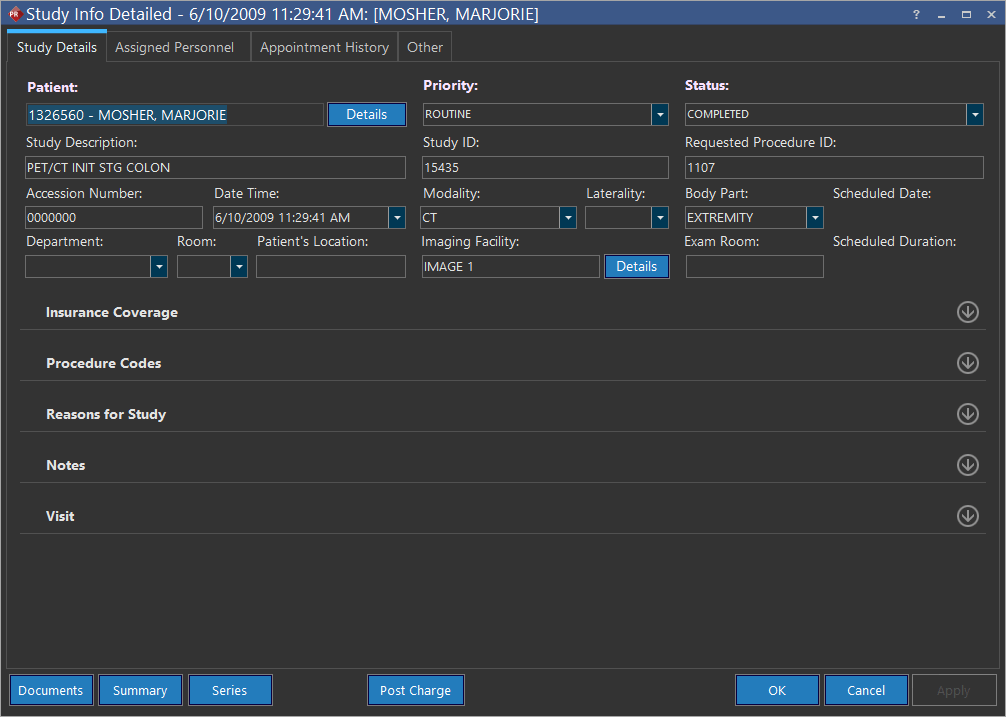
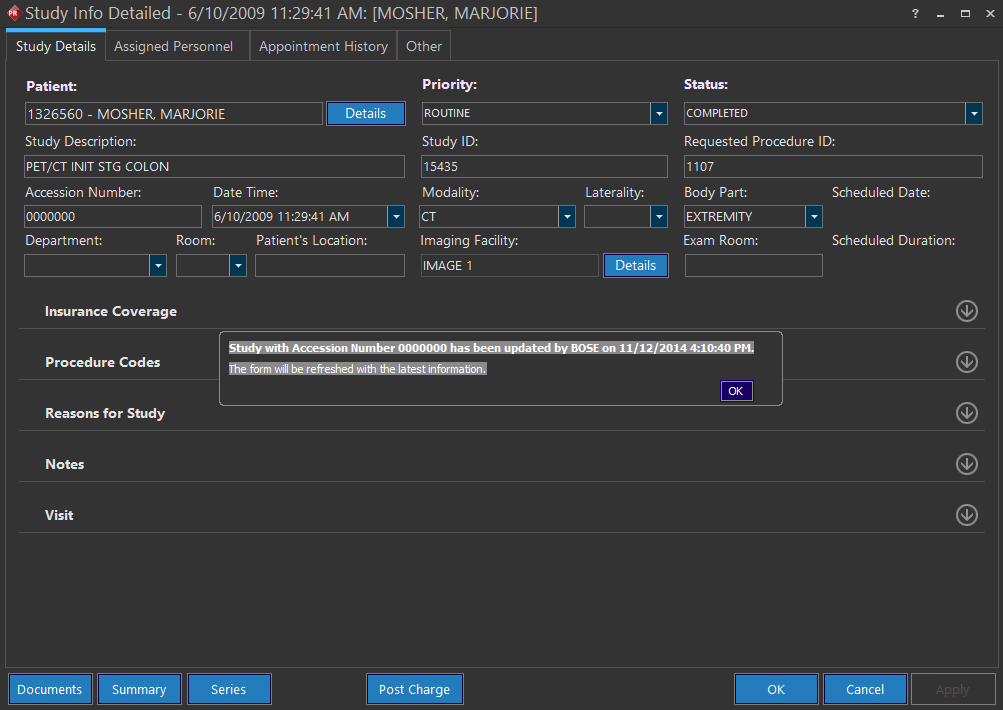
In the example above, when the Priority of the study is changed from CRITFIND to STAT and saved in the Study Info form on the top, the user opening the Study Info Form at the bottom will get a notification bubble. The notification bubble will state the Accession Number, the User and the Date/ Time when the changes were made.
Scenario 2
If a user opens the study info form of a patient while the same study info form is being viewed by another user in another location, the first user is notified.
As per this scenario, the first user is being notified that the second user is reviewing/updating the study. The message does not prevents the first user from making any changes to the study info form. The message disappears after 10 seconds.
Scenario 3
If a user merges or deletes the study while a second user has the study info form open, the second user will get a notification of the merger or deletion and the patient explorer will be closed. Also all changes made by the second user will be abandoned.
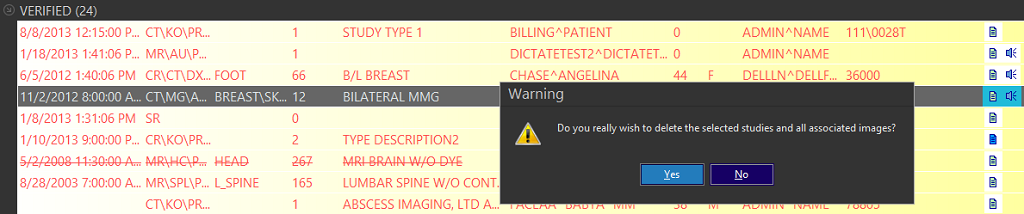
In the example above, the user on the top has deleted the study while the user on the bottom has not saved his changes. Thus the user at the bottom will get a notification stating that the study has been deleted. Clicking the OK button will close the study info form at the bottom and remove the study from the Worklist.
Scenario 4
If a user makes changes in the Patient info form of a patient and saves them while a second user has the same Patient info form open in another location, the second user is notified of the changes by the first user.
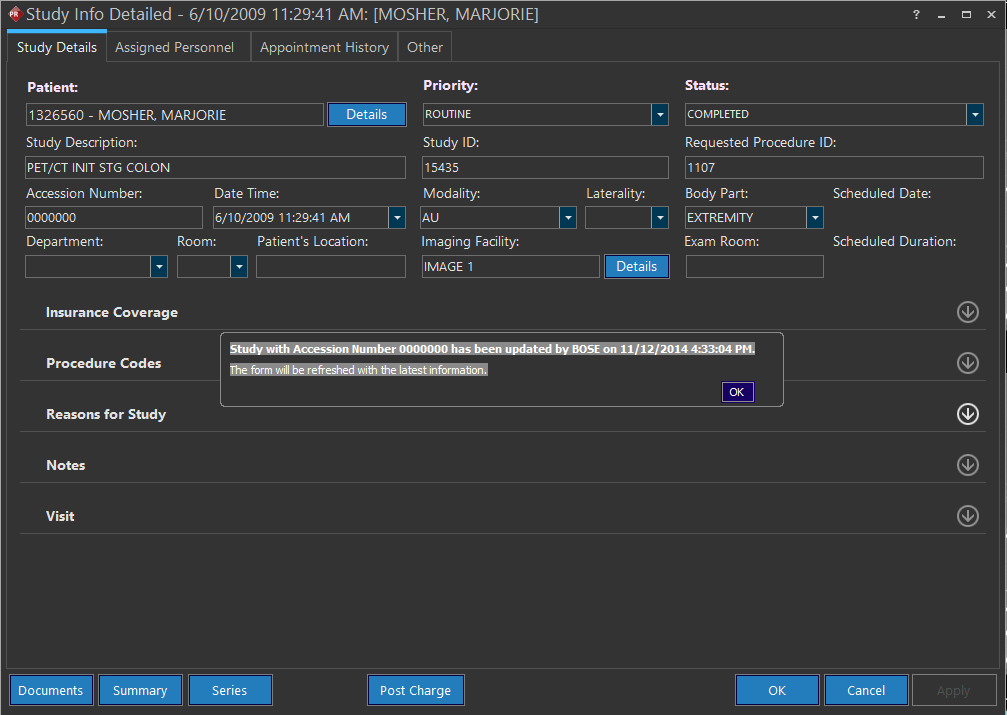
In the example above, when the Account Status of the patient is changed from NORMAL to OVERDUE and saved in the Patient Registration form on the top, the user opening the patient Registration Form at the bottom will get a notification bubble. The notification bubble will state the Patient ID, the User and the Date/ Time when the changes were made.
Scenario 5
If a user merges or deletes a patient while a second user has the Patient Registration form open, the second user will get a notification of the merger or deletion.

In the example above, the user on the top has merged the patient with another patient while the user at the bottom has not saved his changes. Thus the user at the bottom will get a notification stating that the patient has been merged. Clicking the OK button will close the Patient registration form at the the bottom and remove the patient from the Worklist.
Scenario 6
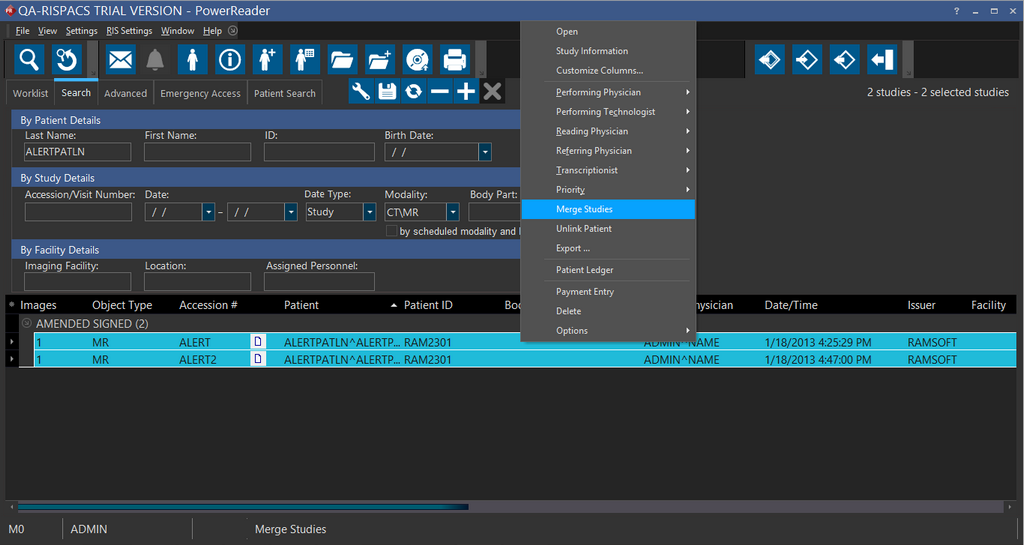
If a user makes changes in the Study Info through the right click menu in the Worklist, then these changes will be implemented immediately. If another user also makes changes in the study info simultaneously through the right click menu, their changes will be discarded and a notification will appear in the Worklist.
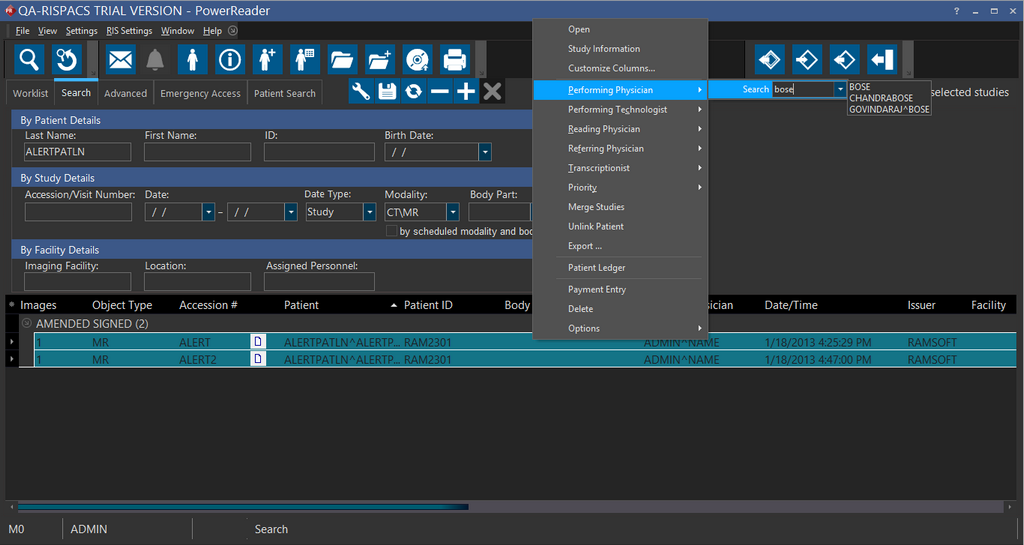
In the example above, user "BOSE" has added himself as the Performing Physician for the study highlighted as shown above. Any other user will not be able to add someone else as the Performing Physician for the same study. As a result, any other user changes the performing physician of that study, will get a message stating that the study has been updated by "BOSE" and any changes made will be discarded.
Scenario 7
If two physicians have the same study open simultaneously and one physician adds an image to the study, the other physician will be notified of the change.
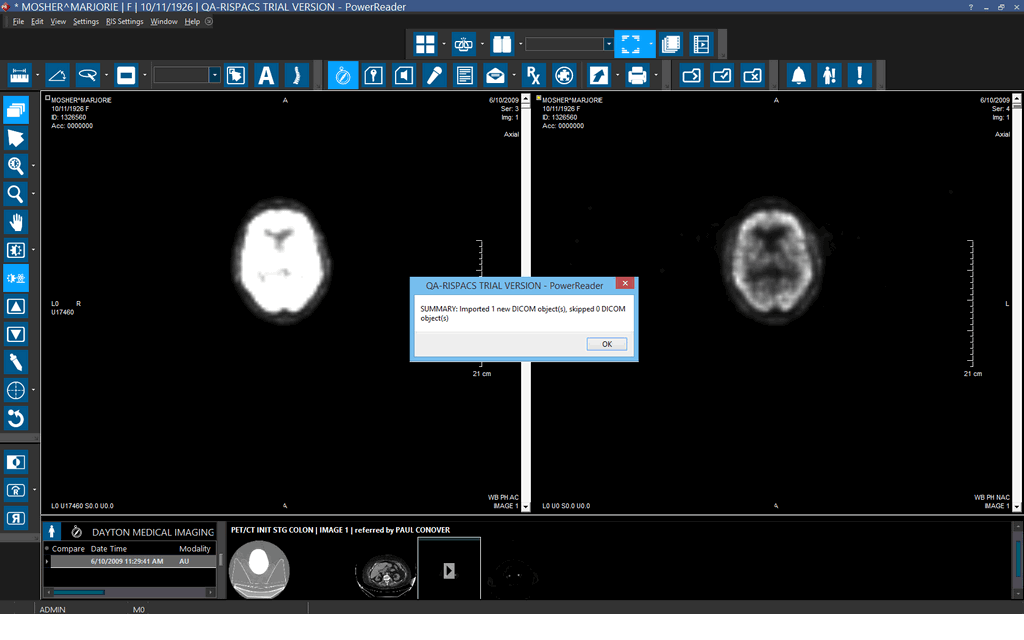
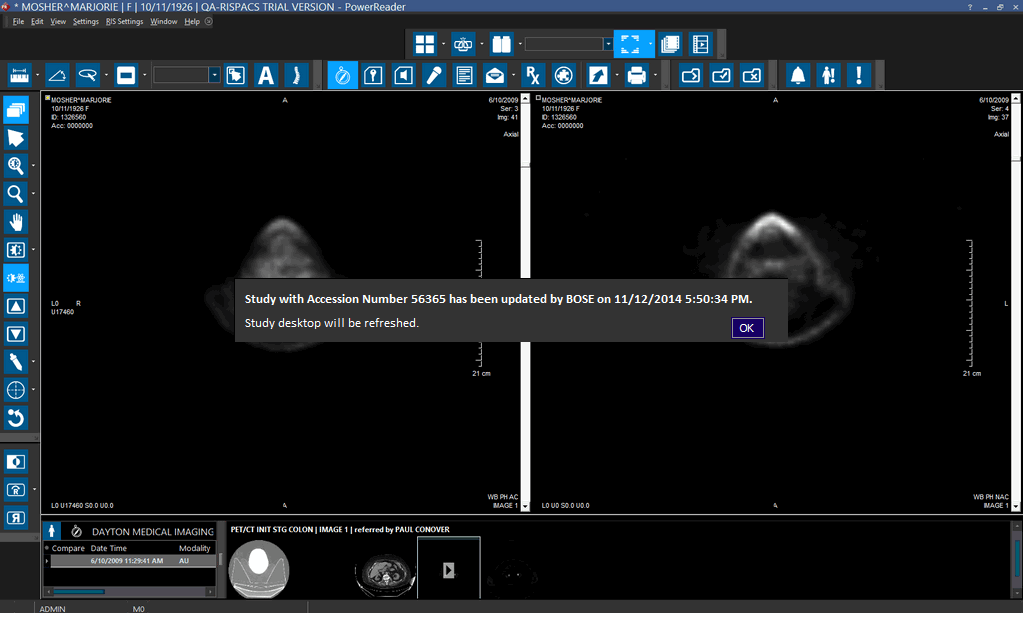
In the above example, User BOSE has added an image to the study (on the top) while another user has the study open. A notification will appear stating that the study with accession number 56365 has been updated by user BOSE at 11/12/2014 5:50:34 PM.
PowerReader does not notify a user if two users are viewing the same study and one user deletes an image from the study. Similarly, if two users are reviewing the same study at the same time and one user adds or deletes an SR (Structured Report) from the study, the other user is not notified about the SR document.
Scenario 8
If a study has no assigned reading physician and it has been opened by two Radiologist at the same time, the system will appoint the Radiologist who opened it first as the Reading Physician.
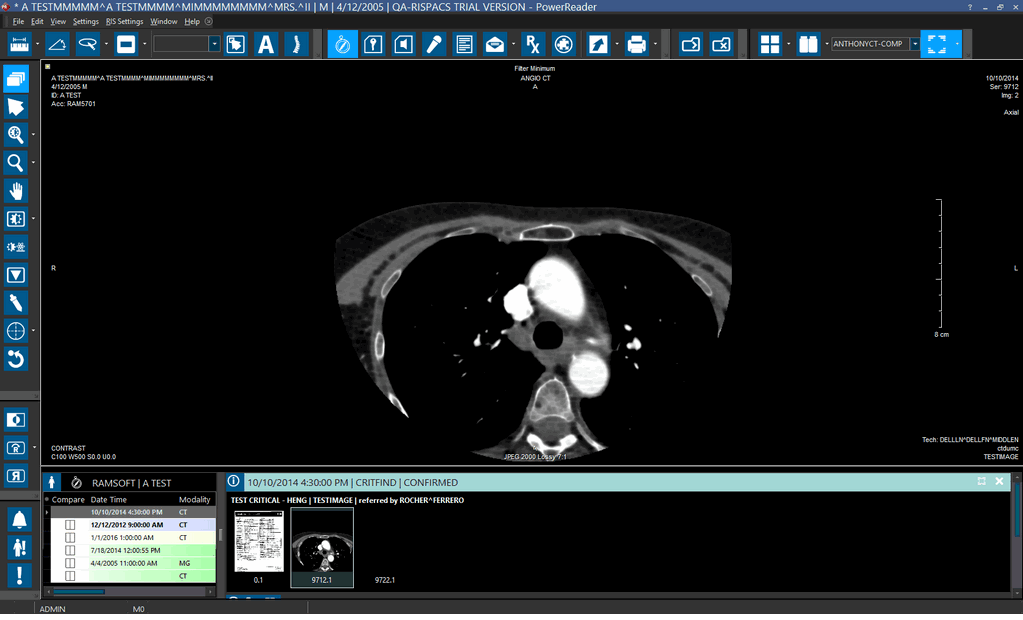

In the example above, the unassigned study is being opened by two Reading Physicians. However, since ADMIN opened the study first, the study will be assigned to ADMIN and the latter will receive a message stating that study belongs to ADMIN.
The exact same behavior will be followed if an unassigned study is opened by two Performing Physicians or Technologists.
Scenario 9
If a study has no assigned reading physician and it is opened by a Radiologist, the system will appoint the Radiologist as the the Reading physician for the study. In this case, the Admin will be notified that a Reading Physician has taken over the interpretation of the study.
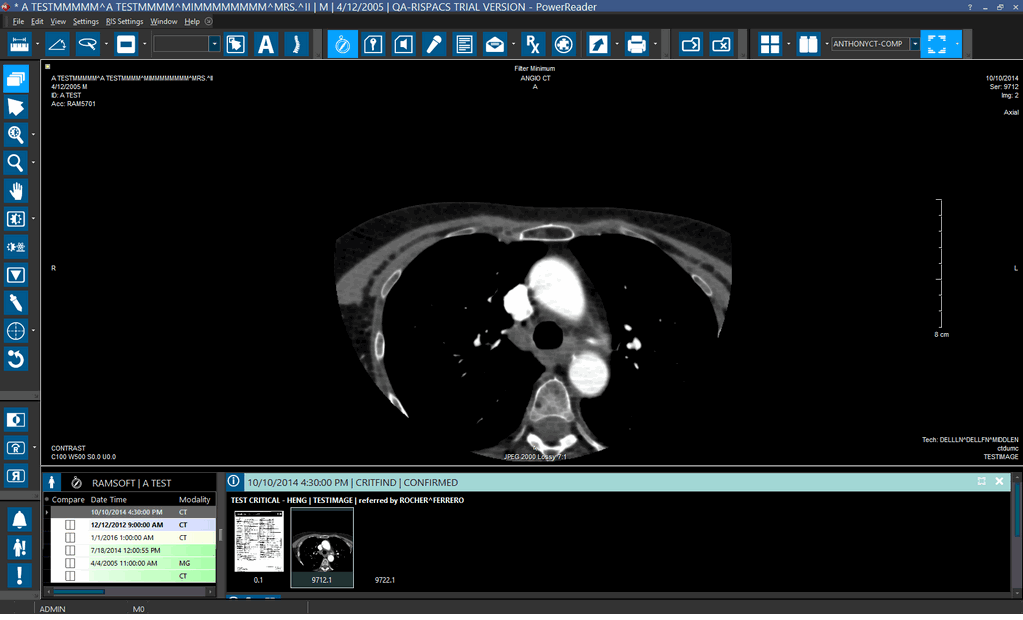


In the above example, a radiologist (BOSE) has opened an unassigned study. Hence the radiologist (BOSE) has been assigned as the reading physician of the study. The system ADMIN have the study info form open but they have not assigned the study to any specific reading physician. After BOSE opened the study, a message will inform the ADMIN that the study has been taken over by BOSE along with the date and time.
The exact same behavior will be followed for assigning of unassigned studies for Performing Physicians or Technologists.
Scenario 10
If a Reading physician is reviewing a assigned study in the meanwhile if the same study gets assigned to another Reading Physician by the ADMIN, the first Reading physician will get notified by the system.
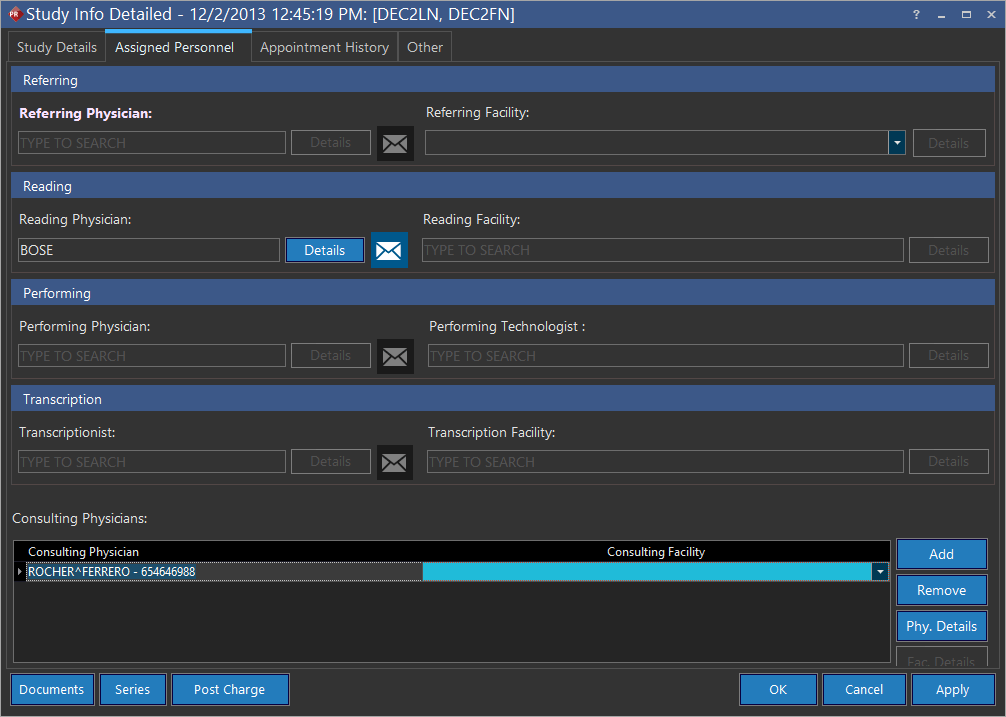
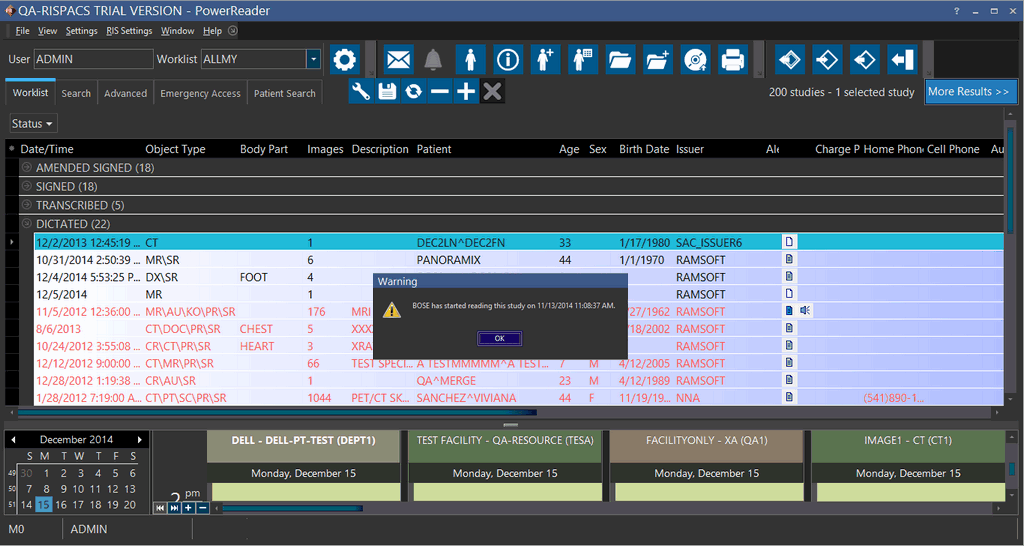
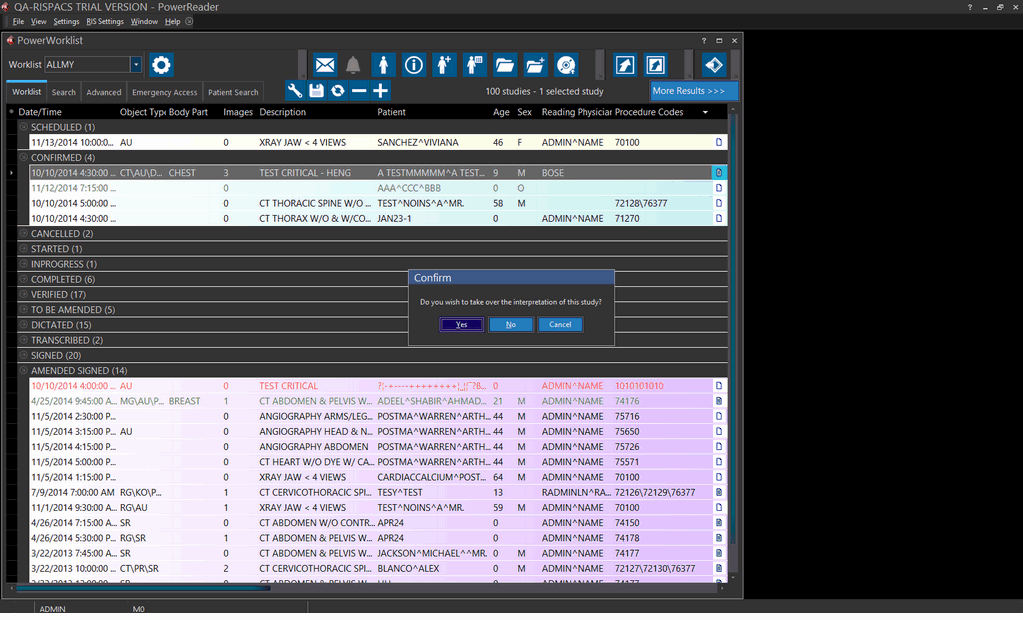
In the above example (top screen), the system admin assigns the study to a Reading Physician "BOSE" while the Reading Physician (bottom screen) is reviewing the study. As a result, user "ADMIN" will get a message stating that the "BOSE" has updated the study.
Scenario 11
If the study info has been updated by HL7, DICOM Service or Replication service while a user is reviewing the study, the system will notify the user. In this case, the notification will state "SYSTEM" instead of the username. Also the Check mark button will appear in the toolbar based on the study status.
Scenario 12
If a user is viewing a study and fresh images are received through DICOM service or Replication Service, the user is informed and patient explorer is refreshed displaying the new number of images available.
Scenario 13
If two viewers are viewing the same study at the same time on different stations, if one user tries to group this study with other studies of the patient, while the other user changes anything in the study information form, the study grouping will be abandoned and the first user will be notified.
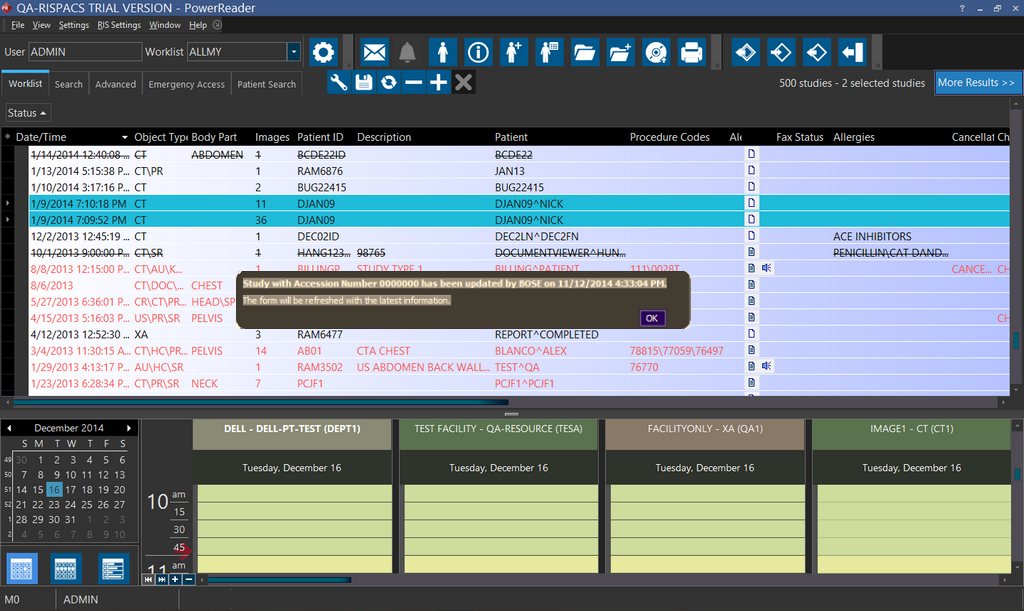
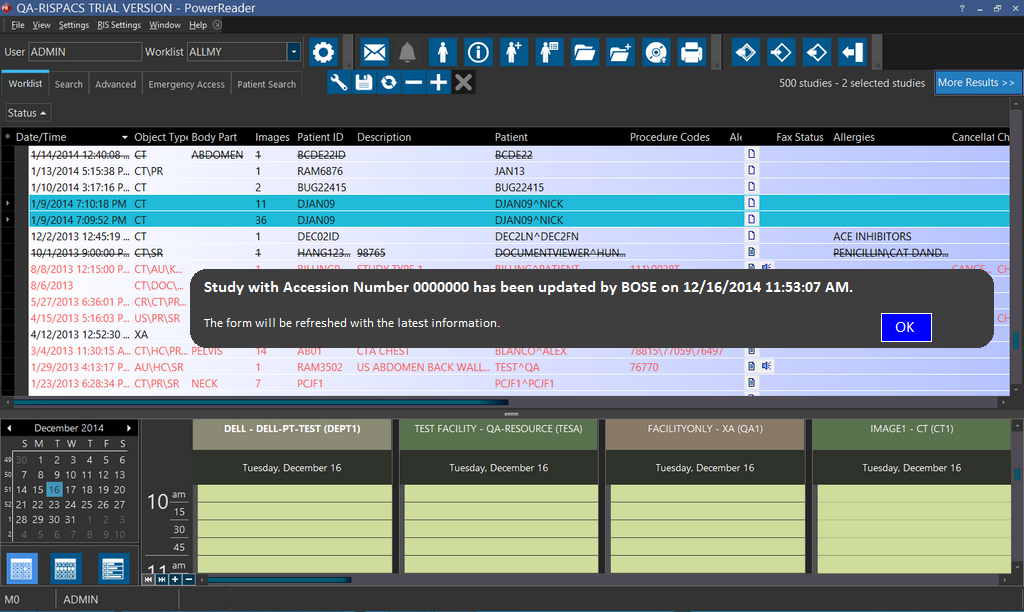
In the example above, the user (top screen) is trying to group studies together. However, the ADMIN has changed the status of one of the studies to one higher than "Max status order for study group candidate" (bottom screen). As a result, the criteria for grouping the studies has changed. When the user on the left tries to group the studies together, he gets a message stating that the study has been updated by a user. Any further attempts at grouping the studies will not include the said study in them. For further information on Grouping studies, please refer to How Do I Group Studies? section.
Scenario 14
If a study has no Performing physician or Transcriptionist or a Performing Technologist assigned and is opened by a Systemwide Admin user, the system auto assigns the user as a Performing Physician, Transcriptionist and Performing Technologist for the study.
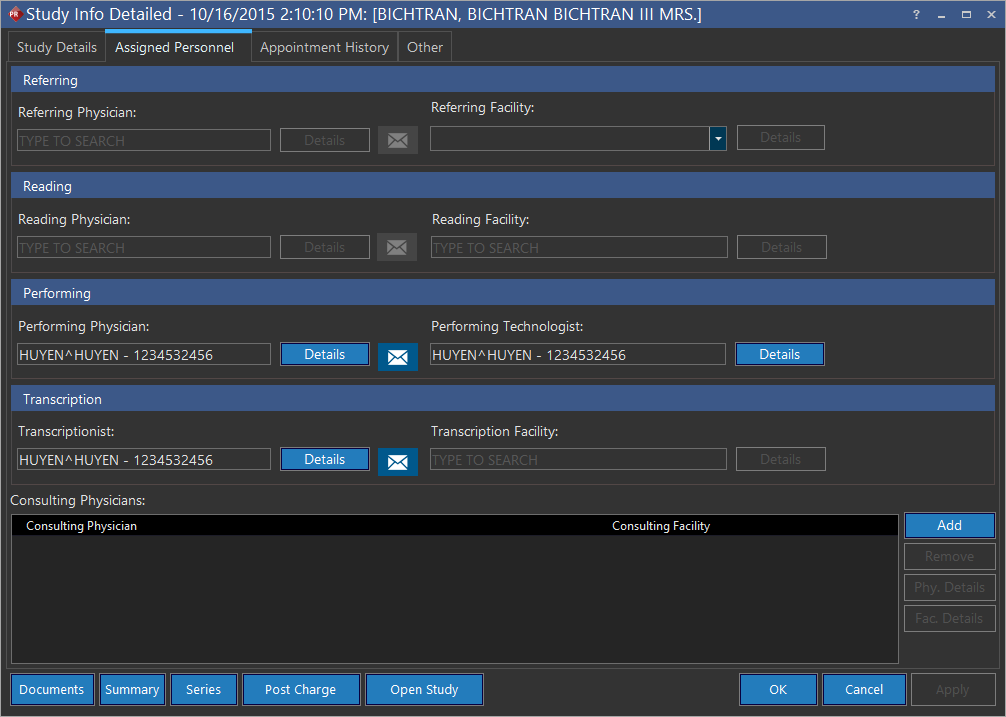
In the above example, a radiologist (HUYEN) with a Systemwide Admin user type opens an unassigned study. Hence the radiologist (HUYEN) has been auto assigned as the Performing Physician, Performing Technologist and Transcriptionist for the study.
Now, when then same study is opened by a different user (a Transcriptionist), the system displays the warning message "You are opening a Study that is assigned to USER for (Transcriptionist)". The new user can choose to take over the ownership of the study. With Performing Physician and Performing Technologist roles, this message is not displayed.
It is assumed that the Transcriptionist and Reading Physician can take over a study because they have the "Assign Other Personnel" and "Assign Reading Physician" privileges respectively enabled.
Scenario 15
If radiologist1 has opened a study on study desktop or has opened document viewer from the Worklist and begins creating a report (keeping the study open) and a radiologist2 tries to open the same study on study desktop or tries opening the document viewer of the study from the Worklist, a warning message "<Username> is reading this study" is displayed on the radiologist2's screen.
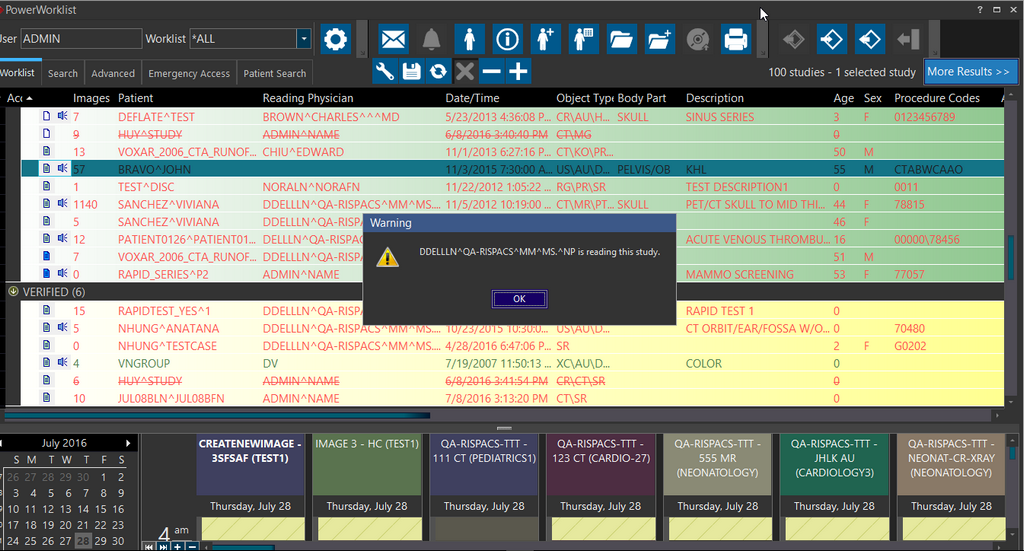
In the above example, radiologist2 cannot take over the study, but can open and view the study. In this case, radiologist2 will experience the following limitations:
- Cannot advance the study (the Checkmark tool on the Study desktop toolbar is disabled) and will be prevented from creating any diagnostic reports
- Will not be able to amend any existing reports (the Update Report and Amend Report buttons are disabled) and
- The Auto create template and Auto edit existing report User Options would not be functional even when enabled.
Scenario 16
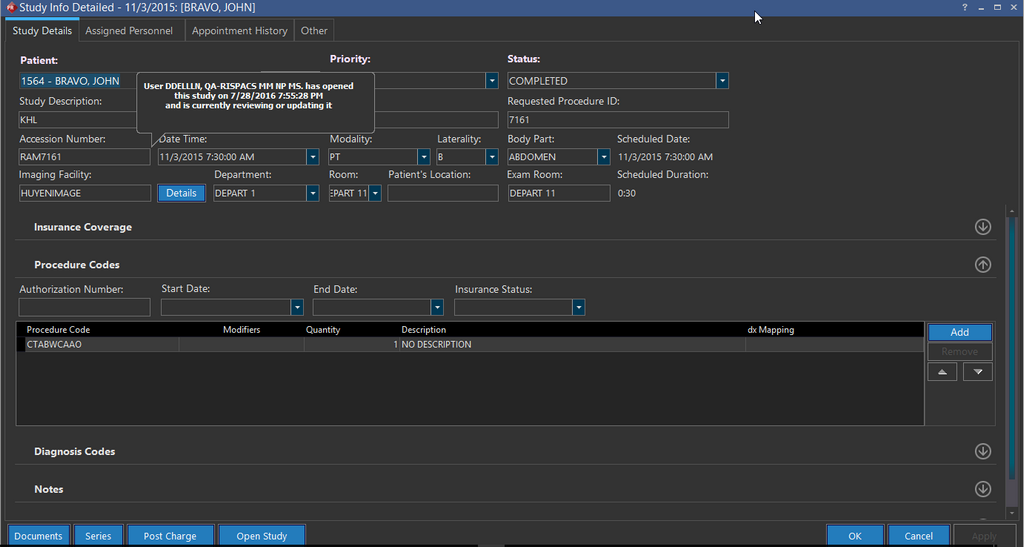
If radiologist1 has opened a study on study desktop or has opened document viewer for the study and a radiologist2 tries to open the study info screen for the same study, radiologist2 is notified with the the balloon message "<Username> has opened this study on MM/DD/YYYY XX:XX:XX (date and time) and is currently reviewing or updating it".
Scenario 17
When radiologist2 tries to assign or un-assign a reading physician for a study or for multiple studies by right-clicking on the Worklist while radiologist1 has opened the study desktop or document viewer of one or more of these studies, radiologist2 would see the message "One or more studies have been opened by another reading physician". This is true even when radiologist1 is updating/deleting any of these studies.
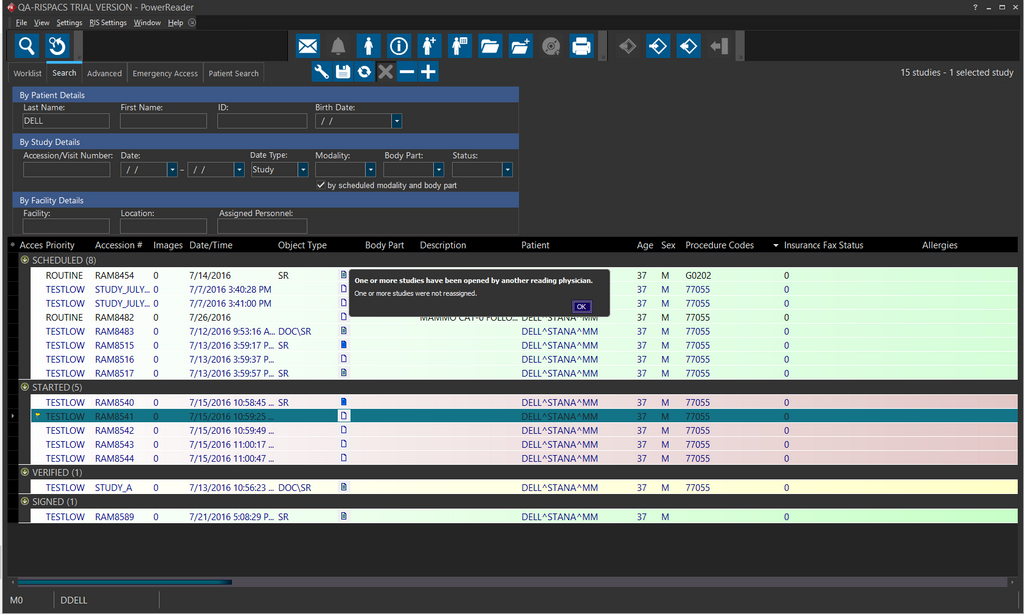
If few of the studies in this case are not already open by radioloigist1, then radiologist2 can successfully assign or un-assign a reading physician.
Note that when Radioligist1's PowerReader instance abruptly terminates while opening up study desktop or document viewer for a study, radiologist2 should be able to take over the study or assign a reading physician after a time lapse which is set by the System Configuration entry "Tracker List Timeout(m)". By default this time interval is set to 5 mins.