How Do I Group Studies?
Study grouping allows users to dictate and create reports for multiple studies belonging to the same patient at the same time.
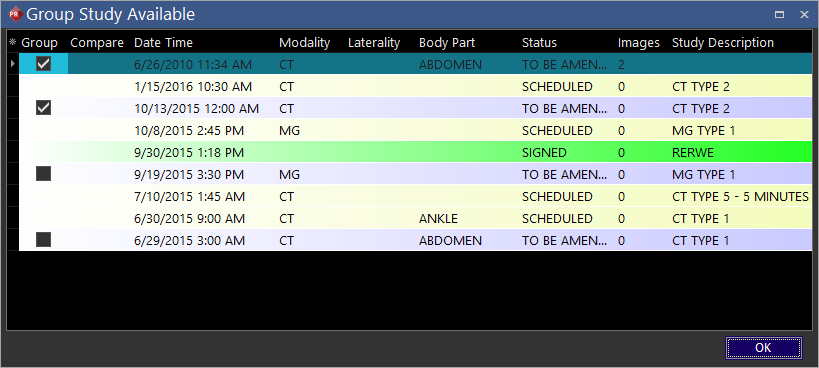
If studies for a patient meet all the conditions for grouping, then the system displays a Group Studies Available window that displays the studies available for grouping with the selected study.
This window auto closes if the user does not take any action. If the window is clicked, it becomes active and allows the user to select studies for grouping.
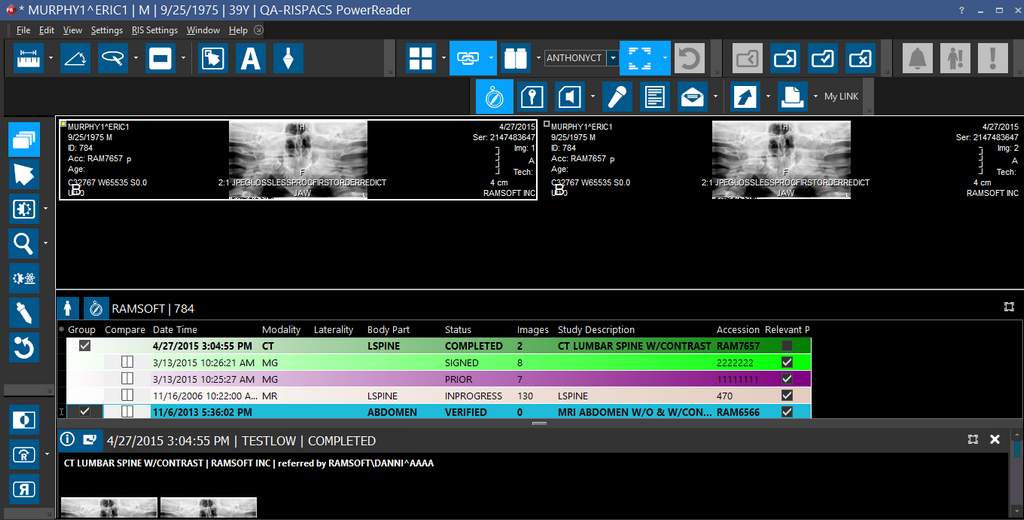
The studies that are selected in this screen have the grouping checkbox selected in the Patient Explorer study grid. The thumbnails for the selected studies are displayed in the Patient Explorer Thumbnails window.
Behaviors of study grouping
When studies are grouped and a user dictates to one of those studies, the dictation will be shared within the study grouping. In the patient explorer, the dictation is viewable in each study. The same also applies to reports.
Scenario 1: After Grouping
There are two studies without any reports/dictations to be grouped. Once you grouped these reports, you want to add a report or dictation to one of the studies. In this case, study grouping demonstrates the following behavior:
- The reports/dictations are shared by both studies.
- If you delete any report/document, the deleted report(s)/dictation(s) will not be associated with both studies.
Status of studies after grouping
Note that when two studies are grouped, the status is set to the highest status of the grouped studies. For example, if two studies, one with COMPLETED status and the other one with DICTATED status are grouped, the status is set to DICTATED for all the studies in the group.
When two or more studies are grouped, the priority of the grouped study is set to the highest priority among the studies being grouped. If one of the study being grouped has a "Critical Finding" priority, then the grouped study would also have the "Critical Finding" priority.
Scenario 2: Before Grouping
When there are two studies to be grouped, one with reports or dictations, and the other without, both will share the reports and dictations once the studies are grouped.
When studies are grouped, the same reading physician, transcriptionist, and study status are applied to all the studies in the study group. For example, if one study advances from VERIFIED to READ, all studies will be changed to the READ status.
The dictation or reports will only be saved into the primary study. Changes for the dictation or reports will also be saved in the primary study.
When the study group is signed and advances to the authorized status, each study will copy the report saved in the primary study.
When you group studies:
- When you open the study, the Series thumbnails of the grouped studies are displayed
- The order on the thumbnails window is same as the one in the study grid in the patient explorer
- The order of the images in viewport when comparing grouped studies is same as the order in which the studies are listed in the study grid
- Grouped study's priors take precedence over other priors for display
Conditions for study grouping
To group studies, the following conditions must be met:
-
The user must have the Group studies privilege.
-
The studies must belong to the same patient.
-
The studies' status must be greater than or equal to the value for "min status order for study group candidate" and less than or equal to the value for "max status order for study group candidate". These are system configuration settings accessible by the System Administrator. Note that the studies can have reports/dictations before they are grouped.
If users have no "Group Studies" privilege, the Group checkbox is not available to them. However, existing grouped studies are visible to these users to remind them that the current study is grouped with other studies and any action would impact the all the studies in the group.
Methods to enable study grouping
There are two methods to group studies, provided all conditions are met.
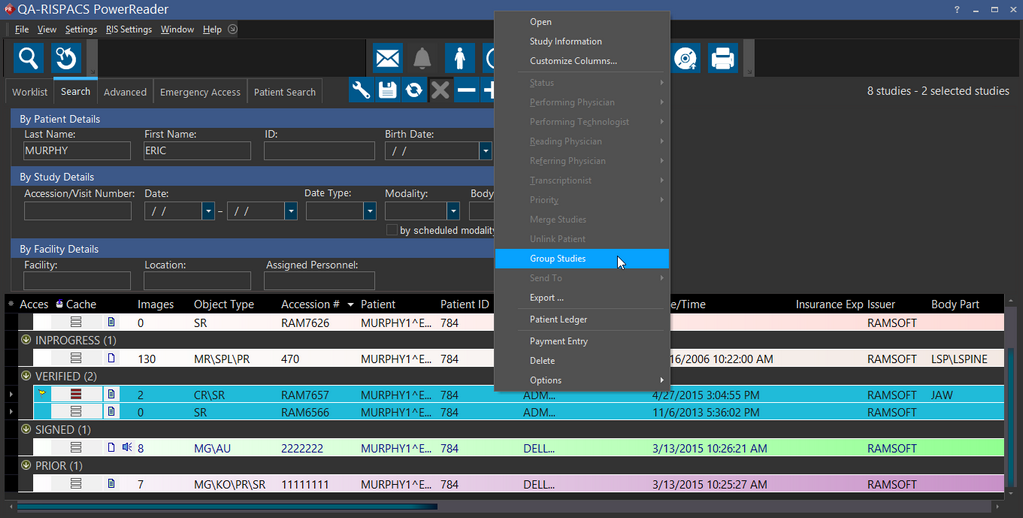
Method 1: Highlight all the desired studies in the Worklist, right click, and select "Group Studies" in the right click menu.
Method 2: Select the checkbox of desired studies in the Patient Explorer.
Un-grouping of grouped studies
To remove study grouping, uncheck all studies to be removed from the grouping in Patient Explorer. The ungrouping feature is only available when studies are between the min and max status (set in System Configuration), and where grouping is an active feature. In other words, clicking the "group" checkmark does not work for studies before the min status and after the max status.
Once grouped studies are un-grouped, the grouped reports are retained in all the studies; however, any dictations belonging to grouped studies are disassociated to the state they were before the grouping was performed.
Note: It is not possible to un-group studies by the using the right-click menu in the Worklist.
Study group configuration
There are several configuration options that can be altered for study grouping. These are only accessible by system administrators under Settings > System Configuration.
| Configuration | Type | Description |
|---|---|---|
| Min status for study group candidate | Integer | The studies status must be greater than or equal to this value in order for it to be considered as a valid candidate. Default value is 120. |
| Max status for study group candidate | Integer | The studies status must be less than or equal to this value in order for it to be considered as a valid candidate. Default value is 180. |
| Auto show Study Group dialog when dictate or report | Boolean | If enabled, creating a dictation or report will trigger the study group window automatically if the study is ungrouped and has valid grouping candidates. |