How Do I Link Patients?
There may be times when the same patients are stored with different Issuer of Patient ID values. This could be caused by a variety of RIS or PACS solutions. Similar to the merge feature, linking provides the ability to associate patient records with one another, but keeps the records independent. When a study is opened which is linked to another patient, the other linked studies are also displayed in the patient explorer. This allows physicians to review prior studies that may exist at related Facilities. Patients which are linked together are displayed in the Linked Patients tab of the patient Info form.
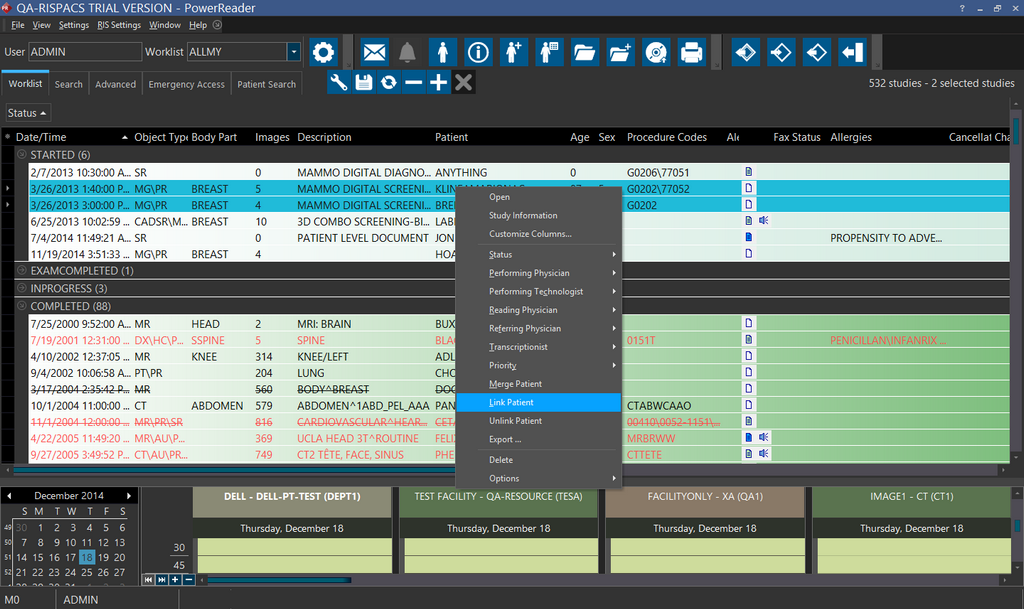
There are two ways of linking patients together. The first method to link patients is to highlight the patients in the Worklist.
The second method for linking patients is to open the Patient info form of a patient and then open the Linked Patients tab.

Once opened, click the New button and then enter the Patient ID, Last Name, First Name or Birth Date of the patient you will like to link with this patient. A drop-down menu with all possible matches of the values entered is displayed. Choose the value you are looking for.
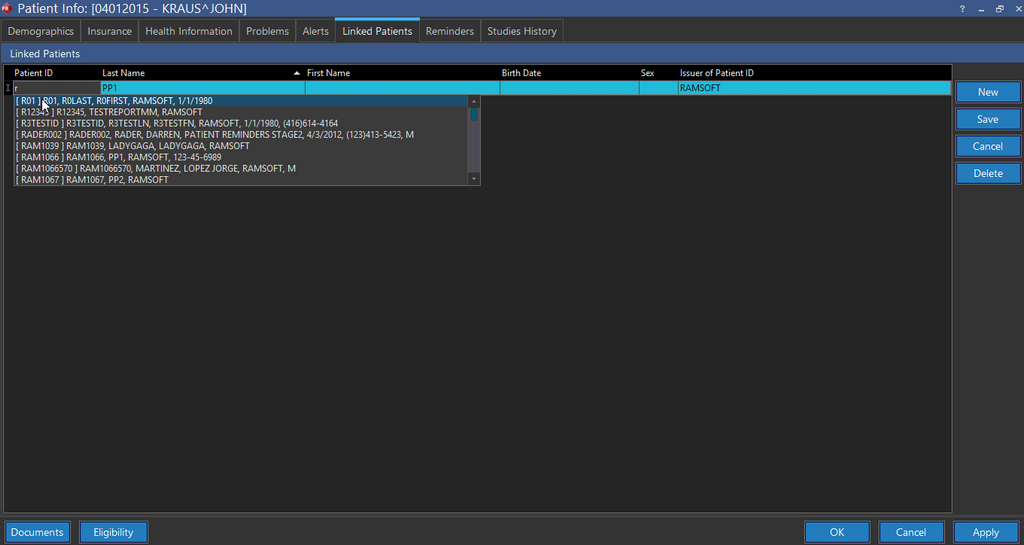
Click Save to save the linking of these two patients or Cancel to cancel the actions just performed. The Patient Linking option automatically links patients which are received from another station but are identical in all aspects to a previously registered patient in the system. In such a case, opening the Linked patients tab will reveal all the patients which are linked together to this patient.
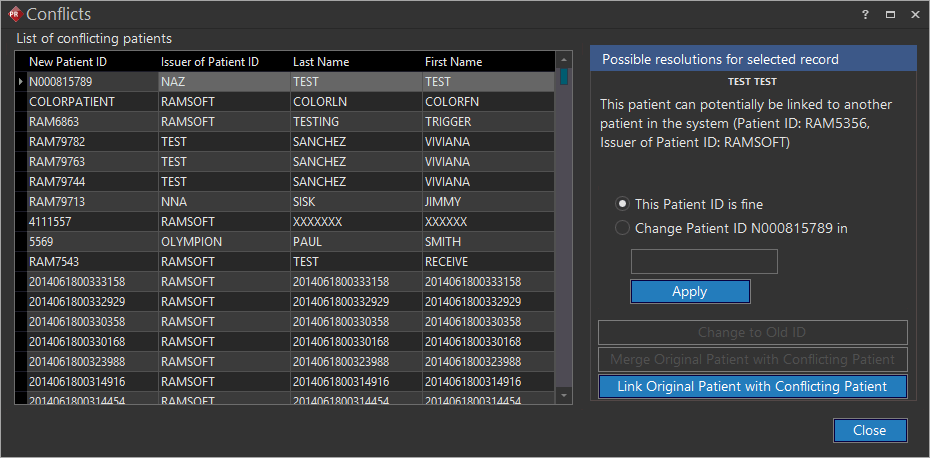
If the receiving of a new study results in a conflict and the user decides to resolve the conflict by choosing the Link Original Patient with Conflicting Patient option, the conflicting patient in this case will be linked in the Linked Patients tab. For further information, please refer to the How Do I Manage Conflicts? section of the manual.
The linked patients are displayed in the Patient Explorer of the study as well. The way these linked patients are presented in the Patient Explorer is different from the way two linked studies are presented.
If the linked patient contains a Relevant Prior, then the patient explorer will display an LR icon else, a simple Link icon is displayed.
The situation can also arise where a newly created patient is identical to an existing patient except that the Issuer of Patient ID is different. In this case, a dialog will be displayed which is slightly different from the Conflict dialog.
This type of dialog is visible if:
i) the user is a System Wide Admin ii) or the user's group issuer ID is empty (and thus the user can access any issuer). ii) or the user's group issuer ID is not empty but contains both the Issuers of Patient IDs.
The Link Patient dialog displayed above gives the user the option to merge the two patients together, Save and link the two patients as described above or to only save the current patient (and save the existing patient as well).
To unlink a patient that is already linked, select the patient from the Worklist, right click and select Unlink Patient.

You can also select the linked patients from Linked Patients tab of Patient Info screen and then click Delete after choosing the patient you will like to unlink.

This will remove the linked patient from the Linked patient tab.