How Do I Move a Study from One Patient to Another?
Sometimes a study in the system has been associated with the wrong patient. This can occur as a result of human error, or as a result of improper DICOM information in the files received by the RamSoft software, which in turn causes the system to merge two unrelated studies under one patient. This situation can be fixed in two ways.
Method 1:
-
Click on the desired study in the Worklist.
-
Click View Study Information
 icon in the toolbar.
 -
Once the study info form opens up, replace the current Patient ID with the Patient ID of the actual patient.
-
Click Apply. The application displays a pop up message asking if you wish to move the study to the following patient as shown below.

- Click Yes. The study and all the images inside will be transferred to the actual patient. The patient information inside the DICOM header of the images will be changed as well.
Method 2:
If the study that needs to be moved contains a limited number of images, the procedure in the section How Do I Move An Image from One Series into Another? will be sufficient. Otherwise in order to be able to perform this procedure, you will need to have access to the Image folder that is located on the server. This means that this operation can be performed by very few users at the site. If you are not familiar with the Image folder or do not have such access, please contact your System Administrator. Otherwise, the following procedure can be used:
-
Open the study that needs to be moved to a new location.
-
Right click on any of the images and choose DICOM Header. This opens the DICOM Header dialog.
-
Locate the Relative Path information at the top of the dialog.
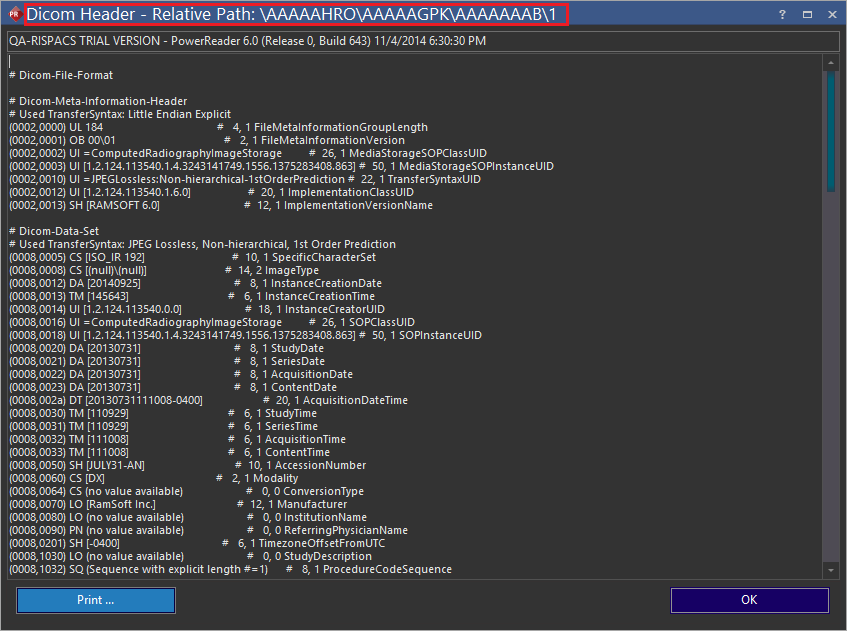
-
Note down the name of the two top level (leftmost) folders in the Relative Path (In the picture above those are \AAACEND \AAABNUMN).
-
Close the study.
-
Open the Patient Search screen in the Advanced Search screen (Patients tab).
-
If the patient you are moving the study into already exists, highlight the patient name in the patient search list and click New Study. Now skip to step 11.
-
If the patient does not exist yet, click File - New Patient.
-
Fill in the necessary information and click OK to create the patient.
-
The Study dialog opens.
-
Enter all the necessary information and click Show Series.
-
Create a new series and save it.
-
Click on the Acquire Tools button and select Import into Study from the menu.
-
In the Import Image dialog navigate to the Image folder.
-
Within the Image folder navigate to the folder that was noted down in step 5.
-
Highlight all the files and click Open.
-
When the Import is complete, a dialog showing the number of files imported or skipped is displayed.
-
Verify that all the images are now present in the new study.
-
Close the study.
-
On the Search List, click the Studies tab.
-
Search for and open the study that the series of images was erroneously inserted into. Click the Info button and then the Show Series button.
-
Select and Delete the series in question.