Printing a List of Cases on My Worklist
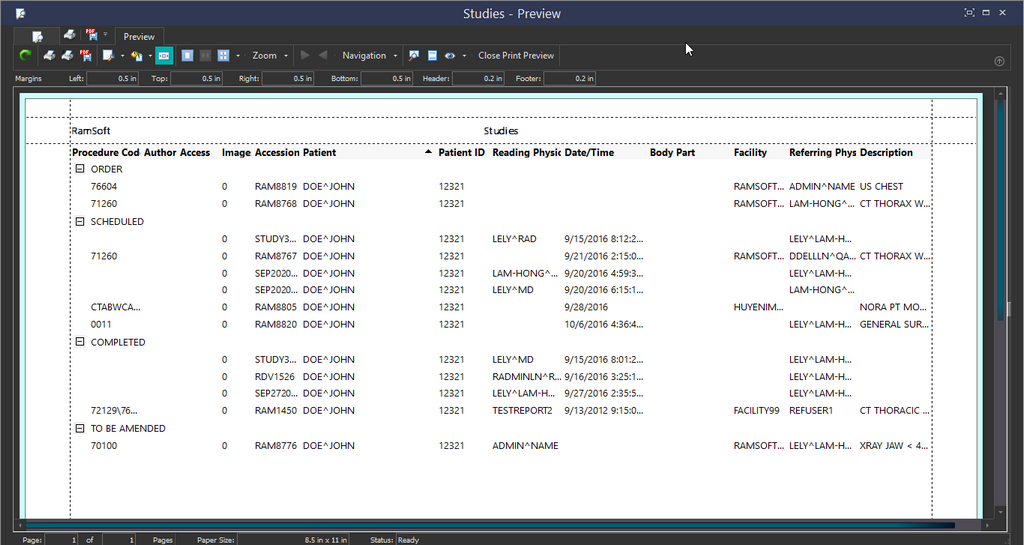
When the contents of a Worklist or a search need to be saved, the report can be printed or exported to a file. To do this, click the Print the study list  icon found on the Worklist. This will open up a preview that contains the report of all the studies currently on the Worklist.
The Print the study list icon is enabled only when a study is currently selected in the Worklist or Search results grid.
Click on the Thumbnails icon on the toolbar to list all the pages of the document as thumbnails on the right panel of the preview screen. Clicking on a specific thumbnail opens the relevant page. This report can now be printed or exported as a PDF by using the Export to PDF option on the toolbar.
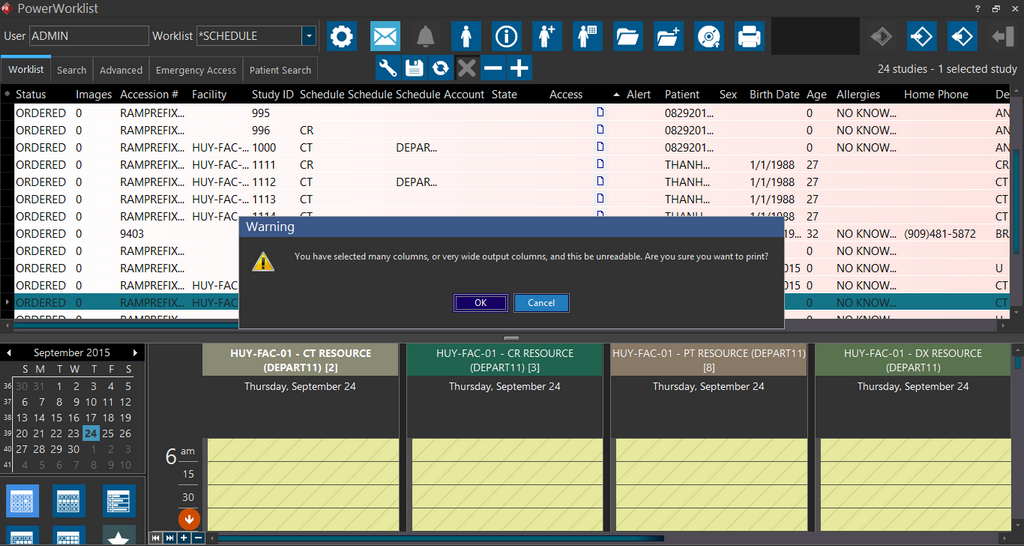
There might be instances when you have many columns selected for display on a Worklist. A warning message is displayed in this case. You can cancel the print and select only the most relevant columns and print again or go ahead and view the print preview.
Contents of a Worklist or search can also be saved in Excel format. To do this, right-click on a Worklist or search results and select Export.
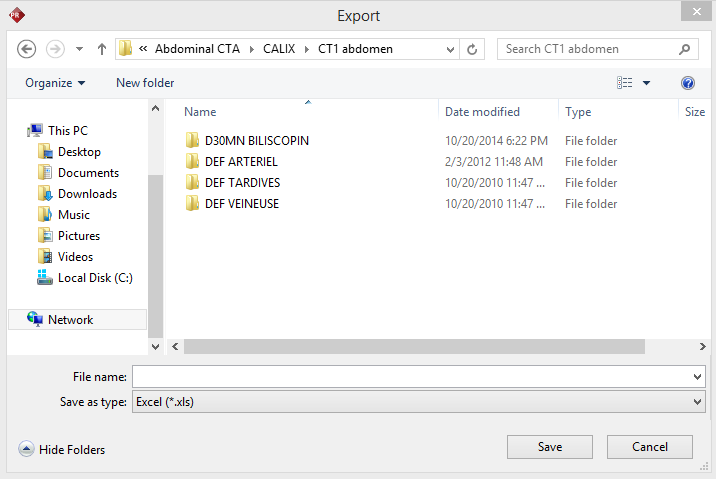
An Export window is displayed. Select the location and name of the file. Click Save.
Worklists and search results are saved in Excel format.
To customize the columns displayed in the report, e.g. to remove or add a column, edit the columns in the PowerWorklist. The report prints the same columns as those displayed in the PowerWorklist. See the topic Using the PowerWorklist for more information on how to edit displayed columns.