How Do I Share Images through an E-mail?
You can share images as e-mail attachments as long as the images are created as Key Objects.
In PowerReader, you can enable sharing images as e-mail attachments by enabling the System Configuration entry "Enable Attached Email". By default, this configuration entry is selected.
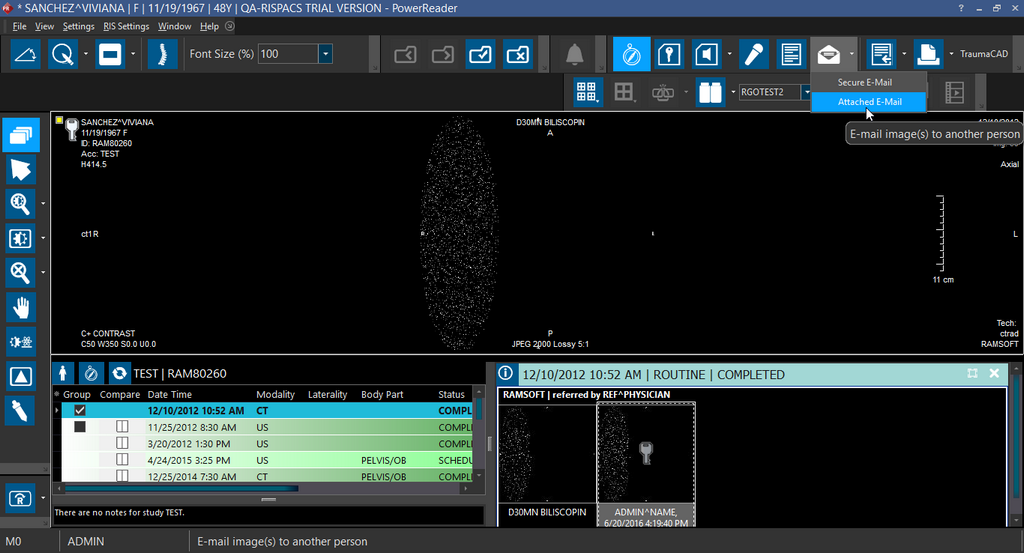
You can attach images from a study by clicking the E-mail Image(s)  icon on the Image Viewer toolbar.
To attach images to an e-mail, perform the following steps:
-
Select the relevant Key Object images and click the Email Image(s) icon and select the Attached E-mail option.
-
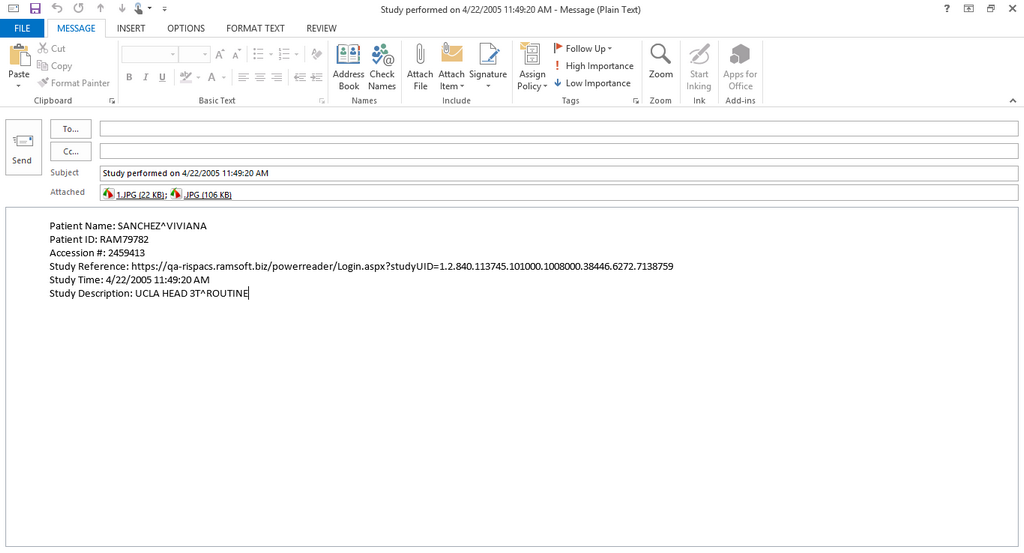
The selected images would get attached to an auto generated e-mail message on your configured e-mail service. This e-mail would have the study information in the body of the message.
-
Provide the email address of the user you want to share the images with and click Send.
Note that you can send these images to multiple users by providing multiple e-mail addresses separated by a semi-colon (;) in Microsoft Outlook.
When you try attaching an image that is not a Key Object image, the following error message is displayed:
