How Do I Copy an Image to the Windows Clipboard?
The PowerServer allows you copy images to the windows clipboard to be edited in other applications.
To copy an image to the Windows Clipboard:
The application displays the patient details as shown in the images below. You could find a tiny square on left top corner of both the images highlighted with red arrow. The tiny square on the left image is blank/empty which indicates that the image is not selected. The tiny square on the right image is solid which indicates that the image is selected.
| Unselected Image | Selected Image |
|---|---|
 | 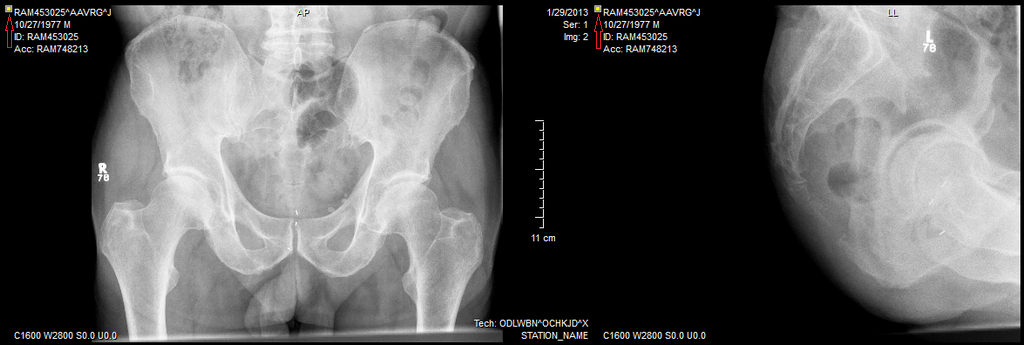 |
-
Click on the image to select it.
-
Copy the image by doing one of the following:
- a) Click Edit > Copy.
- b) Press Ctrl+C. Upon press, the image is now available on the Windows Clipboard.
Image saved in the clipboard can be copied into any application that supports graphics. The copied image appears as same as it was. This includes any annotations and all other adjustments that were made.