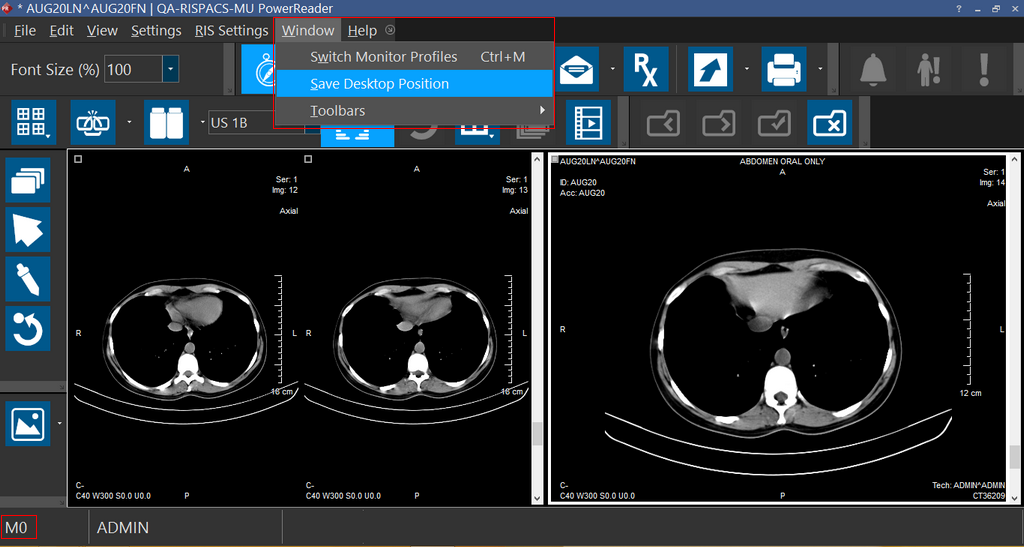
Switching Monitor Profiles
Essentially there are two monitor profiles that can be manipulated when you want to save the Image Desktop position.

These are M0 and M1.
You can define the profiles M0 and M1 as follows:
- Identify and move the Image Desktop position (either a separate monitor or a different position on a single monitor) and then select under Windows > Switch Monitor Profiles (Ctrl +M). Once you select the profile (for example, M0), Click on the Save Desktop Position option under windows to save the profile.
- Repeat step 1 to save the other profile (for example, M1).
Note that:
- M0 and M1 can be saved on the same monitor. When toggling between the profiles, the respective profiles would display at the corresponding saved positions.
- At any point of time, if you decide to change the saved position of M0 or M1, you can repeat the above steps for that specific monitor independent of the other.
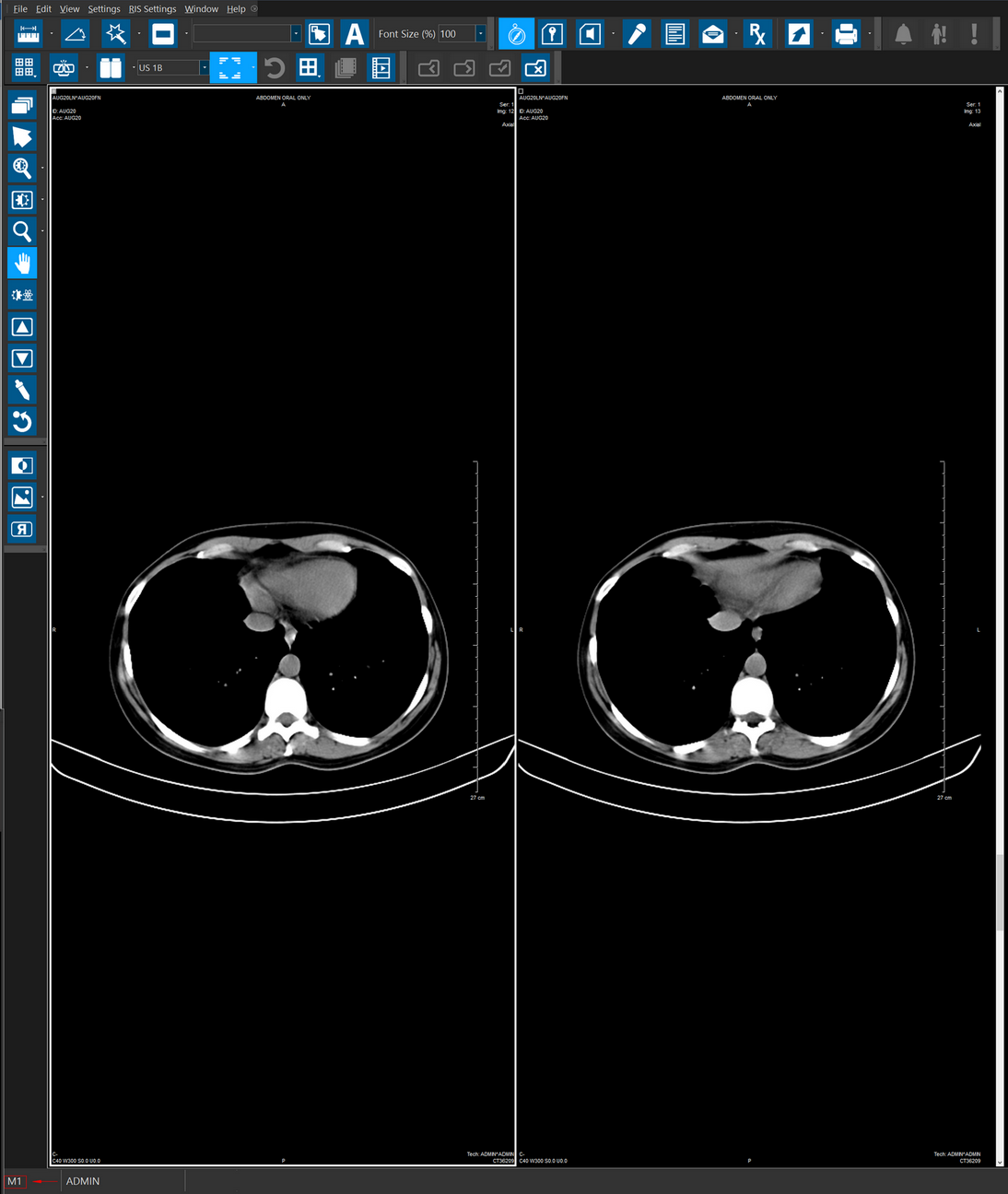
You can use the Switch Monitor Profiles (Ctrl + M) option to toggle between the two different states, i.e you can switch the monitor profile from the M1 profile to the M0 profile.
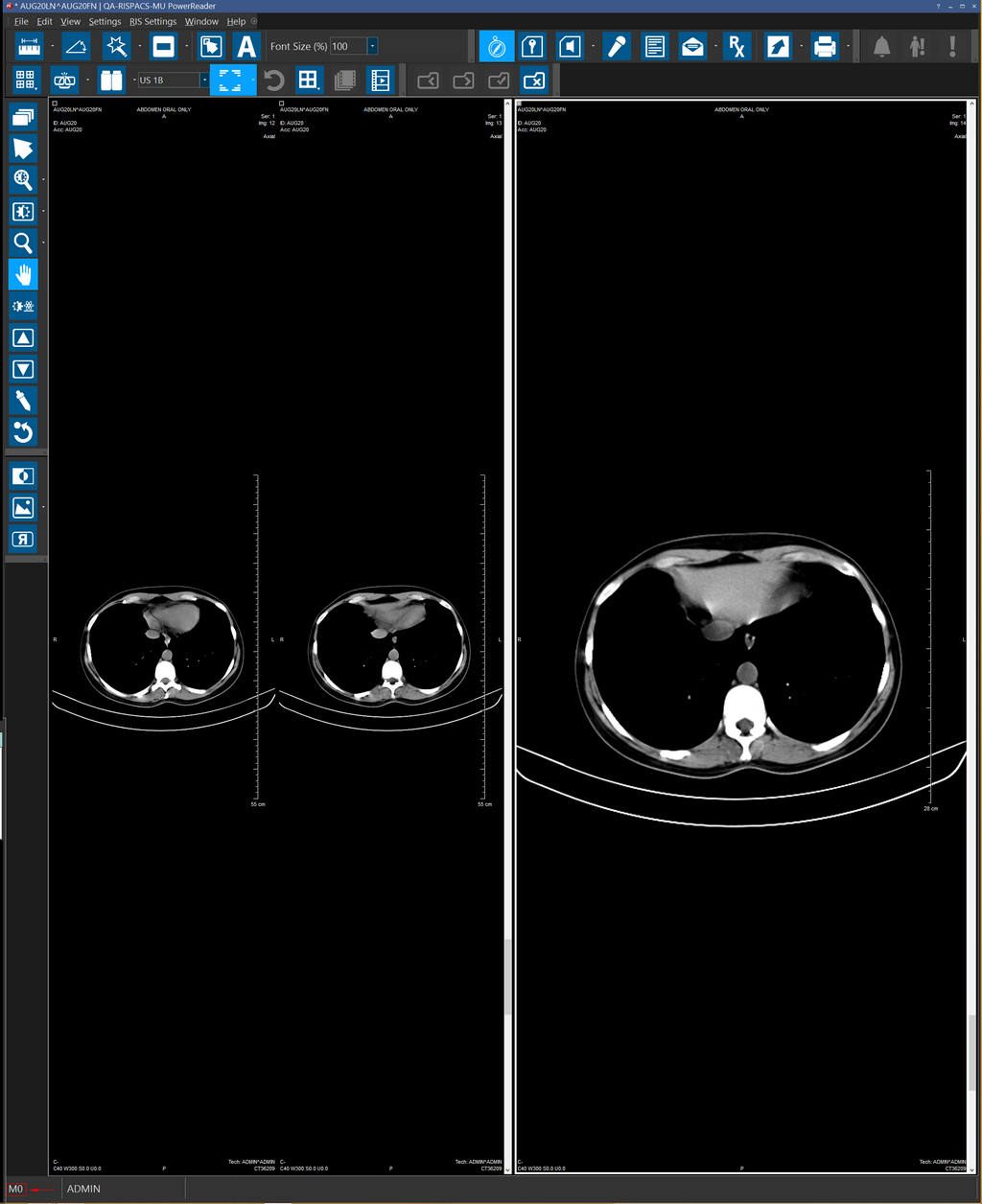
When using Grayscale Monitors
Typically, you can see that by default a study opens in the Grayscale Monitor (M1 Monitor Profile) and if you want the image to be available on the color monitor, you can use the Shortcut key click (Ctrl + M) to switch the Monitor profile to M0 which displays the study on the color monitor, provided M0 is configured to display on the color monitor.
To ensure this behavior, on the M0 Profile drag the Image Viewer on to the Color monitor and click Window > Save Desktop Position to save the current monitor layout.