Viewing Images in Remote Rendering Mode
Overview
PowerReader enhances the image viewing experience by rendering images in local and remote rendering modes based on your configuration setup. Remote rendering significantly improves efficiency, reduces the response time from click to display, and ensures that physicians are able to provide quality care for their patients regardless of location.
Moreover, Remote Rendering:
- Dramatically reduces bandwidth utilization
- Reduces costs and hardware requirements as processing is handled by the server
- Eliminates the need to create and manage pre-caching rules
- Operates with zero-footprint architecture, so you can access data on any browser-capable device (e.g. via RapidResults™)
- Efficiently renders large data-sets, whether compressed in a lossless or lossy format
- Secures image transmission
In remote rendering mode, images are not stored in the local Cache or PowerCache. Images are rendered directly from the server without having to wait for the study image to be loaded on the PowerReader client. This is especially useful when viewing images that are larger in size, such as Breast Tomosynthesis and enhanced CT/MR images.
The remote rendering mode is enabled by default and is controlled by the System Configuration entry "Allow Remote Rendering". Once all the images are loaded in remote rendering mode, PowerReader would continue to cache images while the study is open. Once a cached image is available, the cached image (local rendering) is used if the image must be rendered again. If the cache is not available, remote rendering would be utilized.
Viewing Images in Remote Rendering Mode
When viewing images on the view ports in the remote rendering mode, you would notice that the scroll bar is transparent and the portion of the scroll bar in blue indicates the set of images already viewed in the frameset.
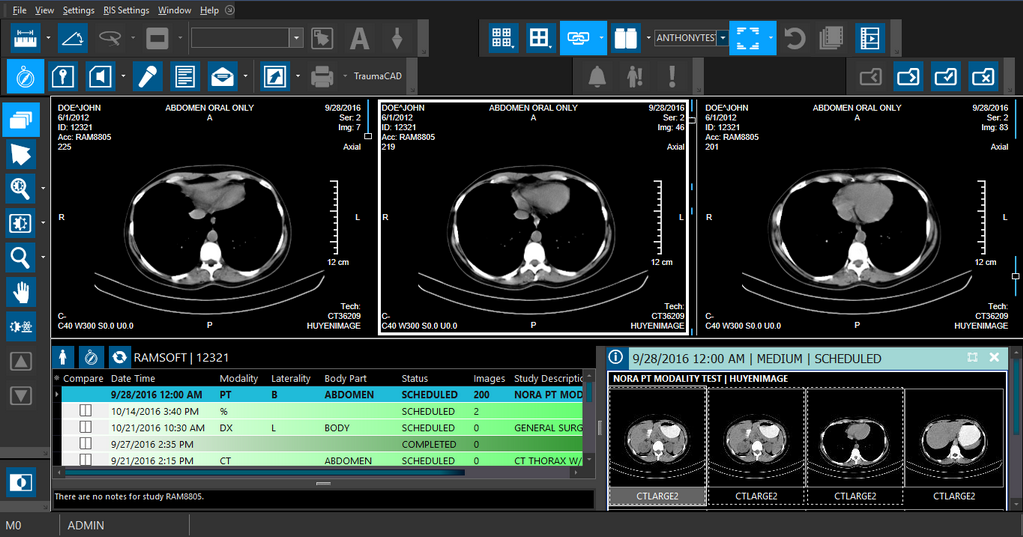
When in remote rendering mode, you have limited access to tools on the image viewer toolbar. The tools highlighted in red in the following screenshot are not available when images are loaded in remote rendering mode.
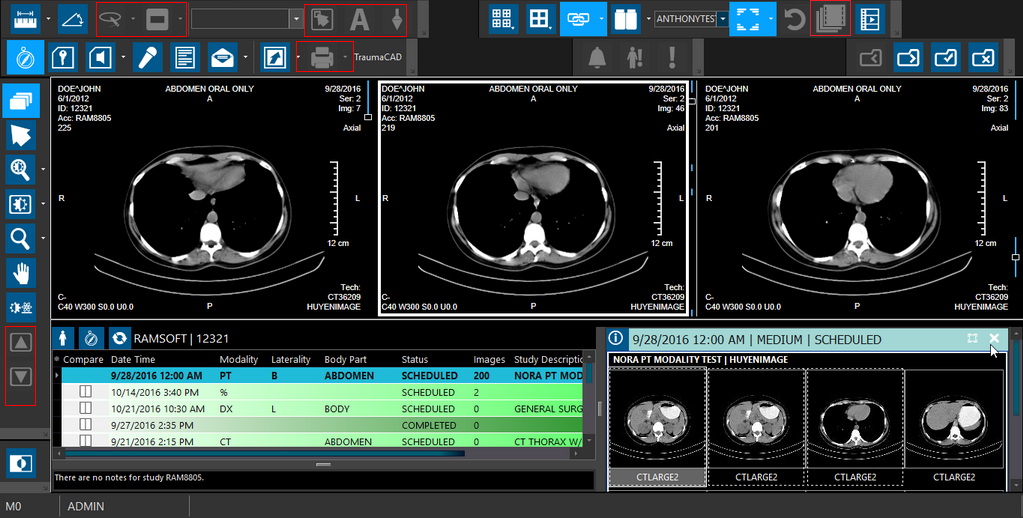
All other image manipulation tools are available in remote rendering mode.
Loading Images in Remote Rendering Mode
The REMOTERENDERINGSOPCLASS table has a list of SOPCLASSUIDs that specify the images which are to be loaded in the remote rendering mode by default.
The following table lists the modalities (that are mapped to specific SOPCLASSUIDs) for which the images would get loaded by default in remote rendering mode:
| Modality |
|---|
| RETIRED Hardcopy Grayscale Image Storage |
| RETIRED Hardcopy Color Image Storage |
| Digital Xray Pres Image Storage |
| X-ray Angiographic Image Storage |
| EnhancedXAImageStorage |
| X-ray Fluroscopy Image Storage |
| EnhancedXRFImageStorage |
| Breast Tomosynthesis Image Storage EnhancedPETImageStorage |
| EnhancedCTImageStorage |
| RETIRED Ultrasound Multi-Frame Image Storage |
| Ultrasound Multi-frame Image Storage |
| EnhancedMRImageStorage |
| Ultrasound Image Storage |
| Secondary Capture Image Storage |
| Multi Frame Grayscale Byte Secondary Capture Image Storage |
| Multi Frame Grayscale Word Secondary Capture Image Storage |
| Multi Frame True Color Secondary Capture Image Storage |