How Do I DICOM Push Series or Images?
Instead of transferring an entire study to another station, users have an option to transfer certain series or images inside the study. The user must have the Send Studies privilege in order to transfer. The patient of the study being transferred does not necessarily have to exist in the receiving station's database.
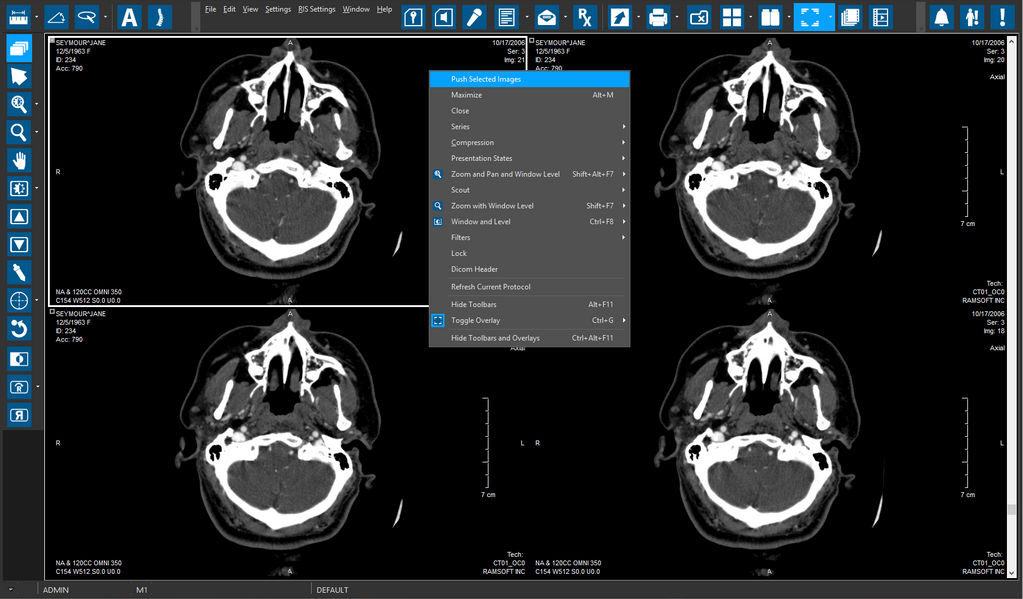
In order to transfer certain images from the Image Display Area, first use the Select Tool to select the images. Then right-click on one of the selected images and click Push Selected Images in the menu. If this option is not available in the menu:
-
Right-click anywhere in the viewport, and then select Customize Menu.
-
Under the Commands tab in the Customize menu, select Toolbar Popup Menu Item > Push Selected Images.
As soon as the Toolbar Popup Menu Item option is selected, the RamSoft Popup Menu Editor appears, as shown.
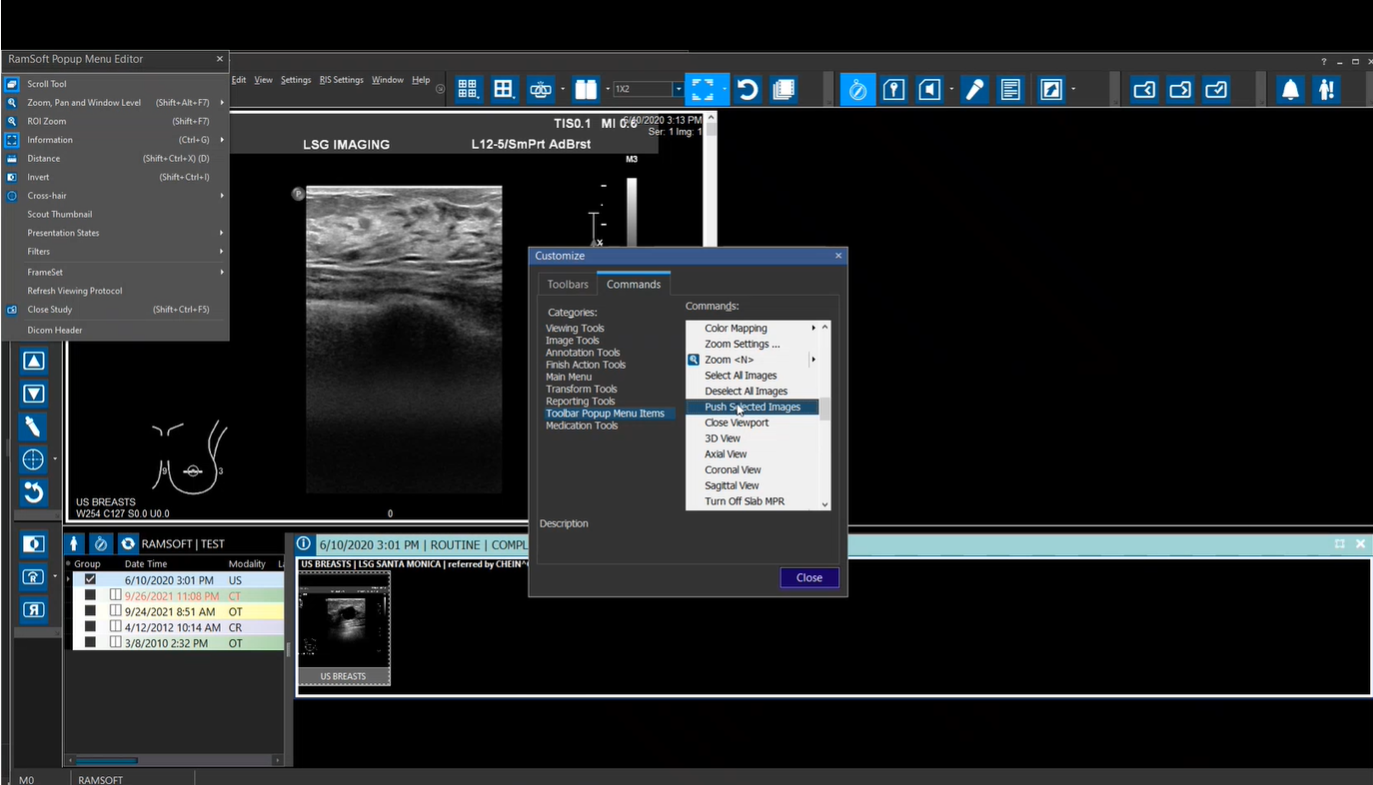
- Drag and drop the Push Selected Images in the RamSoft Popup Menu Editor, and then click Close in the Customize dialog.
The Push Selected Images options is added to the menu, as shown.
For transferring image series to another station, select the series in the Patient Explorer, right-click, and then click Push Frameset, as shown.

To transfer them to another station. In order to transfer multiple series at the same time, use the Ctrl key and select the desired series with a mouse.
