How Do I Distribute Reports?
PowerReader allows users to send reports through fax or email to any recipient. The user can also choose to send the report to a particular Referring Physician, a Facility or to a specific Room inside a Facility. Users can email reports that are in either text, Microsoft Word, or PDF format and can only fax reports in Microsoft Word or PDF formats.
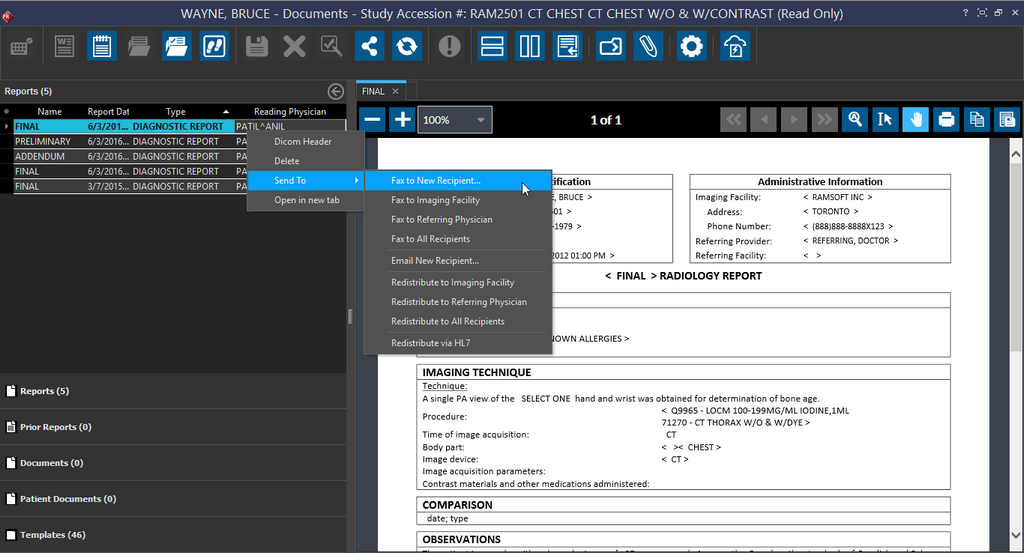
The user can right-click on the report in the Document Viewer and select the Send To sub-menu, where they can choose from the following options:
- Fax to New Recipient...
- Fax to Imaging Facility
- Fax to Referring Physician
- Fax to All Recipients
- Email New Recipient...
- Redistribute to Imaging Facility
- Redistribute to Referring Physician
- Redistribute to All Recipients
- Redistribute via HL7
To send the reports, the user must have Send Fax and Send Email action privileges. Users without the Send Fax privilege will not have the Fax New Recipient option; similarly, users without the Send Email privilege will not have the Email New Recipient option. Additionally, only users with the Send via HL7 privilege are able to see the Redistribute via HL7 option.
For Diagnostic reports, the Send To option has the following distribution options to:
- Fax to New Recipient, Imaging Facility, Referring Physician or all existing Recipients
- Email New Recipient
- Redistribute to an Imaging Facility, All Recipients and via HL7
Prior reports, Documents and Patient Documents can be distributed by Fax (to New Recipients, Imaging Facility, Referring Physician and existing Recipients) and via HL7 only.
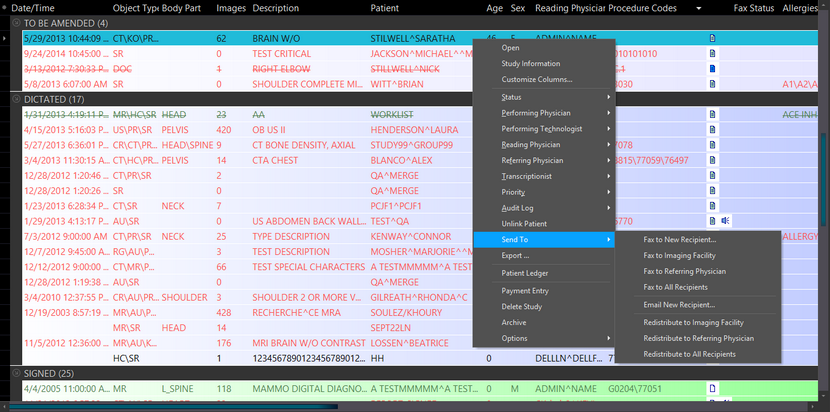
This menu is also available in the Worklist by right-clicking the study and selecting the Send To option.
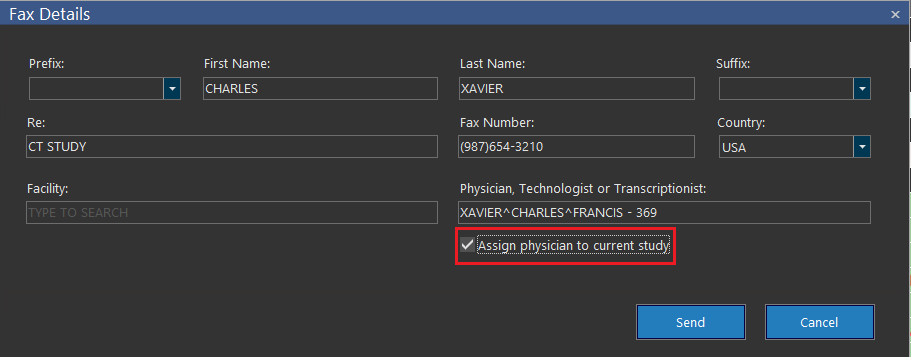
Sending a report via Fax to New Recipient option
When Fax to New Recipient is selected, a Fax Details form will appear prompting the user to fill out the receipient's information before faxing out the report. A Country field is available which is filled with the default country chosen in the setup. Choosing a specific country will apply the fax number mask (country code, etc.) to the fax number. If the Country field is left unchanged, the mask associated with the default country will be applied.

Sending a report via Email New Recipient
If the Email New Recipient is selected from the Send To right click menu, an Email Details window will appear prompting the user to fill out the fields before emailing the reports.

Meta-search
In the Fax Details or Email Details form, the user is able to meta-search for the recipient using the Physician, Technologist, or Transcriptionist field. This includes referring physicians, the study's assigned technologist, and the study's assigned transcriptionist.
The list of facilities in the Facility field will be limited to the facilities the physician belongs to. If the user fills out the facility name in the Facility field first, the system will limit the name of physicians in the Physician, Technologist or Transcriptionist field to physicians belonging to the specified facility. If the physician does not have a fax number defined, the name will not be included in the list of available physicians. Likewise, if the physician does not have an email address defined, the name will not be included in the list of available physicians.
| Fax Details | Email Details |
|---|---|
 |  |
| On the Fax Details form, a user that is found in the database will be displayed with their full name, their NPI / ID, and their fax number. | On the Email Details form, a user that is found in the database will be displayed with their full name, their NPI / ID, and their email address. |
Assigning a physician to the study
The Assign physician to current study option is available to assign the physician as a consulting physician. The checkbox should be enabled if the physician entered in the Physician, Technologist or Transcriptionist field is a Referring Physician.
If the option has been disabled for any specific reason, it will be stated below the Physician, Technologist or Transcriptionist field in blue.
| Already Assigned | Technologist/Transcriptionist |
|---|---|
 |  |
| This message displays when the referring physician is already assigned as a consulting physician to the study. | This message displays when the assigned technologist or transcriptionist is selected. |
Distribute and Redistribute options
The user has the choice to send the report with Distribute to All Recipients or with the Finish Reviewing Study button (check mark).
The Redistribute to All Recipients option will automatically send out the report to all recipients that are assigned in the Study Info. The Finish Reviewing the Study icon  is set up in the Workflow. After a report is created and the user clicks on the Finish Reviewing Study button, the report will be sent out to the study's consulting physicians.
The Redistribute to Imaging Facilities option will automatically send out the report to the imaging facility the study has been assigned to.
The Redistribute to Referring Physician option will automatically send out the report to the study's assigned referring physician.
Setting Email and Fax Information for Users and Facilities
A referring physician's email and fax information can be entered by going to Users and Facilities > Referrers, then selecting the physician on the left. A Reporting Details section is available to configure the report sending settings.
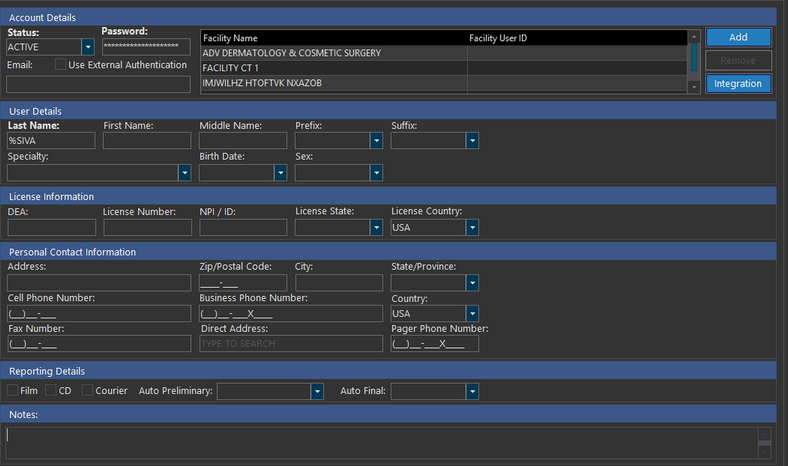
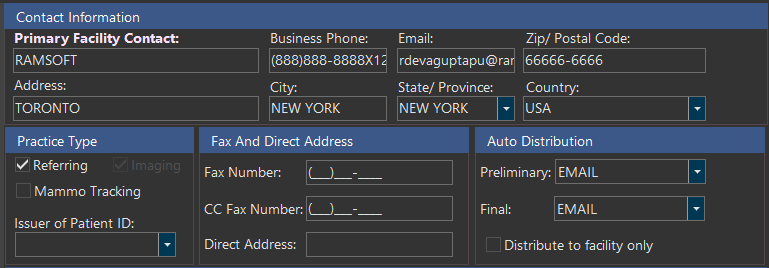
To set the contact information for an imaging facility, go to Users and Facilities > Imaging Facilities, and select the desired facility. Here, the facility's Email and Fax Number can be entered. A Distribution section contains settings for Auto Fax, Auto Email, and Auto Export and Direct message. These are activated when one of the distribution options is selected.
Note: Studies that are imported with a status value equal to the system configuration entry "Auto detect prior study status" will not be subject to automatic distribution.
To send faxes to a specific room inside a facility, click on the Locations button to view and edit the fax number of the rooms in that facility.

For referring facilities, the Referring Facilities tab under Users and Facilities contains a different option: Do not distribute to Physician option. When this is checked, the physicians in that facility will NOT receive any report after it has been distributed.

Rules of report distribution
Certain rules are applied for the distribution of the report when the Send To option is chosen by the user:
-
If the report being sent is from a study which belongs to a particular group of studies, then choosing the Send Email or Send Fax option will send report from the Primary Study and not the study selected by the user.
-
If the report being sent does not belong to any particular group of studies, choosing the Send Email or Send Fax option will send all reports in a series of the study.
-
If any Signed Final reports are attached with the study, they will be sent along with the chosen report.
-
If any Unsigned Addendum are attached with the report, they will be sent with the study instead of the Final report as the addendum contains the latest changes to the Final report. Since the Addendum is unsigned, a popup message is displayed to the user.
The user must click Yes to distribute this unsigned addendum. Clicking No will distribute the Final report instead. No report will be distributed if Cancel is chosen.
-
If any Signed Addendum are attached with the study, they will be sent with the study instead of the Final report as the Addendum contains the latest changes to the Final report. In this case, no popup message is displayed to the user.
-
If no Signed Addendum or Signed Final reports exist, then the Signed Preliminary report (Diagnostic preliminary) will be sent with the chosen report. These diagnostic preliminary reports have a lower priority than the regular diagnostic reports and are only sent when Diagnostic Reports are not available.
-
If only the unsigned addendum of a Diagnostic Preliminary Report exists, then that unsigned addendum will be sent. Since the Addendum is unsigned, a popup message is displayed to the user.
-
If a "Signed Addendum" of a Diagnostic Preliminary Report exists, then that Signed Addendum will be sent. In this case, no popup message is displayed to the user.
If user has grouped studies of the same patient, then selecting the faxing option will distribute the report only once, instead of based on the number of studies that were grouped.