Checking Eligibility for Insurance Coverage
Once PracticeSuite is integrated with PowerReader, a patient's insurance coverage can be checked from PowerReader. Eligibility for a patient's insurance coverage can be checked at the Patient level, Study level or while creating a new Order.
| If checking eligibility | Then, perform the following |
|---|---|
| for a patient | 1. Login to PowerReader. 2. Search for the relevant Patient by using the Patient Search feature. 3. For the specific patient, click the Patient Info button on the menu toolbar. The Patient Info form appears with the Demographics tab selected by default. 4. On the Demographics tab, click the Eligibility button to open the Eligibility Check screen in PracticeSuite. |
| for a Study | 1. Login to PowerReader. 2. Search for the relevant Study by using the Search feature. 3. For the specific Study, click the Study Info button on the menu toolbar. The Study Info form appears. 4. On the Insurance Coverage section, click the Eligibility button to open the Eligibility Check screen in PracticeSuite. |
| When creating a new Order | 1. Login to PowerReader. 2. Click Create a New Order icon  found in the toolbar. New Order screen appears. found in the toolbar. New Order screen appears.3. Enter the Patient name and click the Eligibility button to open the Eligibility check screen in PracticeSuite. |
Upon clicking the Eligibility button, the following Eligibility Check is displayed in PracticeSuite.
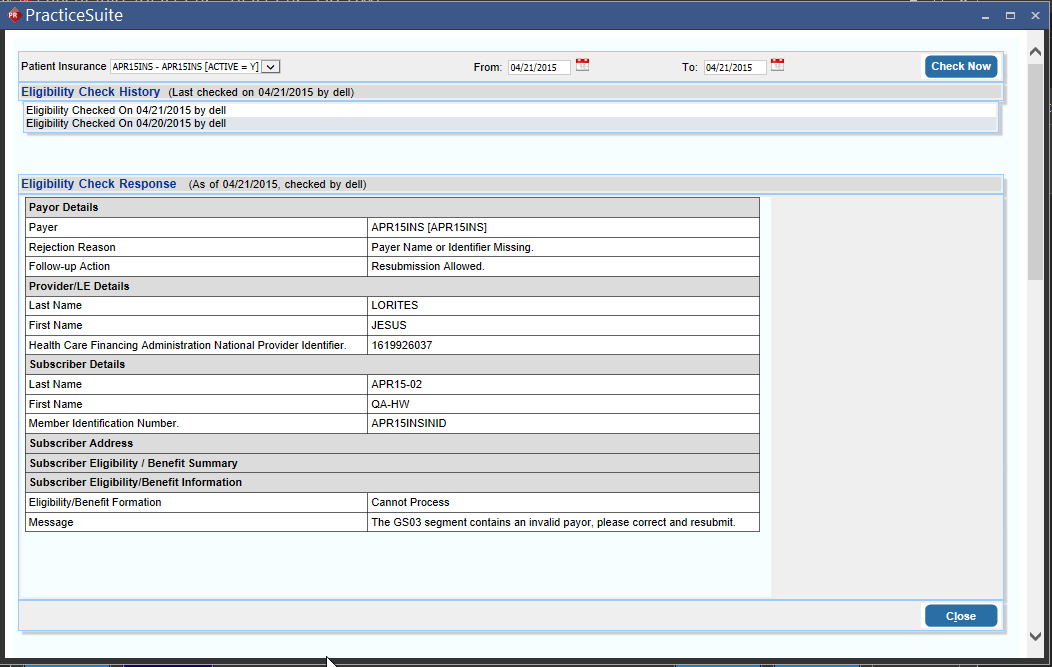
Click the Check Now button to view the Eligibility Check response.