Setting up PracticeSuite from PowerReader
Before logging in to PracticeSuite, PracticeSuite integration needs to be set up in PowerReader.
To set up PracticeSuite in PowerReader, perform the following steps:
- Login to PowerReader.
- Go to Settings > System Configuration. The System Configuration window appears.
- On the System Configuration folders menu, under the Integrations menu, click the PracticeSuite folder. Alternatively, search for PracticeSuite in the Search configuration items text box.
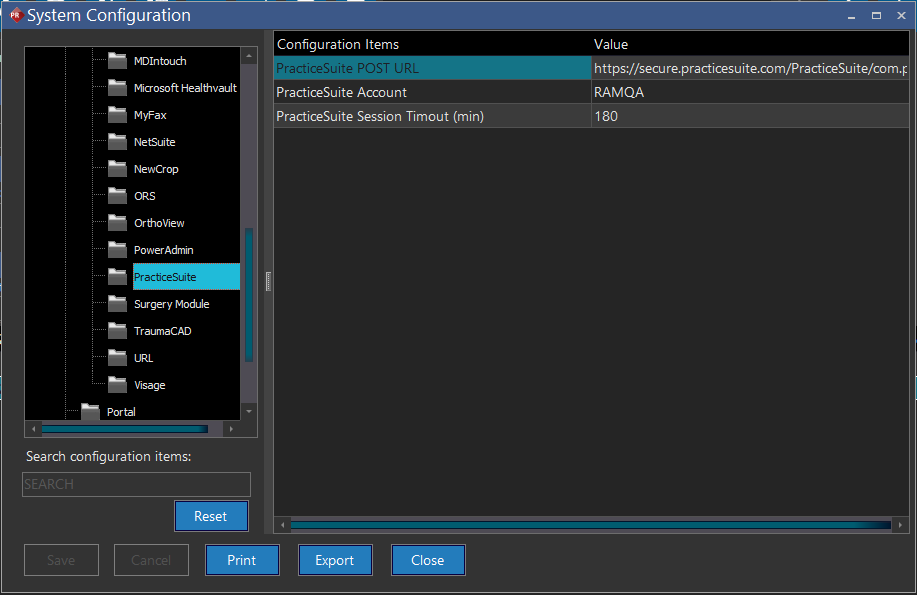
- Ensure the following Configuration items are set up:
- PracticeSuite POST URL - This appears by default.
- PracticeSuite Account - This is the PracticeSuite account; request the account from PracticeSuite.
- PracticeSuite Timeout (min) - This appears by default.
Note: The Access PM privilege is required to access PracticeSuite. The Send Via HL7 access privilege needs to be enabled to send Mirth Messages.