How Do I Manage Conflicts?
Often when creating a new patient, the information entered is identical to a previously registered patient within the system, which may result in a conflict. In such a case, the user entering the data is notified that the patient already exists. However, it is often a study is received from another station where the new patient has the same Last Name, Patient ID, and Issuer of Patient ID as that of an existing patient in the system. In certain situations, a new patient arrives with a Social Security Number/Health Card Number identical to that of another patient in the system. In these situations, PowerServer determines whether a conflict has occurred and creates a list of conflicting patients.
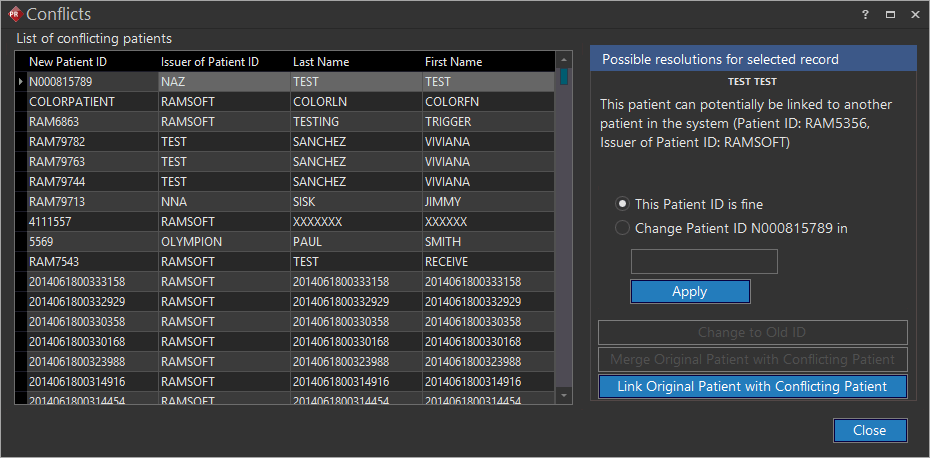
Click Settings > Conflicts. Conflicts screen appears as shown below.
Rules of conflict resolution
The process of resolving conflicts can be configured with the Automatic Processing Rule setting by administrators in Maintenance. Refer the Maintenance manual for instructions on how to configure patient conflicts.
Merge or Link
If the Automatic Processing Rule has been set to Merge/Link, the following rules will resolve the conflict when an identical study is received from another system:
a) If a new patient created for a new study is identical to an existing patient in the system, the two patients will be merged.
b) If a patient of a newly received study from another station is identical to a patient previously registered in the system, the two patients are linked together in the Linked Patients tab of the Patient Info form. For further information about linking two patients. please refer to the How Do I Link Patients? section.
c) The system will automatically link two patients which have the same credentials but different Patient ID and Issuer of Patient ID (also see point j below).
d) The system will automatically merge patients which have the same credentials but different Patient ID (also see point k below).
e) If a patient is received from another system where the Last Name, First Name, Date of Birth, Sex, Social Security Number (SSN), Middle Name, or Suffix is blank, a conflict is NOT created. However, if any of these fields differ from that of an existing patient, a conflict is created (also see point i below).
Mark Conflict
If the Automatic Processing Rule has been set to Mark Conflict, users will be required to manually resolve the conflict. In this case, the following rules will be applied:
f) If two patients have the same Issuer of Patient ID, same Patient ID, same Last Name, same First Name, Sex, Birth Date, and Social Security Number (SSN), they are considered conflicts. In this case a message is displayed stating that "Another patient with the same attributes detected. Do you want to merge them?". The user can opt to merge or to cancel the change.
g) If two patients have the same Issuer of Patient ID, same Patient ID, same Last Name, same First Name, Sex, Birth Date but different Social Security Number (SSN), they are considered conflicts. In this case a "Do you wish to merge?" message is displayed and the user is required to select one of the patients.
h) A conflict is created when a patient with the same Social Security Number (SSN) or Health Card (HC) number is created or received from another system. A specific system configuration entry "Use SSN Field for Patient Conflict Matching" should be toggled on. When this option is set to true, the system will verify that none of the existing patients have the same SSN or HC number.
i) If a new patient is created in the system where everything is identical to an existing patient except the Issuer of Patient ID, the system will notice this as an exception and launch a dialog to deal with that exception. In this dialog, the user has the option to merge the two patients, save and link the two patients together, or to save the current patient as a separate entity. This dialog is explained in detail below.
j) Patients with all the same credentials but different Patient ID and Issuer of Patient ID will be considered as a conflict. In this case, the system will place the second study in the Conflict resolution table.
k) Patients with all the same credentials but different Patient ID will be considered as a conflict. In this case, the system will place the second study in the Conflict resolution table.
l) If two patients (one existing patient and another patient received from another system) have the same Issuer of Patient ID and same Patient ID, a conflict is created. If the study received from the other system has a patient where any of these two fields are blank, a conflict is created.
The latter of the two conflicting studies to arrive is placed into the Conflicts table. The system also generates a new Patient ID for the study, in order to store it in the RamSoft software database. A study which has been added to the Conflicts table will appear in the Worklist in strikeout font.
Visibility of the Conflicts table
You can see the conflicts in the conflicts table according to the groups they are members of.
-
System Wide administrators can see all the conflict studies in the system.
-
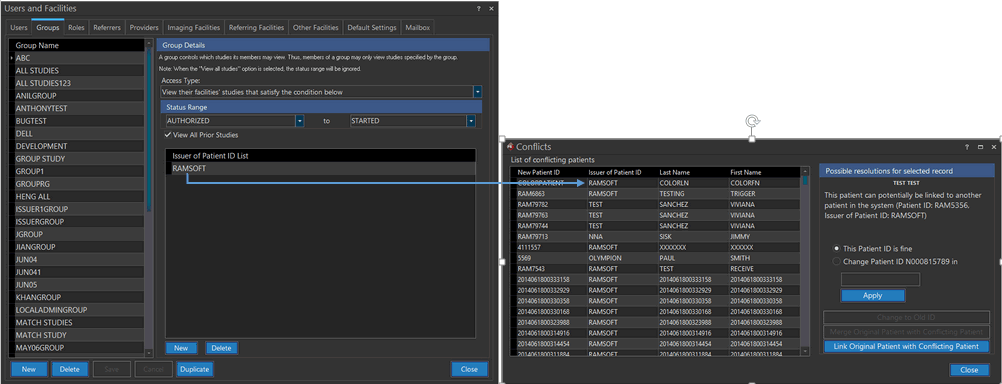
If the Issuer of Patient ID of a conflict study has been defined in the "Issuer of Patient ID List" of a Group, then members of that group will be able to see that conflict study.
- If the conflict study belongs to an imaging facility which the logged in user is a member of, the user will be able to see the conflict. If the user is not a member of that imaging facility, he will not be able to see the conflict study.

Resolving Conflicts
Once two conflicting studies have been found, the conflict must be manually resolved. This is done by using the Conflicts form.
The Conflicts screen displays a list of all conflicting studies found in the system. The New Patient ID column shows the Patient ID number that has been temporarily assigned by the system. The original Patient ID and the Issuer of Patient ID can be seen on the right side. In the case of the study highlighted in the picture above, the Patient ID was RAM500 and the Issuer was RAMSOFT when the study hit the system, however there was a conflict, so the study was assigned the system generated ID of RAM6863. The Issuer of Patient ID, Last Name & First Name columns are simply present as a reference to help you identify the patient you are currently resolving. Need to check/rephrase the content as per the new screenshot.
In order to resolve a conflict, highlight the study you will like to fix. If the two conflict studies are not related and the system generated PatientID is fine, choose the This Patient ID is fine option and click the Apply button.
If you do not wish the patient to be with system generated ID instead to go with the Patient ID into something else, choose the Change PatientID ... into option and type in the new ID into the box. Clicking Apply will launch the Merge Confirm dialog since the details for the study you are trying to add and the patient already in the system are different.

Here, the two patients are displayed side by side. When studies stored under two patients are being merged into one, only one set of details can be kept. If you choose 7543 as the new patient ID, the dialogue will display both of them at the same time. If you will like to keep the details from Patient A press the Keep Patient A button. To keep Patient B press Keep Patient B.
To avoid the merging click No or Cancel.
You can also choose to Change to Old ID which will allow you to merge the two patients and keep the old Patient ID.
If you believe that the two patients (the conflict one and the original one in the system) are one and the same, you can merge them into one by choosing the Merge Original Patient with Conflicting Patient option.
A Merge Confirm dialog will pop up.
Here, the two patients are displayed side by side. When studies stored under two patients are being merged into one, only one set of details can be kept. If you choose to keep patient A, press the Keep patient A button in the dialogue. To keep Patient B press Keep Patient B.
To avoid the merging click No or Cancel.
Resolving Conflicts Without Merge Patient Privilege
There can be instances when a user with No Merge Patient privilege tries to create a patient where the patient last name and first name are unique but the Issuer of Patient ID and Patient ID match with an existing patient record. This can be due to an human error and can result in a conflict.
When this patient record is about to be saved, the following conflict message is displayed informing the user that the patients cannot be merged.

To resolve the conflict, the user can save the current patient or choose to cancel creating the current user till the conflict is sorted out.
Managing identical patients with different issuers of Patient ID
There are instances where two patients might be identical to each other except for the Issuer of Patient ID which might be different. This can occur if a newly created study is very closely related to an existing study which was created by a different issuer.
-
The Merge Patients option will only appear if the currently logged in user has the privilege to merge patients and he can view both the Issuers of Patient ID i.e. user has System Wide Admin Privileges or the Issuer of ID list in the User's Group form is empty/ contains both Issuers of Patient ID. (For further information, please refer to the section Groups Overview). If the user chooses the Merge Patients option, the Merge Confirm dialog will pop up. The user can then choose to keep one of the two patients.
-
The Save and Link Patient Option will save both the patients and link them together in the Linked Patients tab of the patient Info form. For further information, please refer to the How Do I Link Patients? section of the manual.
-
The Save Current Patient will save the newly created patient as well as the existing patient in the system. Both patients will exist in the system as separate entities.
-
Pressing the Cancel button will cancel the dialog and open the original Patient Registration form.
Linking similar patients
If you believe that the two patients (the conflict one and the original one in the system) are closely related and should be viewed together, you can link them together by clicking the Link Original Patient with Conflicting Patient option. This will launch the following dialog.

Clicking Yes will link the two patients together. The two patients will be easily visible when viewing each other's studies.
Once linked, the Conflict Patient (the latter patient) will be visible in the original patient's Linked Patient tab in the Patient Registration form. For further information, please refer to How Do I Link Patients? section of the manual.
