How Do I Move a Series of Images From One Study into Another?
Sometimes a series of images has been associated with the wrong study. This can occur as a result of human error, or as a result of improper DICOM information in the files received by the RamSoft software. Incorrect DICOM information can cause the system to place a series into the wrong study. This situation can be remedied by manually moving the series of images between the two studies.
If the series that needs to be moved contains a limited number of images, the procedure in the section How Do I Move An Image From One Series into Another? should be sufficient. However, if the series contains a large number of images, access to the Image folder located on the server is needed. This means that this operation can only be performed by very few users at the site.
Note: If you are not familiar with the Image folder or do not have such access, please contact your System Administrator
Otherwise, the following procedure should be used:
-
Open the study containing the series that needs to be moved to a new location.
-
Right click on any of the images and choose DICOM Header.
-
This opens the DICOM Header dialog.
-
Locate the Relative Path information at the top of the dialog.
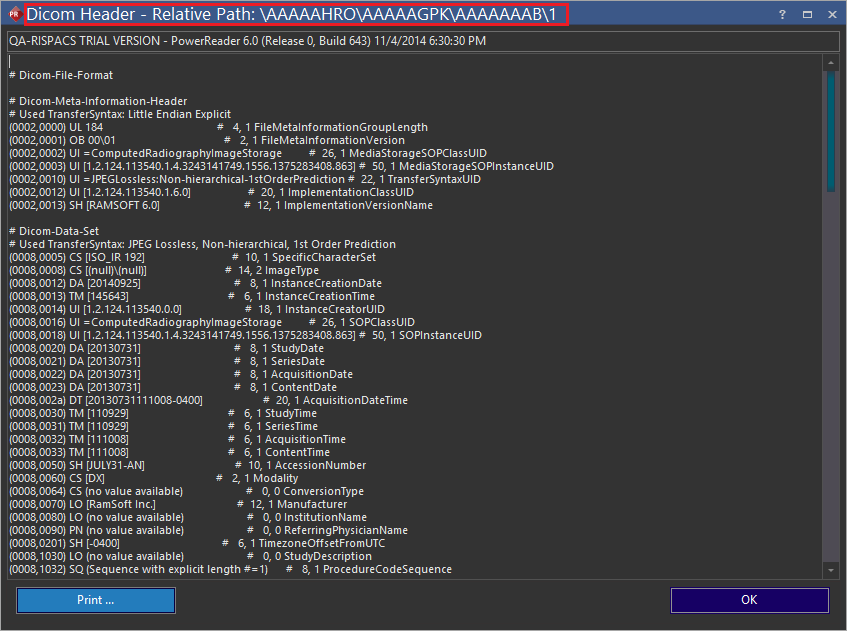
-
Note down the name of the three top level (leftmost) folders in the Relative Path. (In the above picture that is \AAAACEND\AAABNUMN\AAAAAAEG\1)
-
Close the study.
-
In the Study Search list, locate the study into which this new series should be placed.
-
Open the study.
-
In the Patient Explorer, right click on an existing series and select Series Info from the menu.
-
Click New to create a new series and enter the Series Description. Click Save to save the new series and Close to close the Series Info window.
-
Click on the new series in Patient Explorer.
-
Select Import from the main menu.
-
In the Import Image dialog, navigate to the Image folder.
-
Within the Image folder, navigate to the folder that was noted down in step 5.
-
Highlight all the files and click Open.
-
When the Import is complete, a dialog showing the number of files imported or skipped is displayed.
-
Verify that all the images are now present in the new study.
-
Close the study.
-
On the Search List, click the Studies tab.
-
Search for and open the study that the series of images was erroneously inserted into.
-
Delete the series.