Measure Distance

The measure distance tool on from the Annotation Tools toolbar is used by clicking and dragging a line from one point to another. The resulting line remains on the image along with the measurement of the length of the line.
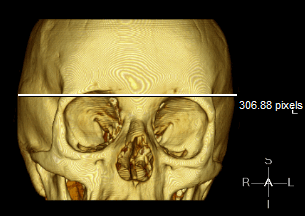
The measuring units are based on the calibration information that is stored with the image. If the image does not contain such information, the calibrate option needs to be used to setup the scale. Once it is calibrated, the Calibration ruler will be visible on the right hand side of the image.
Calibration:

To calibrate the image, choose the Calibration option from the Measure pull-down menu. This will place a ruler next to the mouse cursor. Next, drag out a specific distance on the image. This should be a known length such as the distance between two markers in a US image.

When you release the mouse button, this will open the Image Calibration dialog.
Enter the length of the drawn line and press OK. The scale ruler will now be based on this length. All measurements displayed on the image will use this scale. The system will only allow numerical values to be entered in the Image Calibration dialog. The user cannot enter characters or negative numbers into the dialog.